
Kado 2-Pack Dual 22" FHD
4.6Editor score
Dual 22-inch screens
75Hz refresh rate
99% sRGB gamut
Integrated stereo audio
Dual monitors for office work can transform a crowded desktop into a focused productivity center, allowing documents, messages, research, and video calls to remain visible without constant window switching. The best setup balances screen size, resolution, viewing comfort, reliable connections, and features that support regular professional tasks.
We compared all ten products in this guide by their supplied specifications, including display size, resolution, refresh rate, color coverage, built-in speakers, mounting support, and port selection. The list covers two-screen bundles for different needs, including compact workspaces, larger productivity desks, color-aware users, and flexible home offices.
Each review explains the product's strongest office-oriented qualities, practical limitations, and the type of worker it suits best. The three highlighted selections represent different priorities within the roundup, while current prices and availability can change, so readers should confirm the latest listing details before purchasing.
4.6Editor score

4.7Editor score

5.0Editor score
As an Amazon Associate we earn from qualifying purchases.
The comparison below places every two-screen option side by side, highlighting display size, resolution, refresh rate, and standout productivity features so buyers can quickly identify the most suitable configuration.




This Kado 27-inch dual-monitor package pairs two flat 1920×1080 displays with a 75Hz refresh rate and earns a 4.7 rating. It stands out as a flexible productivity option because it combines substantial screen area with the full 100% sRGB color gamut, fast response characteristics, and speakers in each display. That combination makes it particularly appealing for office workers who regularly move between documents, web research, spreadsheets, communication tools, and media.
We may earn a commission when you buy through this link, at no additional cost to you.
The larger panels create room for side-by-side work without requiring an ultrawide monitor. One screen can remain dedicated to a writing or analysis task while the other displays references, email, and project-management information. The 100% sRGB coverage is also more useful than it may initially appear: spreadsheets, shared presentations, web graphics, and color-coded project boards should look more consistent, while the fast response time helps keep text and motion clear. Built-in speakers reduce desktop clutter and provide a convenient option for short videos, meeting audio, or system sounds.
There are important trade-offs. The resolution remains Full HD, so two 27-inch panels do not provide the pixel density of a higher-resolution desktop or a 4K pair. Text may appear less finely detailed when applications are scaled aggressively, although larger physical dimensions can make this combination easier to view overall. The supplied specifications do not identify a monitor arm or ergonomic height adjustment, so desk placement may require separate accessories and careful alignment. The gaming modes are useful for occasional downtime but are not the main reason to choose this bundle.
This is the strongest general recommendation for most dual-monitor office setups because it balances usable screen size, accurate color, smooth-enough motion, and integrated audio. It is especially suitable for administrative teams, analysts, programmers, remote workers, and students who want a large desktop with two dedicated work areas. Choose it over smaller packs when comfortable viewing distance and screen real estate matter more than maximum pixel density.
Two 27-inch flat panels provide enough room to divide complex workflows into separate zones. The advertised 100% sRGB gamut also makes the bundle more appropriate than basic office screens for users who regularly review color-rich materials.
Each monitor includes built-in speakers, which can handle system audio and routine media playback. Dedicated speakers may still be preferable for calls, music, or presentations, but they are no longer essential for basic convenience.
We may earn a commission when you buy through this link, at no additional cost to you.
The Kado 22-inch two-pack is a compact answer to the search for dual monitors for office work, particularly where desk depth is limited. It includes two flat 1920×1080 screens, a 75Hz refresh rate, a 99% sRGB gamut, and integrated speakers. Its 4.6 rating indicates strong customer reception, and the smaller dimensions can make it easier to place beside a laptop, in a home-office nook, or on a compact standing desk.
We may earn a commission when you buy through this link, at no additional cost to you.
Despite its smaller panels, each display retains Full HD resolution, which makes this configuration more practical for reading and document work than many similarly sized screen pairs. The narrow 22-inch format can also create a more contained field of view, reducing the need to turn your head between far-apart applications. A 99% sRGB gamut supports accurate-looking colors, while the built-in speakers handle basic audio without requiring another device on the desk.
The principal compromise is workspace capacity. Two 22-inch displays cannot hold as many windows or as much dense information as two 24-inch or 27-inch screens. If your work involves comparing wide spreadsheets, editing lengthy documents beside reference material, or maintaining several communication channels at once, a larger pair will generally be more comfortable. The listed information also does not mention height adjustment, pivot, swivel, or included mounting hardware, so ergonomic positioning may depend on the stands and desk arrangement.
The Kado 22-inch pair is a sensible choice for budget-conscious users who want a straightforward dual-display arrangement without giving up Full HD resolution or integrated speakers. It works especially well for email-heavy roles, writing, browsing, study, and routine administrative tasks. Users who routinely manipulate large spreadsheets or many complex applications should consider the 24-inch or 27-inch alternatives in this roundup.
The 22-inch format is easy to position and can reduce visual fatigue from excessive head movement. It is a good match for smaller desks and workers who prefer a tidy, contained productivity area.
Maintaining 1920×1080 resolution across both screens gives each panel enough detail for common office applications. It is a more sensible foundation for a compact two-screen system than a basic low-resolution display.
We may earn a commission when you buy through this link, at no additional cost to you.
This 24-inch, two-monitor pack stands apart with a 100Hz refresh rate, Full HD resolution, 100% sRGB color coverage, built-in speakers, and wall-mount support. Its 4.3 rating is not the highest in the roundup, but the supplied specification set is well matched to office users who want fluid scrolling and a professional-looking two-screen arrangement.
We may earn a commission when you buy through this link, at no additional cost to you.
At 24 inches, the panels offer a middle ground between compact productivity displays and large media screens. The 100Hz refresh rate gives text, browser scrolling, animated interfaces, and video playback a smoother appearance than the 75Hz alternatives in the list. The advertised 1ms blur-reduction mode can also reduce visible trailing during fast movement. For work, however, the 100% sRGB gamut is equally significant, making the screens more appropriate for graphic review and carefully prepared presentations.
Tilt adjustment and wall-mount compatibility improve setup flexibility. Users can optimize the angle of each display without investing in a large stand, and the mounting option can free desk space in compact offices. The listed HDMI connectivity and built-in speakers also reduce cable and peripheral requirements. One caveat is that the product title is more general than the Kado listings, and the supplied information does not describe swivel, pivot, height adjustment, or a specific included arm. Its 4.3 rating may also reflect mixed experiences that cannot be assessed further from the supplied data.
This two-pack is a good option for employees who spend the day switching among scrolling web applications, spreadsheets, documents, and video meetings, then use the same setup for casual gaming. It is less compelling for users who require USB-C connectivity or a verified multiport hub, but it delivers the most frequently desired office specifications in a conventional 24-inch format. Confirm the final port and stand details on the listing before ordering.
A 100Hz refresh rate makes frequently moving content easier on the eyes, particularly in web dashboards, spreadsheets, and communication tools. It also provides extra responsiveness during casual games.
Wall mounting and tilt adjustment make it easier to reclaim desk space and set consistent viewing angles. The arrangement can be adapted more readily than a fixed-stand setup.
We may earn a commission when you buy through this link, at no additional cost to you.
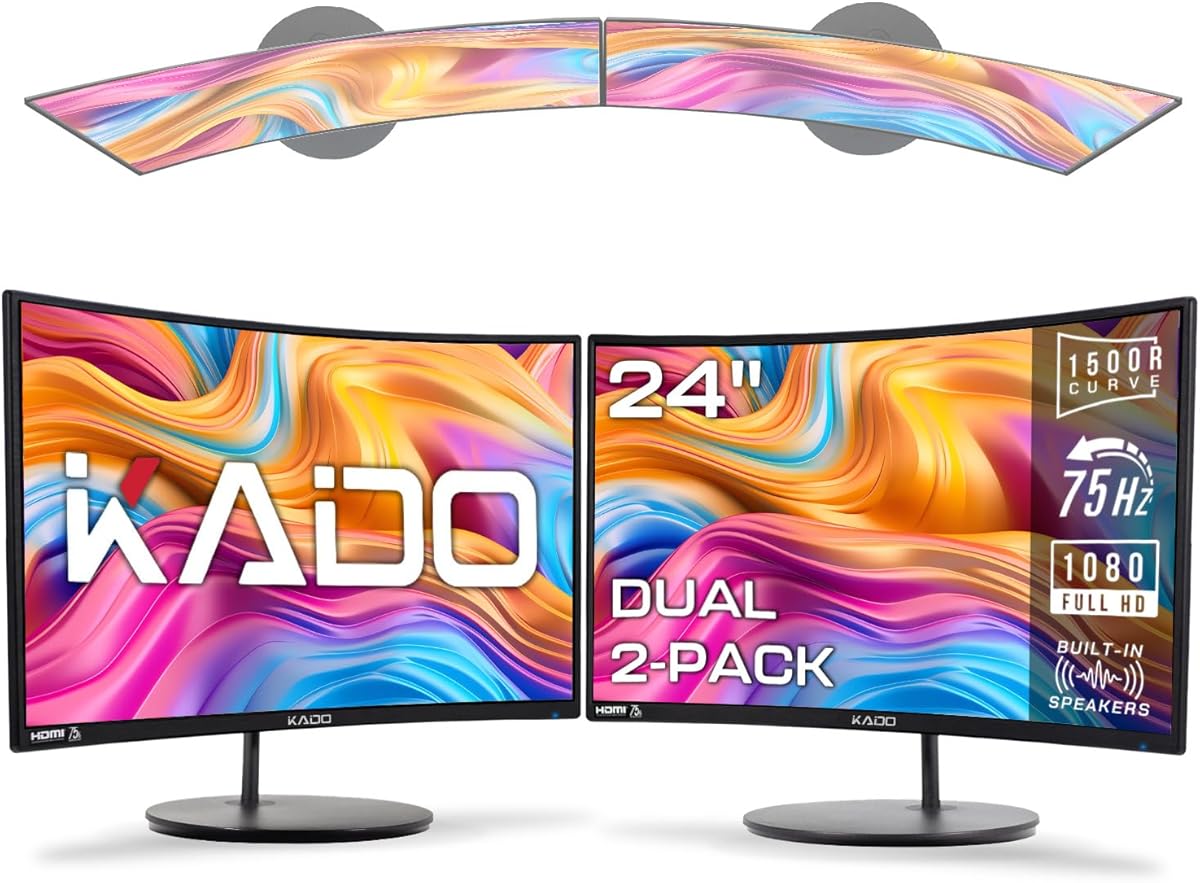
The Kado 24-inch curved pair combines a 1500R panel design with 1920×1080 resolution, a 75Hz refresh rate, and a 4.6 rating. Its curved construction is the defining feature, creating a more enveloping visual field that can feel natural for media viewing and provide a different experience from flat-screen office monitors.
We may earn a commission when you buy through this link, at no additional cost to you.
The manufacturer describes the curvature as an ergonomic feature that reduces peripheral distortion and may lessen eye strain or neck fatigue during long sessions. That is particularly relevant in a two-monitor arrangement because each screen is placed directly in front of a user rather than at a severe angle. The fast response time, gaming modes, and built-in speakers make the pair adaptable for work, study, entertainment, and light gaming.
Curvature does introduce compromises. Desk size and monitor placement matter more because a curved 24-inch panel is not as forgiving when moved far to the side of a large desk. Two curved screens also create a noticeable center seam, and users accustomed to flat panels may initially need time to adjust. Color coverage is listed at 98% sRGB, which is very good for general office work but trails the 99% and 100% options elsewhere in the guide.
This Kado package is best for users who want a more immersive, comfortable viewing shape without moving to a higher resolution. It may suit creative professionals reviewing visual content, students, and office workers who divide a large desk into two zones. It is less suitable for graphic designers who require the broadest listed sRGB coverage or for workers who need to position a second display sharply to one side.
The 1500R design is modest enough to preserve a practical office layout while reducing peripheral distortion. It can make sustained reading feel more natural when both screens are centered around the user.
Fast response behavior, gaming presets, and integrated speakers broaden the package beyond spreadsheets and documents. These extras are useful when the same workstation supports video, streaming, or casual games.
We may earn a commission when you buy through this link, at no additional cost to you.
The HP Series 3 Pro 24-inch monitor is a strong individual display for professional offices, with an IPS panel, 1920×1080 resolution, a 100Hz refresh rate, and a 4.6 rating. Although this listing contains one monitor rather than an explicit two-pack, its broad viewing angles and ergonomic features make it particularly relevant to buyers assembling a matched dual-screen workstation.
We may earn a commission when you buy through this link, at no additional cost to you.
IPS technology is the key attraction for collaborative and multi-window work. The stated 178-degree viewing angles help maintain image accuracy and color consistency even when looking at the screen from an angle, which can occur in a two-monitor arrangement. The anti-glare surface, flicker-free operation, low blue light feature, and 250-nit brightness are all relevant to long office sessions. A 100Hz refresh rate also makes scrolling and motion feel fluid.
Connectivity is versatile for a conventional office PC. The monitor includes HDMI, DisplayPort, and VGA, allowing it to work with modern laptops and desktops as well as legacy equipment. The stand supports a -5 to +23-degree tilt range along with swivel and pivot, and VESA mounting offers another installation route. HP Display Center adds software-based screen partitioning, dimming, and configuration. The listing also includes a Docztorm portable data hub, although no USB-C connector is listed.
This option is ideal for users who value a professional display with flexible positioning and wide viewing angles. It may be the right choice for a shared office, reception desk, or home workstation where a colleague occasionally views the secondary screen. Because the supplied listing is for a single monitor, buyers wanting a two-screen bundle should confirm whether two units or a paired package are required.
Wide horizontal and vertical viewing angles make a single IPS monitor particularly valuable in a two-screen setup. It reduces the chance that a side display will look washed out or washed in color.
Tilt, swivel, pivot, and VESA support make it easier to align the monitor at a comfortable height and angle. These options are valuable when the second display sits beside a primary screen.
We may earn a commission when you buy through this link, at no additional cost to you.
This Kado bundle offers two 27-inch flat screens with Full HD resolution, 75Hz refresh, 99% sRGB color coverage, and a 4.6 rating. It is one of the strongest options for creating a spacious dual-display office, offering more physical working area than the 22-inch and 24-inch packages without changing the familiar 16:9 format.
We may earn a commission when you buy through this link, at no additional cost to you.
The flat panels can be aligned in a conventional side-by-side configuration, which is useful for split-screen workflows. One monitor can show a document editor while the other displays research, messaging, or a spreadsheet. The 99% sRGB gamut supports accurate-looking visual work, and the fast response time supports clear text and motion. Integrated speakers make the setup convenient for video playback, online meetings, and presentations that do not require conference-room equipment.
As with other 27-inch Full HD pairs, the central limitation is pixel density. Two large panels can display a lot of information, but each screen renders fewer pixels than a 4K model of the same size. This may matter when fine text is viewed at a normal distance or when several dense applications are open. The 75Hz refresh rate is also lower than the 100Hz models, though it remains suitable for standard office applications. The supplied data does not specify an included arm or extensive stand adjustment.
The Kado 27-inch two-pack is best for users who value physical screen size, simplicity, and built-in audio. It suits general office work, creative browsing, media consumption, and light gaming. Buyers who spend hours editing small interface elements, reviewing high-resolution photography, or reading technical diagrams may prefer the sharper 4K option, while those with limited desk space may find the 22-inch or 24-inch models more comfortable.
Two 27-inch flat displays create a familiar and easy-to-configure workstation. They are well suited to keeping a main document visible while a second screen carries supporting applications.
Integrated speakers and quick response behavior make these screens more than basic document panels. They work well for mixed workloads that include video, communication, and occasional games.
We may earn a commission when you buy through this link, at no additional cost to you.
The Kado 24-inch two-pack provides a balanced set of office specifications: two 1920×1080 flat displays, a 75Hz refresh rate, full 100% sRGB coverage, fast response characteristics, and built-in speakers. Its 4.5 rating suggests a generally positive reception, while the 24-inch size is a practical middle ground for professionals who need more space than a compact setup but not the footprint of two 27-inch panels.
We may earn a commission when you buy through this link, at no additional cost to you.
Twenty-four-inch screens offer enough area for readable documents, spreadsheets, browser pages, and communication windows. The full sRGB gamut is especially relevant for users who prepare or compare visual materials, while fast response helps keep motion and text transitions clear. Custom gaming modes broaden the appeal of the package without compromising its suitability for everyday productivity.
The refresh rate of 75Hz is sufficient for conventional office work, including document editing and standard video calls, but the 100Hz alternatives in the guide may feel smoother during rapid scrolling or animated interfaces. The supplied specifications do not mention height adjustment, swivel, pivot, or an included monitor arm. Users who already have ergonomic stands may find the standard setup entirely adequate; others should consider the ergonomics of the whole package before buying.
This bundle is a strong choice for general office users who want a standard screen size and dependable color coverage. It fits administrative work, customer support, accounting, scheduling, research, and study. It is also easier to fit on a conventional desk than a pair of 27-inch displays. Choose it when accurate color, integrated speakers, and a practical 24-inch footprint matter more than a high refresh rate or 4K detail.
The 24-inch size offers a generous but manageable canvas for most offices. It is particularly helpful for workers who want two windows but do not have room for oversized 27-inch panels.
A 100% sRGB gamut supports accurate-looking colors across presentations, web content, and shared design materials. It also makes the bundle more versatile than a basic office display.
We may earn a commission when you buy through this link, at no additional cost to you.
The Packard Bell airFrame is a compact two-screen workstation with two 21.5-inch Full HD displays, a 75Hz refresh rate, 5ms response time, and a 3.7 rating. It is framed explicitly for home offices, productivity, study, and light gaming, making it a relevant choice for users who need two screens but have limited desk space or a preference for straightforward equipment.
We may earn a commission when you buy through this link, at no additional cost to you.
The inclusion of a VESA mount is a meaningful advantage for an ergonomic office. It allows the displays to be mounted on a stand, arm, or wall, giving users more control over height, distance, and alignment than the basic desktop arrangement. Slim bezels also help the pair create a relatively continuous visual workspace. Each screen offers tilt adjustment, Full HD resolution, and both HDMI and VGA connectivity, providing broad compatibility with current and older office equipment.
The 3.7 rating is the lowest among these selections, and the supplied information does not specify color gamut, brightness, built-in speakers, or a more advanced stand mechanism. These omissions matter when comparing a straightforward productivity bundle with more feature-rich alternatives. The 5ms response time and 75Hz refresh rate are suitable for office tasks and light gaming, but they are not aimed at high-end motion or competitive gaming. Users requiring USB-C docking, wide color coverage, or integrated audio may need to plan for separate accessories.
The airFrame is most suitable for straightforward productivity users who value mounting flexibility and legacy connectivity. It can work well in compact offices, study rooms, or shared workstations, especially where HDMI and VGA support simplifies connection to different computers. Buyers who prioritize monitor quality, color specifications, or audio should compare the remaining details carefully. Its practical mounting package helps compensate for a more modest feature set.
The included VESA mount makes it possible to raise, reposition, or wall-mount both screens. This is particularly useful for creating a comfortable two-display arrangement on a small desk.
HDMI and VGA support make the pair convenient for a range of office devices. It is a practical option for shared workstations that may alternate between newer laptops and older desktops.
We may earn a commission when you buy through this link, at no additional cost to you.
The Kado 27-inch 4K pair is the roundup's most detailed dual-screen option, providing two 3840×2160 flat displays with a 70Hz refresh rate and a 3.9 rating. High resolution is the defining benefit for office work because it gives each screen substantially more usable space for dense documents, complex spreadsheets, detailed graphics, and multiple application panes.
We may earn a commission when you buy through this link, at no additional cost to you.
The combination of large physical size and 4K resolution can be particularly effective for professional workflows. Users can maintain a readable application scale while retaining more information, or use operating-system scaling to create additional virtual workspace. DisplayPort and HDMI support provide flexible connections to PCs, consoles, streaming devices, and projectors. VESA compatibility supports cleaner dual-display mounting, while built-in speakers provide convenient audio for meetings, videos, and system sounds.
The trade-off is that 70Hz is lower than the refresh rates offered by several Full HD alternatives. While it remains perfectly usable for general productivity, users who scroll extensively or expect exceptionally fluid motion may prefer a 100Hz model. The 3.9 rating is also the second-lowest in the guide, and the supplied data does not specify sRGB gamut coverage, brightness, or detailed stand adjustments. A 4K pair may also require a capable graphics card, current cables, and compatible scaling settings.
This Kado bundle is best for professionals who routinely work with detailed information and need a high-resolution desktop. It is a logical choice for software developers, financial analysts, designers, video editors, and researchers who benefit from dense information. For general web browsing and documents, a less resolution-intensive 24-inch or 27-inch Full HD pair may deliver a more economical solution without sacrificing practical workspace.
A 3840×2160 canvas can expose fine text, small interface controls, and large spreadsheet cells with greater clarity. It also reduces the need to move between separate virtual desktops.
DisplayPort, HDMI, and VESA compatibility support a tidy, professional installation. The package suits users who have a capable computer and a clear need for additional pixel density.
We may earn a commission when you buy through this link, at no additional cost to you.
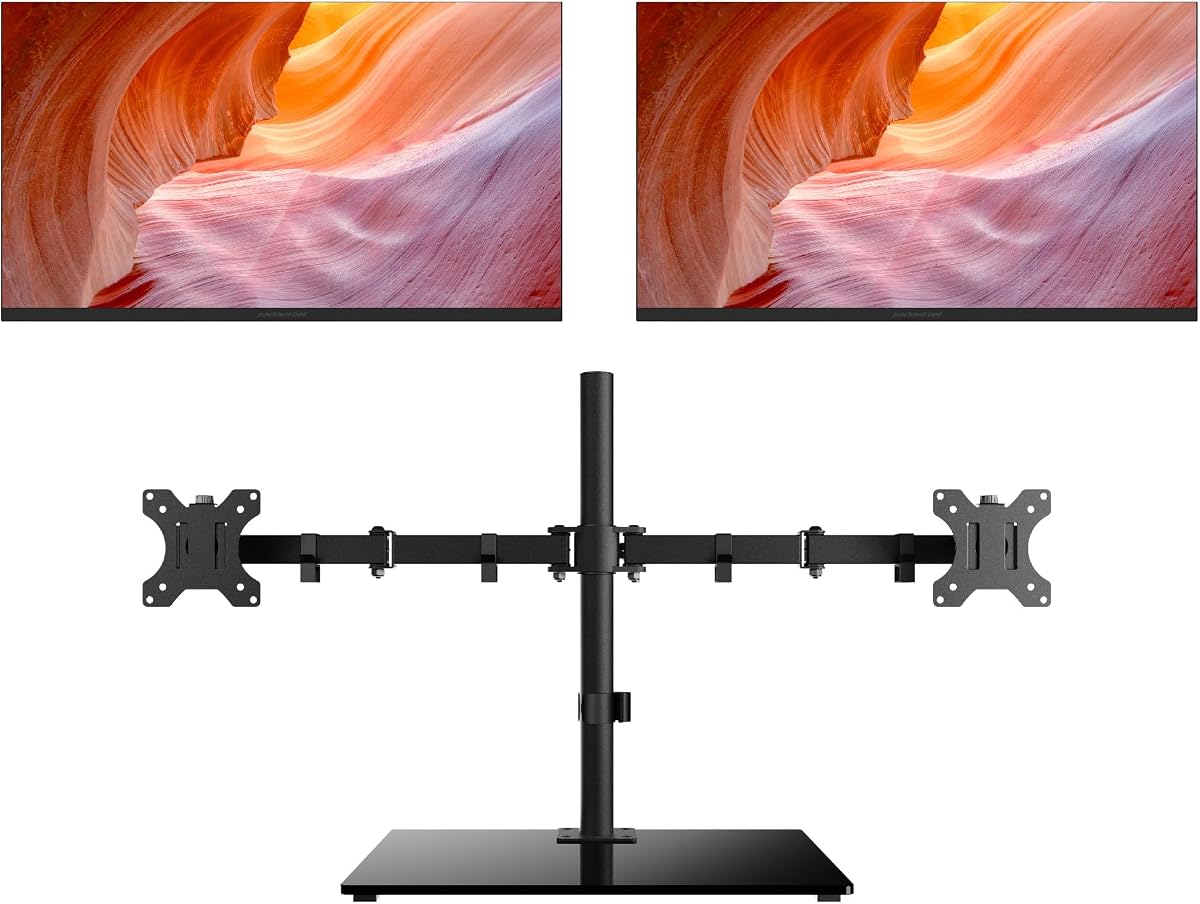
The HP 24-inch Series 3 Pro bundle combines two Full HD VA monitors, a 100Hz refresh rate, an ErgoFlexy dual-monitor arm, and a dockztorm hub. Its 5.0 rating is the highest listed in the roundup, while the included mounting equipment makes this one of the most complete options for assembling a polished professional workstation.
We may earn a commission when you buy through this link, at no additional cost to you.
The supplied highlight is the dual monitor arm. It allows height and tilt adjustment, helping users align the displays more comfortably and reduce the need to hunch or twist toward a secondary screen. A slim, three-sided micro-edge bezel gives the pair a clean appearance, and cable-management features help maintain an orderly desk. The 100Hz refresh rate supports smooth scrolling and fluid motion across web applications, spreadsheets, and communications.
Visual features are designed around sustained office use. Each 24-inch FHD VA panel offers a 3000:1 contrast ratio, anti-glare treatment, flicker-free operation, an always-on low-blue-light filter, and 250-nit brightness. The VA technology is particularly useful for dark text on light backgrounds. Connectivity includes HDMI and VGA, with VESA support. No DisplayPort or USB-C connector is listed, so modern laptop users may still need an adapter or dock.
This bundle is an excellent choice for office workers who value a complete, organized setup rather than assembling every accessory separately. It is particularly suitable for ergonomic home offices, shared desks, and professional users who want two aligned screens with a 100Hz refresh rate. Full HD resolution leaves some fine-detail capacity unused compared with 4K, but the included arm and hub can provide more immediate everyday convenience than raw resolution alone.
The included ErgoFlexy arm is the major differentiator. It allows both displays to be positioned at a comfortable height and angle, reducing strain and helping preserve desk space.
Anti-glare, flicker-free operation, low-blue-light filtering, and 100Hz refresh support comfortable extended use. The high contrast ratio also gives office content a crisp, readable appearance.
We may earn a commission when you buy through this link, at no additional cost to you.
The most useful dual-monitor setup is the one that matches your screen size, desk dimensions, software demands, and connection needs. Review the following factors before choosing a two-screen bundle, paying particular attention to ergonomics and resolution rather than focusing only on headline specifications.
Screen size determines how much information is visible without shrinking application windows, but larger panels also require more desk width and a suitable viewing distance. A pair of 21.5-inch or 22-inch displays is easier to accommodate in a compact workspace, while two 24-inch screens serve general office tasks well. The 27-inch options provide the largest physical workspace in this roundup and suit people who regularly keep several windows visible. Larger screens are not automatically more comfortable, however, because sitting too close can make the outer edges difficult to view.
Full HD at 1920×1080 is the standard for most products in the guide. It provides familiar text sizing and is appropriate for ordinary documents, browsing, email, and communication. The 27-inch 4K pair provides dramatically more pixels, which benefits dense spreadsheets, professional software, small interface elements, and users who want additional virtual workspace. A high-resolution screen can also make applications appear smaller, so operating-system scaling must be configured correctly. Match resolution to the quality of the computer, cables, and graphics output rather than choosing pixel count alone.
The 70Hz and 75Hz models are suitable for standard office tasks, while the 100Hz options make scrolling, animation, and cursor movement appear smoother. Faster refresh rates can reduce visual strain during long sessions involving rapidly moving browser pages or busy dashboards. They are also useful for casual gaming, although response time and gaming features remain separate considerations. If the two screens will be used for different purposes, matching refresh rates can make the experience feel more consistent, especially when moving a cursor between displays.
A dual setup can cause neck strain when screens are poorly aligned, particularly if one is much lower than the other. Look for tilt, swivel, pivot, height adjustment, and VESA compatibility. The Packard Bell bundle includes a VESA mount, while the HP premium bundle includes an adjustable ErgoFlexy arm. The other options do not list a complete arm package in the supplied data, so a separate mount may be needed. Measure the desk width, check the depth required by the stands, and position both screens at a comfortable distance before finalizing a purchase.
Office users handling reports, presentations, web content, and shared design materials benefit from a broad sRGB gamut. Six options advertise 99% or 100% coverage, while the curved Kado pair lists 98% and the HP dual bundle does not provide a gamut figure in the supplied specifications. The listed HP Series 3 Pro single monitor uses IPS technology with wide viewing angles, while the dual bundle uses VA panels with a high contrast ratio. Panel technology affects viewing angle, contrast, and consistency, so color and ergonomics should be considered together.
Connection requirements depend on the computer and peripherals used at the desk. HDMI and DisplayPort are common modern choices, while VGA supports older systems and some business equipment. The Packard Bell pair includes both HDMI and VGA, and the 4K Kado pair includes DisplayPort and HDMI. The HP premium bundle includes a dockztorm hub, while the HP single-monitor listing includes a portable Docztorm data hub. USB-C is not clearly listed for those bundles, so verify whether your laptop requires a separate adapter for display, power, or peripheral connectivity.
Built-in speakers can simplify a home office by providing basic sound for calls, videos, and system alerts. Most of the Kado pairs, the Sceptre 24-inch pack, the 4K Kado pair, and the HP single monitor include speakers. The Packard Bell airFrame does not list integrated audio, and the HP dual bundle's supplied details do not mention speakers. For regular meetings, consider microphone quality, echo control, and headset compatibility separately. Monitor speakers cannot be assumed to replace a dedicated conference microphone or a better audio system for music and voice calls.
General office users can prioritize screen size, easy alignment, and a familiar Full HD workspace. Analysts and spreadsheet-heavy workers may benefit from 4K detail or larger panels. Programmers benefit from room for an editor, terminal, documentation, and browser. Designers and content teams should examine color coverage, panel consistency, and resolution. Video users may value integrated speakers, while those running casual games after work may prefer 100Hz. No single bundle maximizes every specification, so the best choice reflects the applications and comfort requirements that matter most each day.
Begin by deciding which screen is the primary display and arrange the second directly beside it rather than far toward the edge of the desk. Position the top of each screen at or slightly below eye level, center the pair around your chair, and keep both viewing distances similar. If the screens differ in size, align their visible working areas as closely as practical. Use the operating system's display settings to select the correct resolution and refresh rate for each monitor, then arrange them from left to right in the same order shown physically.
Use the included or compatible cables to connect each display, and keep power and data cables routed behind the desk with the supplied cable-management features. If a monitor arm is included, follow its mounting instructions and tighten the joints securely. Configure brightness for the room rather than using maximum output all day. Windows such as HP Eye Ease or equivalent low-blue-light settings can be enabled in the evening, while consistent ambient lighting helps reduce contrast-related fatigue. The supplied HP Display Center software also allows screen partitioning, settings, and dimming on compatible models.
For care, dust the screens with a soft, dry microfiber cloth and avoid spraying cleaner directly onto the panel. If a damp cloth is needed, apply the fluid to the cloth rather than the display, then wipe gently to prevent liquid from entering the bezel. Keep vents unobstructed and avoid placing papers or objects against the rear housing. Periodically check cables, arm joints, and display alignment, and update settings whenever you change desks, chairs, or lighting. Clean screens and stable mounts help preserve both image quality and a comfortable, organized workstation.
The best size depends on your desk and workload. A 22-inch pair suits compact workspaces, 24-inch screens balance space and comfort for most professional tasks, and 27-inch screens support more visible information. Larger displays are especially useful for spreadsheets, research, and multiple windows, but they should be positioned at a comfortable distance. Measure your desk before choosing and account for the footprint of each stand or arm.
Not for every office. Full HD is suitable for email, documents, browsing, and routine communication, while 4K provides finer text and more usable information on each screen. Detailed spreadsheets, programming, graphic work, and data analysis can benefit from 4K. Your computer must also support the desired resolution and scaling, so consider the entire setup rather than focusing on resolution alone.
A higher refresh rate can make scrolling, cursor movement, and animated interfaces feel smoother, which may be noticeable during long workdays. A 100Hz display can be helpful for rapidly moving dashboards, although 70Hz and 75Hz are generally sufficient for standard documents and video calls. The additional benefit is more visible in motion-focused applications than in static text.
An arm is not strictly necessary, but it often improves alignment, height placement, and desk space. It is especially valuable if the included stands provide limited adjustment. Two mismatched screen heights can contribute to neck strain, so a shared arm or two compatible arms can make the setup more consistent. Confirm the VESA pattern and weight rating before purchasing an accessory.
Built-in speakers are convenient for system sounds, short videos, and basic meeting audio, but they are not a substitute for a quality microphone and speaker system. Their output can lack bass, clarity, microphone pickup, or echo control. For frequent calls, use a headset or dedicated conference microphone and test the sound before an important meeting.
Using matching settings usually makes window movement and cursor transitions feel more consistent. If the two screens differ, the operating system can still scale them independently, but switching between panels may involve changes in apparent size and interface density. Matching models are also easier to position and manage. When using different models, align their edges and adjust display scaling before beginning detailed work.
It depends on your laptop and peripherals. USB-C can simplify video, power, and data connections when the monitor and dock support the required standards, but not every bundle lists a USB-C port. The HP options include dockztorm or Docztorm hub accessories, while the other products emphasize HDMI, DisplayPort, or VGA. Confirm the exact connector, video mode, and power-delivery requirements for your computer before purchasing.
The required space depends on screen size, stand footprint, arm clearance, and viewing distance. Two 21.5-inch or 22-inch displays generally suit smaller desks, while 24-inch and 27-inch pairs need more width. Leave enough room to position both screens in front of the chair, use the keyboard comfortably, and route cables without tension. A mounting arm can reduce the footprint and improve alignment.
The Kado 27-inch Full HD two-pack is the strongest all-around option in this guide, combining a 4.7 rating, 100% sRGB coverage, generous screen size, and integrated speakers. The compact Kado 22-inch pair is the top budget-oriented choice for smaller desks, while the HP 24-inch Series 3 Pro dual bundle earns the premium designation because it combines a 5.0 rating, 100Hz refresh, a dockztorm hub, and an ErgoFlexy mounting arm.
Prioritize the characteristics that affect your daily comfort: adequate desk space, text resolution that works with your applications, viewing angles, consistent color, and monitors that can be aligned at a healthy height. A simple Full HD 24-inch pair may be ideal for general administration, whereas a 27-inch 4K set is better suited to dense professional applications. Separate speakers, a microphone, or a more advanced dock may still be needed for a complete communication setup.
Before purchasing, verify the current listing details, supported ports, included accessories, and latest configuration options because prices and availability can change. Then measure the intended desk, arrange the two screens symmetrically, and configure scaling and refresh rates after installation. A carefully positioned dual setup can reduce window switching and create a noticeably more organized workflow.