
Wacom One Standard Pen
4.6Editor score
4,096 pressure sensitivity levels
Responsive tilt recognition
Two programmable shortcut buttons
Battery-free electromagnetic operation
Specified Wacom One compatibility
Our guide compares the best stylus for photo editing, including pressure sensitivity, palm rejection, compatibility, tip precision, and battery-free options.
Choosing a stylus for photo editing is about more than simply touching a screen. Line weight, brush control, palm stability, latency, and compatibility can materially change how a photo workflow feels, whether you are masking, retouching, annotating, or painting onto an image.
We compared ten pens based on the supplied specifications, including pressure sensitivity, tilt response, tip design, active or passive operation, palm rejection, device support, battery requirements, shortcuts, and included accessories. The list covers general-purpose options and specialized pens for Wacom tablets.
Each review explains where a model fits, what its strongest features mean for editing, and which compromises buyers should consider. Product ratings and availability can change, and prices fluctuate, so verify the current specifications, accessory contents, and device requirements before purchasing.
4.6Editor score

4.3Editor score

4.7Editor score
The comparison below highlights the major differences in pressure response, power requirements, editing features, device compatibility, and bundled accessories. It is designed to show which pen best matches a particular photo-editing setup rather than treating every stylus as a direct substitute.




The Lenovo Digital Pen 2 combines a natural-feeling elastometer tip with 4,096 pressure levels, making it one of the most versatile options in this guide for creative work on compatible Windows devices. Its 4.3 rating reflects a balanced feature set, while the pressure sensitivity gives photo editors more control than a simple finger or passive capacitive pen.
We may earn a commission when you buy through this link, at no additional cost to you.
Pressure response is especially relevant when using pressure-sensitive brushes, soft brushes, or opacity tools. The tip is designed to feel natural, which can make small selections, cleanup strokes, and freehand retouching feel less artificial. Two quick-access side buttons can be customized for shortcuts, potentially reducing repeated menu navigation and helping editors keep their attention on the image.
The main limitation is compatibility. It is built for Windows 10 and later devices supporting AES 1.0 pen technology, so it is not a universal choice for iPads, Android tablets, or every graphics display. Its single AAAA battery also means it does not offer the completely cable-free convenience of an electromagnetic pen, although that battery provides extended runtime and keeps the operating method straightforward.
This is our best overall stylus for photo editing because it balances nuanced input, physical shortcuts, comfort, and a restrained 17.3-gram weight. Choose it when you edit on a supported Windows laptop and want a dedicated pen for masks, annotations, brush work, and navigation rather than a basic screen pointer.
For users working across several unrelated platforms, it would be wise to verify operating-system and device support first. Within its intended Windows ecosystem, however, it offers the most complete general-purpose feature combination in this roundup.
With 4,096 pressure levels, the Digital Pen 2 can produce a wider range of stroke weight and opacity than a fingertip or basic capacitive stylus. That makes it better suited to brush-heavy edits, soft masks, and controlled detail cleanup.
The two customizable side buttons provide quick access to frequently used commands. Mapping undo, redo, zoom, or tool changes can reduce interruptions during a detailed editing session.
We may earn a commission when you buy through this link, at no additional cost to you.
The MEKO 3-in-1 Stylus is a passive capacitive pen with a 4.6 rating and a particularly useful assortment of contact points. It combines two silicone rubber tips with a transparent disc tip, allowing photo editors to choose between broader navigation, everyday writing, and a more visible and precise point of contact.
We may earn a commission when you buy through this link, at no additional cost to you.
The 0.18-inch and 0.27-inch rubber tips support writing, note-taking, browsing, and ordinary screen interaction. The transparent disc tip reveals where the stylus contacts the display, which can help with smaller selections or careful touch control. Its flexible 180-degree writing angle also allows the pen to be held at a more natural orientation.
The important limitation is that passive capacitive operation does not create true pressure sensitivity. Brush size and opacity may therefore behave differently from a pen that reports pressure directly. The product also does not advertise palm rejection, meaning users who rest their hand on the screen may need to adjust their posture or use a screen protector that supports that feature.
This stylus is best for photographers and editors who need a dependable multi-device pointer for spot corrections, markup, interface control, and light drawing. It is especially attractive for anyone who does not want to manage charging or Bluetooth pairing. For brush artists seeking proportional line weight, a pressure-sensitive model is the better choice.
Its generous accessory package also includes replacement rubber and disc tips, which helps extend useful life. The package contains two styluses, making it convenient for keeping one at a desk and another in a bag or using separate pens for different devices.
The disc tip offers a visible contact point, while the two rubber sizes cover general navigation and finer input. Swapping tips lets the user adapt the same pen to scrolling, writing, or more deliberate editing gestures.
Because the stylus works by emulating capacitive touch, it requires no battery, charging cable, or Bluetooth connection. That simplicity makes it well suited to shared workspaces and frequently changing editing locations.
We may earn a commission when you buy through this link, at no additional cost to you.
The JAMJAKE Fast Charge Stylus is built for selected iPad and iPad Pro models released from 2018 through 2026. Its standout editing feature is palm rejection, which helps the display ignore a resting hand while the pen remains active. That makes the product especially practical for people who naturally anchor their wrist while editing.
We may earn a commission when you buy through this link, at no additional cost to you.
The 1.5mm pen tip supports finer instructions, selections, and drawing than a fingertip. Replaceable tips can be removed without tools, reducing downtime if the nib wears. A touch-sensitive cap activates the stylus, and the stated 15-hour runtime follows a brief five-to-15-minute charge, making it suitable for extended sessions.
This is not a pressure-sensitive pen, so it should not be expected to deliver proportional brush width or opacity in the same way as an active stylus with pressure telemetry. It also requires Bluetooth to be enabled on the iPad, although no pairing process is needed. Buyers must check the exact compatibility list carefully because several older iPad generations are explicitly excluded.
The JAMJAKE is a strong choice for iPad-based editors who value palm rejection, fast charging, and a narrow replacement tip. It works especially well for masking, navigating layers, making point adjustments, and annotating images where the hand naturally rests on the display.
Owners are encouraged to use a compatible glass screen protector, as the listing specifically recommends one. The stylus does not include a pen cap or charging-port cover, so checking the complete accessory set before ordering is advisable.
Its fast charge makes it easier to sustain a focused workflow, while palm rejection reduces accidental touches. As long as the selected iPad appears on the supported list, it offers a practical balance of precision and convenience.
Palm rejection allows the user to place a hand near the active work area without it registering like a fingertip. This is useful for detailed edits performed on a tablet laid flat on a desk.
A short charge is stated to provide up to 15 hours of working time. That makes the stylus practical for travel and long editing sessions where a full day of uninterrupted power is useful.
We may earn a commission when you buy through this link, at no additional cost to you.
This active stylus targets Android and iOS phones and tablets, with a 4.1 rating and a focus on precision. Its 1.5mm nib is designed for writing, drawing, and detailed screen input, while the stated tilt sensitivity can make line orientation more natural for sketching and markup.
We may earn a commission when you buy through this link, at no additional cost to you.
The built-in battery provides a stated 20 hours of use after one hour of charging. Automatic sleep after five minutes of inactivity and automatic shutdown after 30 minutes help conserve power. A magnetic attachment is listed for selected 12.9-inch and 11-inch iPad Pro models, reducing the chance of losing the pen between tasks.
Photo editors should be aware that some applications may treat the pen as an Apple Pencil substitute. The product guidance explains how to disconnect or disable the Apple Pencil setting in apps such as Notability and GoodNotes when necessary. Windows is not supported, so this is not the right choice for a Windows laptop workflow.
The fine tip makes this pen attractive for small selections, touch-up strokes, and interface navigation. Its 4.1 rating is lower than several alternatives here, but it offers a useful combination of tilt awareness, fine-point input, charging convenience, and broad phone-and-tablet compatibility.
Choose it if your editing setup is primarily based on iOS or Android and you value a narrow nib over pressure-based brush control. Check the application settings before beginning a major project, and confirm your exact device is included in the stated support range.
The 1.5mm nib gives the user a small, defined contact point for selecting controls, drawing annotations, and making precise touch gestures on crowded mobile interfaces.
Automatic sleep and shutdown behavior reduce unnecessary battery consumption. The stated one-hour charging cycle and 20-hour runtime make the pen convenient for mobile sessions away from a fixed desk.
We may earn a commission when you buy through this link, at no additional cost to you.
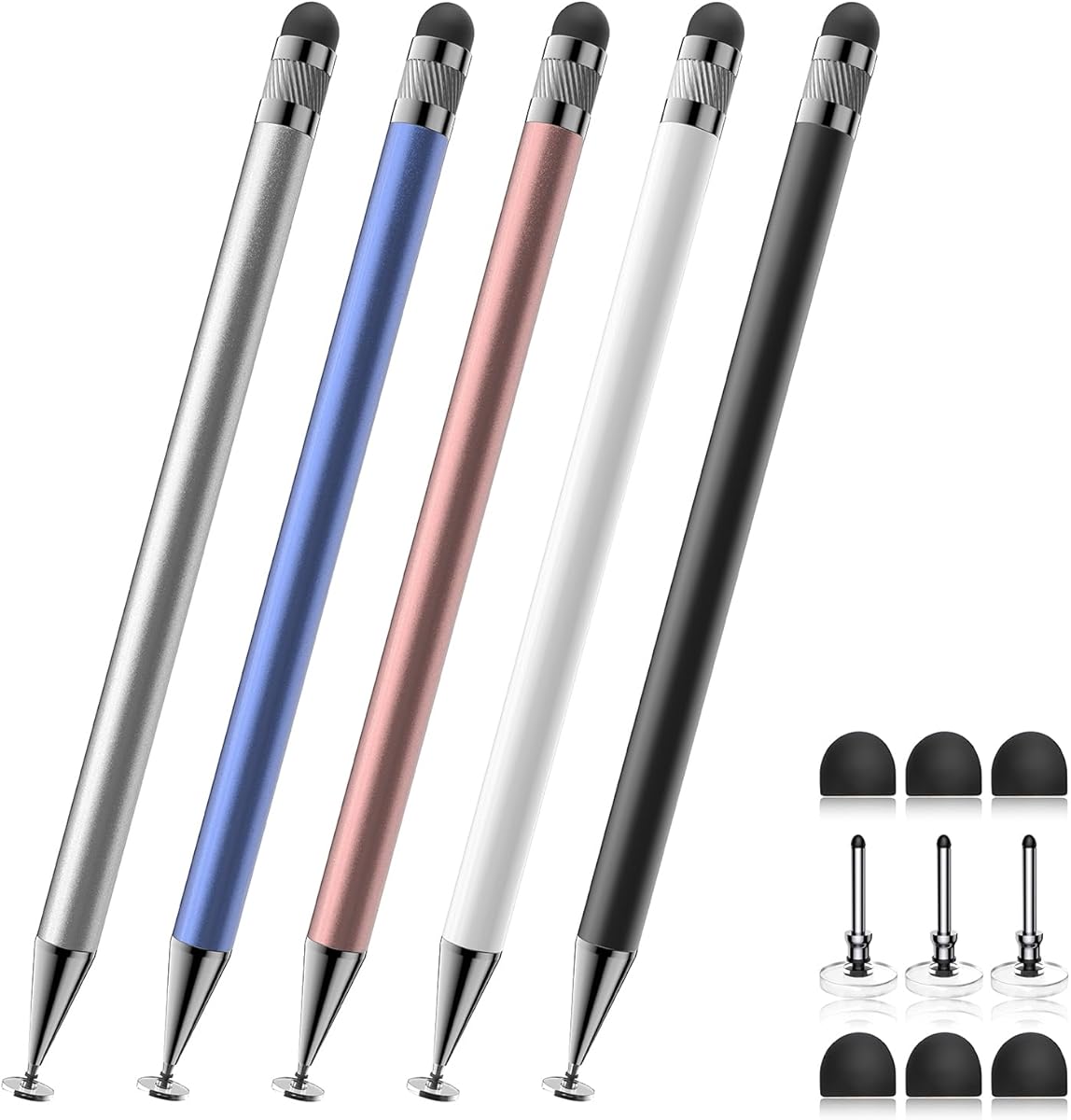
The Bopomofo 5-Pack is a passive capacitive option built for basic touchscreen work and shared environments. Its 4.6 rating reflects a straightforward product that performs its intended function without pairing, charging, or app installation. Each pen combines a flexible transparent disc tip with a rubber tip.
We may earn a commission when you buy through this link, at no additional cost to you.
The rubber tip can improve signal transmission when moderate pressure keeps the full contact area against the screen, especially when a protective film is installed. The transparent disc tip provides a different feel and a visible contact location. Both can be used for writing, sketching, annotating, scrolling, and general touch control.
The listing explicitly states that this is not an active stylus. It does not support pressure sensitivity or palm rejection. Photographers who need pressure-sensitive brushes should look elsewhere, while those using a photo editor mainly to navigate, mark up, crop, or make isolated touch gestures may find the simpler operation entirely adequate.
The bundle includes five pens in different colors and a portable set of six rubber nibs and three disc nibs. That makes it useful for a classroom, office, family, or editing team where each person can keep a separate pen or where one pen is dedicated to different devices.
Its compatibility extends across iPads, iPhones, Samsung tablets, Android devices, Kindles, and other capacitive screens. Most screen protectors are also supported. As with other passive pens, device settings may occasionally limit writing behavior, but the basic navigation experience is uncomplicated.
This is not the most advanced brush tool, but it is a sensible high-volume accessory set. Its strongest case is portability, simplicity, and the ability to place a reliable pen wherever editing work happens.
Five color-coded pens reduce the need to pass a single stylus around. Different users or devices can each have a dedicated pen, while the replacement nibs help maintain consistent input.
The soft rubber and disc tips are intended to glide over most protective films without scratching. This makes the pens useful with tablets that already carry a glass or film protector.
We may earn a commission when you buy through this link, at no additional cost to you.
The DAXINGXING 10-Pack stands out with a 4.7 rating, the highest listed rating in this comparison, and an unusually generous supply of passive styluses. Each pen has a 0.27-inch rubber tip for scrolling and broad navigation and a 0.21-inch tip for handwriting, detailed sketching, and precise icon selection.
We may earn a commission when you buy through this link, at no additional cost to you.
The pens are compatible with capacitive touchscreens, including iPads, iPhones, Android phones and tablets, touchscreen laptops, e-readers, and other mainstream devices. No charging, Bluetooth pairing, drivers, or apps are required. That makes the pack easy to deploy in a classroom, shared studio, office, or home with several devices.
Soft rubber surfaces are claimed to glide smoothly without scratching displays or adding as many fingerprints as direct finger contact. The alloy bodies are stated to measure 5.31 inches, giving the pens a balanced and portable form. Replacement nibs can be changed without additional tools.
The limitation is that these remain passive capacitive pens. They do not report pressure, which restricts their usefulness for brush-size and opacity workflows that depend on variable force. They also lack palm rejection. For lightweight photo-editing tasks, document markup, scrolling, or menu navigation, however, their simplicity is a genuine advantage.
The package includes ten dual-tip styluses and 20 matching replacement rubber nibs. That combination makes it our best budget choice because it covers multiple users and devices while providing enough spares to handle normal wear.
Its 4.7 rating and feature-limited design make the role clear: this is a dependable general-purpose editing pointer, not a substitute for a pressure-sensitive artist pen. For lightweight touch control across many devices, it is difficult to overlook.
The broader tip supports scrolling, color filling, and routine navigation, while the narrower tip offers better control for small marks and detailed screen interaction.
Ten mixed-color pens make device assignment easy and prevent a single pen from traveling between desks. The included spare nibs help keep every assigned stylus ready for use.
We may earn a commission when you buy through this link, at no additional cost to you.
The MOSWAG 3-in-1 Stylus is distinctive because it combines screen interaction with a conventional ballpoint end. Its disc tip supports browsing and scrolling, a nano cloth tip handles tapping, outlines, and more precise editing, and the opposite end writes on paper. It has a 3.7 rating, the lowest among the products compared.
We may earn a commission when you buy through this link, at no additional cost to you.
The passive conductive design requires no charging, Bluetooth pairing, or extra application installation. At approximately 18 grams and 16 centimeters with the cap closed, the aluminum body is intended for portable, fatigue-free use. The included storage pouch adds a practical way to protect and carry the pen with a tablet.
Its compatibility description is less expansive than that of several rivals. It names selected Apple and Android devices, including iPhone 6, iPhone 7 Plus, iPhone 12, iPhone 15, iPad Pro 11-inch second generation, Google Pixel 2 and 4, Huawei P20 Pro, and Honor 20 Lite. Buyers should confirm their exact model rather than assuming every touchscreen is supported.
For photo editing, the disc and cloth tips can help with web-page scrolling, touch selection, timeline-style dragging, and fine adjustments. The product description specifically mentions using the stylus to trim frames and fine-tune video edits by dragging timelines accurately. It is a passive tool, however, so there is no true pressure response.
The ballpoint end makes it useful for quickly noting adjustment instructions on paper before returning to the tablet. That hybrid workflow is the product's strongest distinguishing benefit. Its lower rating and less explicit compatibility list mean it is less compelling for users who require broad platform support or advanced brush behavior.
Choose it when portability and the ability to move between paper notes and a touchscreen matter more than pressure sensitivity. For more demanding illustration or professional retouching, a pen with dedicated device compatibility would be a stronger choice.
The disc tip handles broad browsing, the nano cloth tip suits lighter editing gestures, and the ballpoint adds a familiar paper-writing option without another instrument.
The short aluminum body and supplied storage pouch make the stylus easy to carry between a tablet and a desk. It remains useful even when an editing session moves from on-screen adjustments to handwritten notes.
We may earn a commission when you buy through this link, at no additional cost to you.
The Three-in-1 Precision Stylus offers a 4.5 rating and a simple combination of two rubber tips and a transparent disc tip. Its 0.18-inch rubber tip supports detailed writing, the 0.27-inch tip handles scrolling and broader gestures, and the visible disc contact point assists with accuracy.
We may earn a commission when you buy through this link, at no additional cost to you.
The tips can be replaced without tools in a matter of seconds, which is useful when a nib wears down or when the user changes the pen from a navigation tool to a more precise annotation instrument. The listing describes a 180-degree flexible writing angle intended to provide smooth input without lag or interruption.
Compatibility extends across capacitive touchscreens, including iPads, iPhones, tablets, Galaxy devices, Kindles, Fire MAX tablets, Chromebooks, and Nintendo Switch systems. Since it works passively, there is no need for charging or pairing, making it broadly convenient across different platforms.
Like the MEKO and Bopomofo options, it does not provide pressure sensitivity or palm rejection. That means it is better suited to navigation, selection, annotation, and light drawing than to brush applications where proportional force is essential. A photo editor should also account for possible app-specific behavior when using generic capacitive pens.
Its strongest advantage is the combination of three tips, tool-free replacements, and a clear contact point without the complexity of an active pen. That makes it a flexible everyday companion for anyone who touches up images across several devices.
Choose this model when you want more control than a fingertip, value quick tip changes, and prefer a pen that works immediately after unpacking. For advanced brush dynamics, choose an active pressure-sensitive model instead.
The transparent disc tip lets the user see where the pen meets the display. That visibility can improve confidence when selecting small elements or placing a precise annotation.
Tool-free replacements make it simple to change between the narrow rubber tip, broad rubber tip, and disc tip. The included spare system also helps extend the useful life of the pen.
We may earn a commission when you buy through this link, at no additional cost to you.
The Wacom One Standard Pen delivers 4,096 levels of pressure sensitivity, tilt response, and a 4.6 rating, making it the most advanced dedicated pen in this guide for supported Wacom One hardware. Its purpose-built compatibility gives photo editors precise control over brushes, masks, and other pressure-aware tools.
We may earn a commission when you buy through this link, at no additional cost to you.
Tilt recognition can help reproduce changes in stroke angle and width as the pen is rotated. Combined with 4,096 pressure levels, this produces a more expressive input range than passive capacitive alternatives. Two pen buttons place commonly used shortcuts under the user's fingers, reducing the need to move a hand to a keyboard or toolbar.
The pen never needs charging. That means there is no charging routine, depleted battery, or pairing process to interrupt a session. The user can concentrate on the image and begin editing as soon as the supported display is ready.
Compatibility is the decisive trade-off. The listing specifies Wacom One 12, Wacom One 13 touch, Wacom One Small, and Wacom One Medium. It should not be assumed to work with every Wacom tablet, Intuos model, or other brand of graphics display. Buyers need to identify their exact device before purchasing.
The standard pen also offers customizable pen rears, clips, and colors as separate purchases. Those cosmetic choices are not essential, but they let users personalize the pen while keeping the core performance unchanged.
For someone who owns a compatible Wacom One and performs detailed retouching or brush work, this is the premium recommendation. Its pressure and tilt data make it better suited to professional image adjustment than the passive and non-pressure models in the guide.
Pressure sensitivity and tilt response give supported software a more detailed description of each stroke. That control is particularly useful for soft brushes, opacity transitions, and angle-dependent mark-making.
Electromagnetic operation removes charging from the workflow. The pen remains ready for long sessions without creating battery anxiety or requiring a cable connection.
We may earn a commission when you buy through this link, at no additional cost to you.
The Wacom Intuos Pen LP1100K has a 4.6 rating and brings 4,096 levels of pressure sensitivity to compatible Intuos tablets. It is a strong choice for photographers and illustrators who want a dedicated editing instrument rather than a general capacitive pointer.
We may earn a commission when you buy through this link, at no additional cost to you.
Pressure sensitivity gives the editing software a much broader range of line weight and opacity than a passive stylus. This is particularly useful for soft brushes, cleanup strokes, retouching, and mask painting. The electromagnetic resonance design is battery-free, so the pen can remain ready without charging or wireless pairing.
Two buttons offer quick access to frequently used commands. A photo editor could use them for undo, redo, zoom, tool selection, or other shortcuts, depending on the software and tablet configuration. Their position at the fingertips supports an efficient workflow without interrupting hand movement.
The supported hardware list includes Wacom Intuos Small models CTL4100 and CTL4100WLK0 or CTL4100WLE0, plus Intuos Medium Bluetooth models CTL6100WLK0 or CTL6100WLE0. Exact device matching is essential because the pen is not presented as a universal solution for every Wacom product or other tablet brands.
Because it uses EMR technology, the pen does not need a battery and is designed for light, comfortable use. That combination of natural handling, pressure data, and shortcuts makes it particularly well suited to extended creative sessions on a supported Intuos display.
The Wacom One Standard Pen offers some similar capabilities and broader appeal for modern Wacom One users, but this LP1100K is the more relevant choice when the editing hardware belongs to the listed Intuos line. Verify the exact model number before ordering.
For a compatible Intuos tablet, it delivers the pressure control and workflow efficiency that passive styluses cannot. It is a focused tablet accessory rather than a general-purpose phone pen, but within that environment it is among the strongest editing options here.
With 4,096 pressure levels, supported software can vary stroke width and opacity in response to applied force. The result is more natural brush behavior for masks, retouching, and detail work.
The two buttons make common commands easier to reach during a focused edit. Their placement supports a natural grip and helps reduce time spent moving between tablet and menu.
We may earn a commission when you buy through this link, at no additional cost to you.
The right editing stylus depends on your device, software, and preferred type of work. Pressure response, palm handling, power requirements, tip precision, and shortcut support should be matched to the way you actually edit rather than to a single universal specification.
Pressure sensitivity is the most important feature for editors who use brushes, opacity-sensitive tools, soft masks, or pressure-based cleanup. The Lenovo Digital Pen 2, Wacom One Standard Pen, and Wacom Intuos Pen LP1100K each provide 4,096 pressure levels, allowing software to interpret light and heavy contact differently. This produces a broader and more expressive range than a passive capacitive pen, which simply recognizes where the screen is being touched.
Choose pressure sensitivity when line weight, opacity, or brush softness matters. For basic selection, cropping, annotation, and navigation, a passive stylus may be sufficient.
Tilt response adds another dimension to digital input by communicating how the pen is angled relative to the display. It can help create natural-looking strokes, broaden marks when a brush supports angle behavior, and make sketching feel more intuitive. The Wacom One Standard Pen and the Universal 1.5mm Stylus explicitly list tilt sensitivity, while the Lenovo pen emphasizes precise pressure response and tactile feel.
Prioritize tilt when your editing software and device use it well. If your workflow depends mainly on pressure, the more important requirement is accurate and consistent force reporting.
When a tablet rests flat on a desk, the palm or heel of your hand often touches the screen. Palm rejection helps software distinguish that resting contact from an active pen stroke. The JAMJAKE Fast Charge Stylus is the clearest dedicated option in this group because palm rejection is a stated feature. It allows a more natural hand position, which can improve control and reduce accidental marks.
Look for palm rejection when editing on a tablet laid flat. If no palm rejection is listed, maintain a slightly raised wrist or confirm that your screen protector and editing app support the technique.
A pen can offer excellent features and still fail to suit your workflow if it does not work with your hardware. Wacom pens are model-specific: the Wacom One Standard Pen supports the listed Wacom One displays, while the LP1100K supports specified Intuos Small and Medium models. The JAMJAKE targets selected 2018-2026 iPads. The Universal 1.5mm Stylus covers iOS and Android but excludes Windows. Passive models are generally more broadly compatible with capacitive touchscreens.
Always verify the exact device model before ordering. Also check whether your editing application treats a third-party stylus as an Apple Pencil or expects a particular connection method.
Active pens contain electronics that communicate with the device, enabling features such as pressure, tilt, palm rejection, or programmable buttons. Passive capacitive pens emulate a fingertip and usually need no charging or pairing. Active models are preferable for expressive brush work, while passive models excel as simple pointers, annotation tools, and travel accessories.
Choose active when your editing process depends on proportional input. Choose passive when you mainly navigate menus, mark images, and want a pen that works immediately across many screens.
Battery-free operation provides the simplest workflow. The Wacom One Standard Pen and Wacom Intuos Pen LP1100K use electromagnetic technology without a charging requirement, and passive capacitive models likewise need no battery. Active alternatives such as the JAMJAKE and Universal 1.5mm Stylus use rechargeable batteries, with stated fast-charge or long-runtime features.
For intensive work, battery-free operation reduces one point of interruption. If you choose a rechargeable pen, confirm its stated charging time, expected runtime, required adapter, and sleep behavior before taking it on a long trip.
Tip design affects visibility, contact precision, comfort, and compatibility with screen protectors. Narrow rubber tips are useful for small selections, while broad tips can be easier for scrolling and navigation. A transparent disc tip offers a visible contact point, which can improve precision. The MEKO, Bopomofo, DAXINGXING, and Three-in-1 Precision Stylus all include or use disc and rubber options, while the JAMJAKE uses a 1.5mm tip.
For detailed editing, look for a narrow or visible-contact tip. For general navigation, a softer and wider tip may feel easier and reduce accidental marks.
Physical buttons can reduce the time spent navigating menus and improve a repeated editing workflow. The Lenovo Digital Pen 2 has two customizable side buttons, and both Wacom options provide two buttons for shortcuts. The dedicated pressure-sensitive Wacom models are particularly useful when switching among brushes, zoom levels, and editing tools without leaving the tablet.
Choose shortcut support if you perform the same editing sequence daily. Ensure the application allows the buttons to be mapped to the commands you use most often.
Begin by confirming that the stylus is compatible with your tablet and operating system, then install any required updates and open the editing application. Test the pen on a simple canvas before working on an important image. Verify that the application recognizes pressure, tilt, palm rejection, or shortcut buttons rather than assuming every listed function is active by default.
Use a light, consistent grip and allow the pen to move naturally across the screen. Pressure-sensitive pens benefit from gradual force changes, while passive models should make full contact with the screen. When a screen protector is installed, test for stable tracking and smooth gliding. Rest your palm only when palm rejection is supported, or use a technique that keeps the non-writing hand clear of the active area.
Clean the pen tip gently with a soft, dry or lightly dampened cloth and avoid abrasive materials that could damage the nib. Keep active pens away from moisture and use their specified charging equipment. Replace worn rubber or disc tips when input becomes inconsistent, and store the pen in its case or a protective compartment so it does not roll onto a hard surface or get lost.
Pressure sensitivity is most valuable for brush-based retouching, soft masks, opacity work, and freehand corrections. It is less essential when you mainly crop, select objects, navigate menus, or add simple annotations. Check whether your editing application supports the pen's pressure reporting before choosing based on that feature.
Yes, if your editing tasks rely on tapping, dragging, scrolling, and basic drawing rather than proportional brush pressure. Passive pens such as the MEKO, Bopomofo, and DAXINGXING options work without charging or pairing. They cannot reproduce the full force range of pressure-sensitive models.
An active stylus contains electronics that communicate with the device and can provide pressure, tilt, palm rejection, or shortcut controls. A passive capacitive stylus behaves like a fingertip and generally requires no power. Active pens suit expressive drawing, while passive pens prioritize simplicity and broad everyday use.
It can be very useful, particularly when the tablet lies flat on a desk. Palm rejection allows your resting hand to remain near the screen without creating unwanted marks. If it is unavailable, keep the non-writing hand slightly raised or check whether your screen protector and application support palm rejection.
No. The Wacom One Standard Pen is listed for Wacom One 12, Wacom One 13 touch, Wacom One Small, and Wacom One Medium, while the LP1100K supports specified Intuos Small and Medium models. Check the exact hardware model and revision before purchasing a replacement or dedicated pen.
Many apps do support compatible third-party pens, but they may need an Apple Pencil setting changed or disconnected. The Universal 1.5mm Stylus provides specific guidance for Notability, GoodNotes, and similar applications. Test a duplicate or sample file before beginning a critical project.
Keeping a spare is useful because worn tips can make lines less consistent or reduce the quality of touch input. Several products in this guide include replacements, including extra rubber and disc tips. Replace the tip when drawing feels sticky, uneven, or noticeably less accurate than it did originally.
A fine tip is usually better for small selections, precise annotations, and detailed touch gestures. A broad soft tip can feel more natural for scrolling, writing, and general navigation. Multi-tip styluses provide the flexibility to use both without carrying separate instruments.
The Lenovo Digital Pen 2 stands out as the best overall option for compatible Windows laptops because it combines 4,096 pressure levels, a natural elastometer tip, and customizable buttons. The Wacom One Standard Pen is the premium choice for supported Wacom One hardware, while the DAXINGXING 10-Pack delivers the most practical budget bundle for basic editing and shared devices.
For dedicated brush work, prioritize pressure sensitivity, tilt response, and confirmed hardware compatibility. For annotation, navigation, and general touch input, a passive capacitive stylus may offer a simpler experience with no charging or pairing. Android and iOS users should also account for application settings that may affect generic third-party pens.
Before buying, verify the exact device model, supported operating system, pen technology, included accessories, and warranty terms. Ratings, software behavior, and prices can change, so check current listings and confirm that the stylus matches the way you edit before making a final selection.