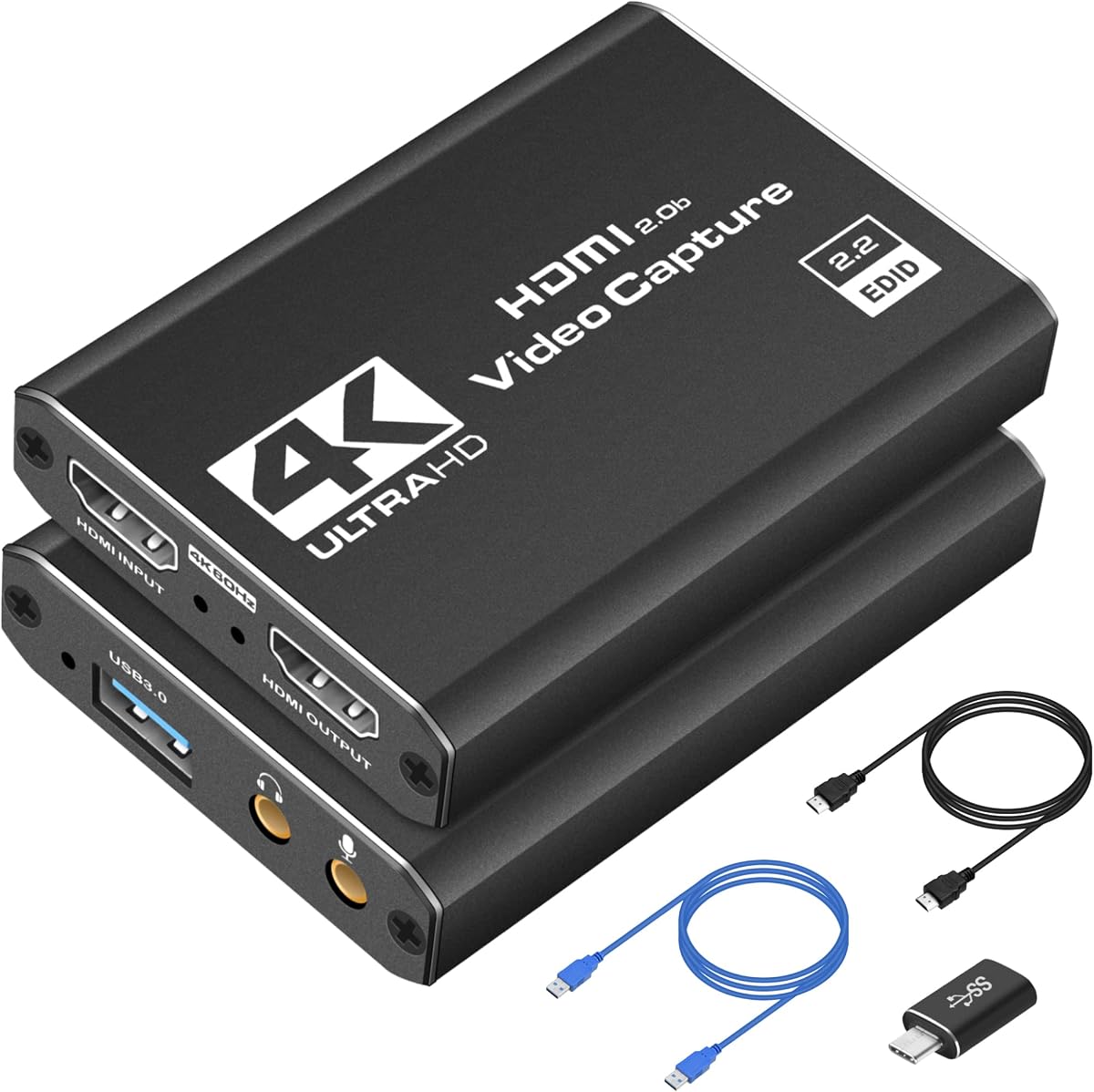
Capture Card 4K HDMI Video Streaming to USB 3.0
4.4Editor score
1080p at 60 FPS
Low-latency HDMI passthrough
Broad console compatibility
Driver-free USB setup
Capture Card for Streaming High FPS Gameplay guide compares 10 models for high-frame-rate capture, low latency, passthrough, resolution, and setup ease.
A capture card for streaming high FPS gameplay must preserve fast motion without introducing distracting delay, dropped frames, or an overly complicated setup. The most important details include supported input and capture resolutions, frame rates, passthrough behavior, latency, audio routing, and compatibility with your console, gaming PC, display, and streaming software.
This guide compares ten capture cards across external USB and internal PCIe designs, evaluating their stated specifications rather than claiming personal hands-on testing. The list covers budget options for straightforward 1080p streaming, advanced external devices for high-refresh consoles, and premium internal cards intended for creators who want maximum bandwidth and broad HDMI 2.1 support.
Each review explains the most useful strengths, realistic trade-offs, and the type of setup for which the card makes the most sense. Ratings and specifications can change over time, while prices and promotions also fluctuate, so readers should verify the current listing and compatibility details before making a final purchase.
4.4Editor score
4.5Editor score

4.5Editor score
The comparison below highlights the connection method, maximum capture format, passthrough capability, and strongest practical use case for each capture card, making it easier to match a device to a console, gaming PC, and preferred streaming workflow.


The Capture Card 4K HDMI Video Streaming to USB 3.0 is a straightforward external capture solution aimed at streamers who want dependable 1080p60 capture without a complex installation. Its 4.4 rating reflects a favorable balance of useful features and approachability. The central proposition is simple: connect an HDMI source to the card, connect the card to a PC or laptop, and begin using a compatible capture application.
We may earn a commission when you buy through this link, at no additional cost to you.
Its strongest feature is the combination of 1080p60 capture, low-latency operation, and seamless HDMI passthrough. The stated device compatibility covers PS5, Xbox Series X, Nintendo Switch, PCs, and cameras, making it useful across more than one type of source. It is also advertised as working with OBS Studio, Streamlabs, and XSplit without additional drivers, reducing one of the most common sources of early setup frustration.
The main limitation is that the listed headline specification focuses on 1080p60 rather than the 120 FPS or 240 FPS capture offered by more specialized high-refresh cards. It also provides fewer technical details about passthrough resolution and refresh-rate combinations than premium competitors. Those constraints matter for a creator recording 144 Hz PC gameplay, but they are less important for a standard 60 FPS console broadcast or straightforward 1080p recording.
This is the best budget-oriented choice in the list for creators who want a compact, portable, broadly compatible capture card. Choose it when 1080p60 is the intended final format, a simple USB workflow is important, and you do not need to capture above 60 FPS. For competitive esports recording at 120 FPS or beyond, a higher-bandwidth model would be a better fit.
With broad HDMI-source support and compatibility with OBS Studio, Streamlabs, and XSplit, the card offers a manageable route into console and PC streaming. Plug-and-play operation is particularly useful for creators who move between home, event, and LAN-party setups.
Its lightweight, compact USB 3.0 design is convenient for creators who regularly change locations. Carrying the card and a laptop allows a compatible console or camera to become a portable streaming source without installing a dedicated internal capture solution.
We may earn a commission when you buy through this link, at no additional cost to you.
This 4K HDMI USB 3.0 capture card offers a more technically detailed compromise between ordinary 1080p capture and premium high-refresh devices. Its 4.3 rating reflects solid versatility, particularly for owners of newer consoles and PCs that output high-refresh HDMI signals. The device can capture 1080p60 while accepting 4K30, 4K60Hz, 1080p120, and 1080p144 input.
We may earn a commission when you buy through this link, at no additional cost to you.
A useful feature is its automatic device recognition. Once connected, the capture card is identified as a webcam and is said to detect input and adjust output automatically. It requires no external power or separate driver, works with Windows and macOS, and can transmit to OBS, Twitch, YouTube, Facebook, Twitter, VLC, and PotPlayer. That broad software support makes it approachable for creators who do not want to depend on a single production suite.
The critical distinction is between what the card can accept and what it can output. Its maximum output is stated as 2K30, and it does not support 4K120 or 4K144. If you want to preserve a 120 Hz or 144 Hz desktop signal for local viewing, the HDMI loop-out is valuable, but a high-frame-rate capture file may still be constrained by the capture and output limits.
This card is a good fit for streamers who want broad source compatibility, 1080p60 capture, and the ability to receive high-refresh console or PC input. It also includes a 3.5mm TRS microphone input for commentary. Buyers seeking true 120 FPS recording should choose a card that explicitly lists that output capability rather than relying on high-refresh input support.
Accepting 1080p120 and 1080p144 signals gives the card more flexibility than a basic 60 Hz device. This can be helpful when a modern console or high-refresh PC is the source, although the final capture and output limits still define the resulting image.
The webcam-style automatic recognition reduces setup friction. Without separate drivers or external power, the card can be introduced to a streaming application with fewer configuration steps, although source format choices should still be checked carefully.
We may earn a commission when you buy through this link, at no additional cost to you.
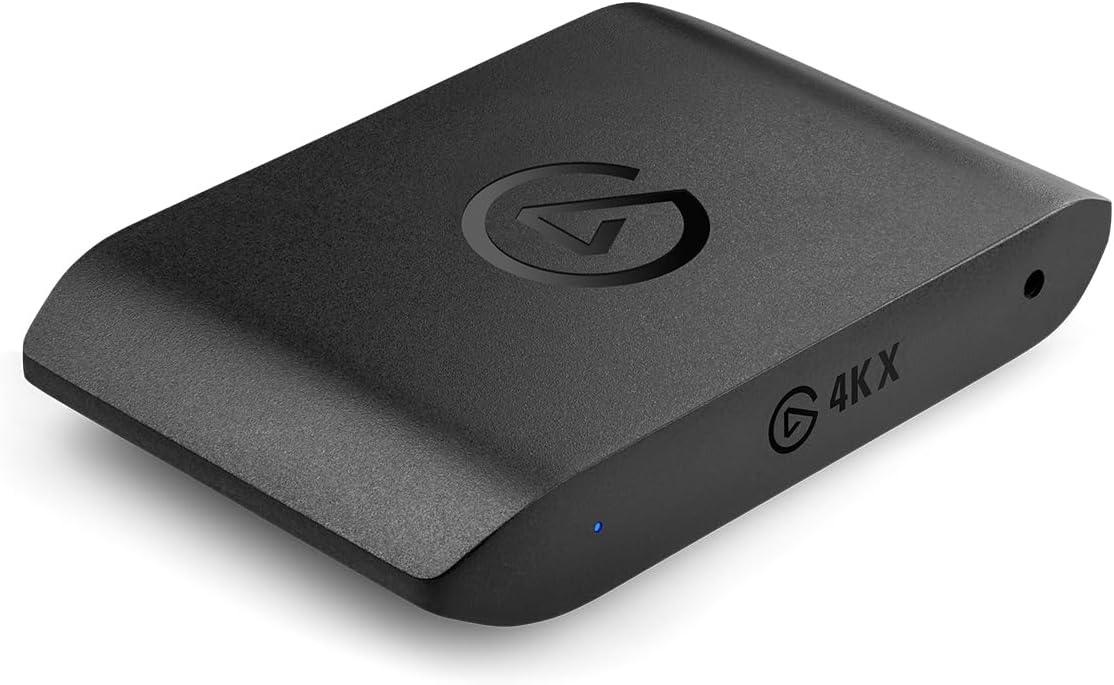
The Elgato 4K X Capture Card is the most balanced high-performance option in this guide, combining a 4.5 rating with specifications aimed directly at modern high-refresh gaming. It supports 4K144 capture and can document high frame rates up to 240 FPS at 1080p. That makes it a strong candidate for PC esports, high-refresh consoles, and creators who want more flexibility than a conventional 1080p60 card offers.
We may earn a commission when you buy through this link, at no additional cost to you.
Its HDMI 2.1 input and output provide a modern pathway for 4K and high-refresh signals. Ultra-low latency is powered by USB 3.2 Gen 2, giving the card substantially more bandwidth than a basic USB 3.0 unit. VRR passthrough is another meaningful benefit for PC gaming because it can preserve a smooth, tear-free display experience while the game is being captured.
The product supports OBS, Streamlabs, Twitch Studio, Restream, Zoom, Teams, YouTube, Twitch, Discord, and Facebook Gaming, reducing the likelihood of workflow incompatibility. It is still important to match the output format to the computer, software, and destination platform. A demanding capture mode also requires suitable system processing, storage, and upload bandwidth.
Choose the 4K X when high FPS capture, modern HDMI 2.1 support, and low-latency passthrough are central goals. It is a particularly compelling choice for competitive PC players and creators who want to record 1080p at very high frame rates while maintaining a modern console connection. The tradeoff is its premium cost relative to entry-level external cards.
Combining 4K144 capture with 1080p240 support allows creators to document fast competitive motion while retaining options for high-resolution sources. HDMI 2.1 connectivity helps keep the card relevant as console and PC display standards continue to evolve.
Ultra-low latency over USB 3.2 Gen 2 helps maintain synchronization between gameplay and the captured broadcast. VRR passthrough is particularly useful for compatible high-refresh PC displays, where smooth variable refresh behavior is part of the gaming experience.
We may earn a commission when you buy through this link, at no additional cost to you.
The XIIXMASK USB 3.0 HDMI Capture Card delivers a useful mixture of 4K60 capture and 1080p120 recording, making it a strong option for creators who want more than a 60 FPS ceiling. It carries a 4.2 rating and is particularly attractive for modern consoles, high-refresh gaming PCs, VR headsets, cameras, and conventional streaming applications.
We may earn a commission when you buy through this link, at no additional cost to you.
The card supports 4K60 capture through USB 3.0, 4K HDMI passthrough, and recording at 1920 by 1080 up to 120 FPS. MJPEG, YUY2, NV12, and XRGB formats provide useful flexibility for different software and recording pipelines. Its 3.5mm audio input and microphone output allow external commentary or ambient sound to be integrated without a separate audio interface.
Setup is advertised as driver-free and independent of external power. The listed operating-system support includes Windows, macOS, Linux, Android, and iPadOS, while compatibility spans Switch and Switch 2, PlayStation 5 and 4, Xbox Series X/S, Quest 3 and 3s, DSLRs, webcams, TV boxes, and DVDs. That is broad, but software support alone does not guarantee every high-resolution combination works with every application.
This card is a good match for streamers whose priority is 4K60 or 1080p120 rather than extreme 240 FPS performance. It offers more flexibility than the basic 1080p60 products at a moderate step up in complexity. Ensure your computer has a dependable USB 3.0 port and select the capture format in your software that best balances image quality, processing load, and storage requirements.
The combination of 4K60 and 1080p120 gives creators distinct options: higher spatial resolution for detailed footage or higher frame rate for fluid motion. Neither mode alone covers every use case, so the ability to switch is a meaningful practical advantage.
The 3.5mm audio input and microphone output simplify the addition of headset or microphone audio. This can be useful for live commentary, although creators should still monitor levels in their software to avoid clipping or accidental background noise.
We may earn a commission when you buy through this link, at no additional cost to you.
The acer USB 3.0 HDMI Capture Card is designed around practical 1080p60 streaming, with a 4.4 rating and an emphasis on simple operation. It accepts 4K HDMI input, provides HDMI loop-out, and uses YUY2 video technology. That makes it a sensible choice for users who want richer color detail than a compressed MJPEG workflow may provide without moving into a complex high-end card.
We may earn a commission when you buy through this link, at no additional cost to you.
The headline output specification is 1080p at 60 Hz, which suits standard live broadcasts, console gameplay, online teaching, and vlogging. A 3.5mm microphone input allows commentary to be added directly, while the advertised low-latency operation is intended to keep voice and video synchronized. The device also works with OBS, XSplit, VLC, YouTube, Facebook, and Twitter.
No additional drivers or external power are required, and the small, lightweight enclosure suits travel, outdoor streaming, and emergency recording situations. Compatibility includes Switch and Switch 2, PS5 and PS4, Xbox, DSLRs, PCs, macOS, and Android devices. As with any compact capture device, the host system and chosen application must support the source resolution and color format being used.
This is the right choice for a creator whose content does not require 120 FPS or 240 FPS capture but who values portable construction, direct microphone access, and a straightforward 1080p60 workflow. It is less appropriate for high-refresh esports recording, where the frame-rate ceiling is the decisive factor. Confirm your source and software settings before a live session to avoid format surprises.
YUY2 is a key distinction from many entry-level alternatives that emphasize MJPEG convenience. It can provide more detailed color information, making the card relevant to creators who want clean 1080p output and have sufficient USB bandwidth and processing capacity.
Direct 3.5mm microphone connectivity removes the need for an extra adapter in many commentary setups. The lightweight design also makes the card easier to carry, while the stated support for major operating systems and streaming applications broadens its practical appeal.
We may earn a commission when you buy through this link, at no additional cost to you.
The PORTTA DX20R combines 4K60 capture with unusually detailed passthrough options, including 1080p at 240 Hz and 2K at 120 Hz. Its 4.2 rating reflects a feature-rich external design aimed at gamers who care about both captured output and the quality of the local display connection.
We may earn a commission when you buy through this link, at no additional cost to you.
The card supports YUY2, NV12, and RGB24 formats, offering choices that can affect color quality, processing demand, and recording efficiency. It also supports HDR and VRR, helping preserve modern display features from compatible sources. A smart display and control feature can be operated by holding the relevant control for a short period, while the ring light control adds a practical touch for on-camera presentation.
The PORTTA CapHub Utility for Windows and macOS enables video-setting changes, audio-mixing adjustments, firmware updates, and EDID or VRR mode management. That level of control is useful for creators who want to optimize a recurring setup rather than rely entirely on automatic defaults. The device itself is plug-and-play without driver installation and supports Windows, macOS, and Linux.
Choose the DX20R when high-refresh passthrough and flexible utility-based control matter more than having the very latest internal architecture. It is well suited to PS5, Xbox, OBS, and mixed creator workflows. Be aware that the advertised utility is operating-system-specific, and advanced modes should be tested with the intended source, display, and streaming software before going live.
CapHub gives users access to video settings, audio mixing, firmware, and display-related modes rather than hiding everything behind a single default profile. This is valuable for creators who need repeatable settings across a console, PC, and streaming application.
HDR, VRR, and high-refresh passthrough allow compatible gaming setups to retain features that may be lost with a basic capture path. The 1080p240Hz and 2K120Hz passthrough modes are especially relevant to competitive PC displays.
We may earn a commission when you buy through this link, at no additional cost to you.
The ASUS TUF Gaming Video Capture Card CU4K30 is a capable external option for creators who prioritize 1080p120 capture and high-quality console passthrough. Its 4.2 rating and gaming-oriented construction align with a target audience that wants smooth high-frame-rate recording, modern display support, and a durable connection to a PC.
We may earn a commission when you buy through this link, at no additional cost to you.
Capture formats include 4K at 30 FPS, 2K at 60 FPS, and Full HD at 120 FPS. Meanwhile, passthrough can support 4K HDR at 60 Hz, which is important for modern consoles where 4K60 gaming and HDR are common. The distinction means the card can provide a high-quality local monitor experience while recording a format selected for streaming or storage efficiency.
Plug-and-play UVC operation allows connection to a compatible PC through USB 3.2 Type-C without additional drivers or utilities. OBS Studio certification is a useful confidence signal for streamers, and the slim alloy shell is designed to withstand regular handling better than a lightweight plastic enclosure. Controller and headset connections also let creators share team communication audio with their audience.
The CU4K30 is a good fit for a console-focused streamer, a 120 Hz PC gamer, or anyone who wants 4K60 HDR passthrough alongside 1080p120 recording. Its clearest limitation is that 4K capture is limited to 30 FPS, so creators who need native 4K60 capture should look elsewhere. Verify the included cables and connector layout for your exact gaming PC.
The stated Full HD 120 FPS mode gives the card a clear advantage for fast competitive motion. It also separates recording quality from passthrough quality, allowing creators to retain a 4K60 display experience while recording a more practical high-frame-rate format.
4K HDR passthrough at 60 Hz supports the capabilities of contemporary consoles. OBS certification, driver-free UVC operation, and headset or controller audio sharing make the product particularly convenient for a straightforward console-to-PC broadcast.
We may earn a commission when you buy through this link, at no additional cost to you.
The BlueAVS 4K HDMI Video Capture Card is a feature-rich external option for creators targeting 4K60, 1440p144, or 1080p240 gameplay. Its 4.4 rating reflects a strong specification mix, especially for high-refresh PC gaming where preserving the original frame rate and screen ratio is important.
We may earn a commission when you buy through this link, at no additional cost to you.
Its stated capabilities include 4K60, 1440p144, and 1080p240 capture with matching passthrough modes. HDR, VRR, and ALLM support help preserve contemporary console and display features, while USB 3.0 at 5 Gbps is used for stable transfer to the host. A dedicated 3.5mm port supports line-in and headset audio, giving creators some control over commentary and game sound.
True UVC and UAC plug-and-play operation is advertised for Windows, macOS, and Linux, with compatibility for OBS Studio and other UVC-compliant applications. Devices listed include PS5, Xbox Series X/S, Switch, and other common HDMI sources. Because the supported modes are extensive, creators should match the source, desktop, and software settings rather than assume every combination is available simultaneously.
Choose the BlueAVS for high-refresh PC esports, detailed console recording, or a mixed streaming setup that needs 4K60 and 240 Hz options. The stated zero-latency passthrough and no-cropping behavior are appealing, but real system latency can vary with the full signal chain. Test the complete setup under load before a broadcast to ensure smooth capture and stable storage throughput.
The 1080p240 and 1440p144 modes are aimed squarely at high-refresh competitive titles. They give creators more choices for preserving fast motion, while 4K60 remains available for consoles and visually detailed games that benefit from higher spatial resolution.
HDR, VRR, and ALLM passthrough can retain important features of a modern gaming display or television. The complete chain still matters, because source settings, display capabilities, and capture software must all be configured consistently.
We may earn a commission when you buy through this link, at no additional cost to you.
The AVerMedia GC575 Live Gamer 4K 2.1 is an internal PCIe capture card aimed at creators with a fixed desktop streaming rig. Its 4.3 rating reflects a strong combination of 4K60 capture, ultra-low-latency design, and support for refresh rates up to 240 Hz. Installing it inside the PC can provide a direct, high-bandwidth path for high-resolution gameplay.
We may earn a commission when you buy through this link, at no additional cost to you.
Its listed compatibility covers PS5, PS4 Pro, Xbox Series X/S, Xbox One X, and Nintendo Switch. This makes it relevant to console-focused streamers as well as PC gamers, provided the source is connected through the appropriate HDMI hardware. The 4K60 capture capability and 240 Hz refresh-rate support position it for demanding modern setups.
An internal card is not as portable as a USB device and cannot be used easily across multiple computers. Installation requires a compatible desktop case, a free PCIe slot, appropriate internal HDMI routing, and sometimes additional power or software considerations. Those requirements are the principal cost of avoiding the variability and bandwidth limits associated with external capture connections.
Choose the GC575 when you have a dedicated gaming PC and want a permanent, direct capture path for 4K60 or very high-refresh content. It is less suitable for laptop users, LAN travelers, or anyone who wants a one-box setup. Confirm case clearance, slot availability, source-routing requirements, and operating-system support before ordering.
Installing the capture hardware inside the PC can provide a more consistent connection than an external USB adapter. That is valuable when the chosen mode involves 4K60 or high-refresh content and the creator wants fewer variables in the signal path.
The internal design suits a studio desk, fixed streaming PC, or dedicated gaming system. It trades portability and simple installation for a permanent connection, making it most appropriate for creators whose equipment stays in one place.
We may earn a commission when you buy through this link, at no additional cost to you.
The Elgato 4K Pro Internal Capture Card represents the premium end of this guide, pairing a 4.5 rating with 8K60 passthrough, 4K60 recording, and HDMI 2.1 connectivity. It is built for a creator with a powerful fixed gaming PC who wants a direct internal connection and extensive support for contemporary high-resolution displays.
We may earn a commission when you buy through this link, at no additional cost to you.
Gameplay can be viewed through 8K60 passthrough while being captured at up to 4K60. The card can also record high frame rates up to 240 FPS in 1080p, which gives competitive creators a practical high-speed option. VRR passthrough supports smooth variable-refresh displays, and ultra-low latency is intended to keep the broadcast closely aligned with the original gameplay.
Compatibility with OBS, Streamlabs, Twitch Studio, Restream, Zoom, Teams, YouTube, Twitch, Discord, and Facebook Gaming makes it suitable for established production workflows. Because the hardware is internal, however, the PC must have a compatible PCIe slot, sufficient system resources, and the required internal connections. The card is not a portable solution for switching between computers.
Choose the 4K Pro as a premium investment in a dedicated streaming or content-creation rig. Its passthrough and capture combinations provide room for console gaming, high-refresh PC competition, and high-resolution recording, while the direct PCIe architecture suits a permanent installation. Verify case dimensions, slot layout, power requirements, and source connections before purchasing.
The 8K60 passthrough capability gives compatible televisions and monitors considerable display flexibility. Creators can retain a high-resolution local viewing experience while choosing 4K60 or 1080p high-frame capture for the actual recording workflow.
Support for major broadcasting, conferencing, and social platforms makes the card relevant beyond game streaming. Its ultra-low-latency design and VRR passthrough can support polished broadcasts, although careful configuration remains necessary for every source and application.
We may earn a commission when you buy through this link, at no additional cost to you.
The right capture card depends on the exact frame rate, resolution, source, computer connection, and passthrough features you need. Reviewing these factors before buying helps prevent a mismatch between a console’s output, a display’s capabilities, and the software used to record or broadcast it.
A card may accept a 4K60, 1080p120, or 1080p240 signal without capturing that format directly. The capture resolution and frame rate determine what is written to the recording, while input resolution describes what the hardware can accept. Output specifications matter even more for passthrough because they determine what the local display receives. Always check all three values rather than assuming a 4K label means 4K capture.
For ordinary console broadcasts, 60 FPS is generally the central requirement. Competitive PC gameplay benefits from 120 FPS, 144 FPS, or 240 FPS because those modes preserve more detail during rapid movement. High-frame capture also increases data throughput, encoding demands, file sizes, and processing requirements, so the host PC and storage system should be capable of handling the selected mode.
External capture cards rely on the USB connection to move video data into the computer. USB 3.0 may be adequate for many 1080p workflows, but modern high-resolution and high-frame combinations benefit from faster links such as USB 3.2 Gen 2. Internal PCIe cards offer direct desktop integration and can reduce external connection variability, but they require installation inside a compatible PC.
Passthrough sends the source image to a local display while the capture card also feeds the recording or streaming software. Low latency is especially important when the captured image is shown back to the player, as excessive delay can interfere with perception and reaction. Look for explicit pass-through and latency claims, and also account for the delay added by displays, software, encoders, and streaming platforms.
HDR improves the range between dark and bright areas, while VRR synchronizes a display’s refresh timing with the frame rate produced by a compatible game. ALLM can enable features such as low-latency mode automatically for supported consoles and televisions. These features are only useful when the source, capture card, display, software, and cable chain all support the relevant standard.
A capture card that accepts only HDMI video may miss console commentary or headset audio. Models with 3.5mm audio input, microphone input, or headset output offer more control over what reaches the recording. Creators should decide whether game audio, microphone commentary, and team communication need to be mixed together, separated, or captured from different sources before selecting a card.
Most modern cards use standard UVC or UAC behavior, allowing OBS, Streamlabs, VLC, and other applications to recognize them as capture devices. Compatibility lists are still useful, especially for unusual source formats, high refresh rates, or specific operating systems. Verify the operating system, console generation, resolution, color format, and application before the card is needed for a live event.
Compact USB cards are easy to move between a home setup, an event, or another streaming computer. Internal PCIe cards are less portable but provide a stable, direct connection to a fixed system. Portable creators should favor a format that meets their resolution needs without overcomplicating setup, while creators with a permanent studio can consider internal hardware for maximum bandwidth and integrated cabling.
Begin by identifying the source, display, and capture computer. Connect the source HDMI output to the capture card, connect the card to the monitor, and then route its USB or PCIe connection to the streaming computer. Before adding microphones, headsets, or other audio equipment, confirm that the intended source format appears correctly in OBS, Streamlabs, VLC, or your preferred recording application.
Select the capture resolution and frame rate deliberately rather than accepting the largest available option automatically. Start with the format required for the final stream or recording, then enable passthrough at the refresh rate and resolution supported by the local display. In software, verify the color format, frame rate, bitrate or encoder settings, audio channels, and recording location before going live.
For maintenance, keep the device dry, avoid sharply bending cables, and do not repeatedly reconnect it while a recording is active. Internal cards benefit from routine dust control and secure connections, while external devices should be carried in a protective case. Periodically test the complete chain after a console, graphics driver, display, or streaming-software update, because compatibility changes can affect otherwise stable workflows.
For many console games and general live streams, 60 FPS is the standard target and provides a practical balance of smoothness, file size, and processing demand. Competitive PC games played above 100 or 144 Hz can look noticeably more fluid at 120 FPS or higher. Choose a higher capture rate when the game, audience expectations, and production system all support the added workload.
Not every creator needs passthrough, but it is essential when the source and computer are separate. The source sends its image to the capture card, while the passthrough output sends that image to a local display. Without passthrough, you would need another way to view the source while the capture card sends video to the recording computer.
Only if the source, capture card, connection, computer, and recording software all support the selected 4K120 format. Many capture cards accept high-resolution or high-refresh input but capture at a lower output frame rate. Check the explicit capture specification, not merely the maximum input or passthrough resolution, before making a purchase.
An external card connects to the computer through USB and is easy to move between systems. An internal card installs in a compatible desktop PCIe slot and provides a direct, permanent connection that can suit demanding fixed rigs. Internal cards require compatible case space, power, and source connections, while external cards prioritize portability and simpler installation.
HDR and VRR improve the visual experience only when the entire chain supports them. The source must send a compatible signal, the capture card must pass it through, and the television or monitor must enable the appropriate features. If your priority is competitive PC play, VRR can be particularly valuable, while HDR is more relevant to visually detailed console and PC games.
Higher resolutions and frame rates create more data for the encoder and storage system to process. A high-quality 4K60 workflow generally needs a capable CPU or GPU, sufficient system memory, and a fast drive with room for sustained writes. Before recording, test the chosen settings for dropped frames, preview glitches, and storage speed.
Most cards in this roundup are designed for plug-and-play use with OBS and other UVC-compatible software. After connecting the card, add a video capture source and select the capture device in OBS. You may still need to select the correct format or enable a device-specific control panel, so testing before a live stream remains important.
Any capture card adds encoding, transfer, and storage demands, so a weak CPU, GPU, USB controller, or drive can cause frame drops. A card with sufficient bandwidth and a host system that can handle the selected format will minimize the impact. Close unnecessary applications, monitor performance, and avoid recording settings that exceed your computer's capabilities.
The Capture Card 4K HDMI USB 3.0 stands out as the best budget choice for straightforward 1080p60 streaming, while the Elgato 4K X is the most versatile high-performance pick for modern high-refresh capture. At the premium end, the Elgato 4K Pro suits a permanent desktop setup that can benefit from 8K60 passthrough, 4K60 recording, and a direct PCIe connection.
The most important buying decision is to match the card to your actual output target. Prioritize the final capture frame rate and resolution, then confirm passthrough, connection bandwidth, audio needs, operating-system support, and display features. Buying the largest advertised specification without checking the rest of the chain can lead to unnecessary cost or disappointing results.
Product ratings, software behavior, compatibility details, and promotions can change over time. Before ordering, review the current listing and verify the capture format against your console or PC, display, streaming application, and computer configuration.
