
Dell S2425HSM
4.7Editor score
23.8-inch Full HD display
144Hz refresh rate
Dual 3W speakers
Full ergonomic adjustment
A MacBook Pro can do exceptional work on its built-in display, but a larger external monitor can provide the room needed for creative projects, detailed documents, expansive timelines, and comfortable multitasking. The strongest companions balance accurate color, convenient connectivity, useful power delivery, clear 4K or QHD imagery, and an ergonomic design that works well with macOS.
We compared ten monitors based on the specifications and features listed in their product information, including panel resolution, color coverage, refresh rate, USB-C support, power delivery, speakers, viewing features, and stand adjustments. The list covers premium creator displays, practical 4K options, QHD productivity monitors, and less expensive Full HD models for students and everyday users.
Each review explains who is likely to benefit from a particular display, where it excels, and where compromises may appear. The top recommendations emphasize Mac-oriented features, but every model has a different balance of workspace size, color performance, and connectivity. Product details and pricing can change, so readers should verify the latest specifications and current cost before purchasing.
4.7Editor score

4.3Editor score
5.0Editor score
As an Amazon Associate we earn from qualifying purchases.
The following comparison highlights the major differences in resolution, color performance, refresh rate, charging, and connectivity. These characteristics help distinguish a Mac-focused creator display from a general-purpose productivity screen or an entry-level monitor.



The Dell S2725QC combines a sharp 4K UHD panel, a 120Hz refresh rate, and a clean USB-C connection in a monitor that works well as a general-purpose MacBook Pro companion. Its 4.4 rating reflects a balanced feature set, while the 27-inch IPS display provides enough room for documents, browser windows, photo previews, and other creative applications without taking over an entire desk.
We may earn a commission when you buy through this link, at no additional cost to you.
Color is handled with an in-plane switching panel and up to 99% sRGB coverage, making it suitable for standard creative work and general media consumption. The listed 1500:1 contrast ratio improves depth relative to many conventional office displays, and HDR readiness adds compatibility for content capable of taking advantage of high dynamic range. ComfortView Plus is also designed to reduce harmful blue light emissions to no more than 35%.
The most practical Mac feature is the USB-C connection, which can carry video and data while delivering up to 65W of power. That may not charge every MacBook Pro configuration at maximum speed, so buyers with higher-power models should verify requirements. The monitor also includes improved built-in sound, AMD FreeSync Premium support, a 0.03ms response time, and a four-millisecond specification that makes it more versatile for motion than a basic office screen.
This is a strong choice for MacBook Pro users who want 4K sharpness, smooth motion, and simpler cable management without moving into a dedicated creative color reference workflow. It is less specialized than the BenQ MA270UP for Mac color matching and offers less charging headroom than the Dell UltraSharp. Even so, its broad mix of productivity, entertainment, and ergonomic features makes it one of the most flexible options in this guide.
Connecting through USB-C can simplify a MacBook Pro desk by reducing the number of separate display, data, and power cables. The 65W power delivery is useful for many portable configurations, although higher-wattage MacBook Pro systems may still require additional charging depending on workload and model.
A 120Hz panel and AMD FreeSync Premium support distinguish this model from many 4K productivity monitors. That makes it a sensible option when the external display will also be used for fast scrolling, motion, or games alongside MacBook Pro work.
We may earn a commission when you buy through this link, at no additional cost to you.
The BenQ MA270UP is the most explicitly Mac-oriented model in this roundup. It is designed for MacBook Pro and MacBook Air users who want a 4K display with P3 color, Mac-focused tuning, and a simpler connection experience. Its 4.3 rating is complemented by features that extend beyond the usual office-monitor checklist, particularly direct control from a Mac keyboard and high-wattage USB-C charging.
We may earn a commission when you buy through this link, at no additional cost to you.
The standout benefit is BenQ's exclusive Mac color tuning, which is intended to present colors in a manner that better matches the expectations of Mac users. The display covers a P3 wide color gamut, making it relevant for photo and design workflows that need more color range than a basic sRGB screen. A single USB-C cable can carry the display connection and charge a MacBook, while the two USB-C ports can provide 90W to a notebook and 15W to a compatible iPad or iPhone.
Mac users can also adjust brightness and volume directly from the keyboard, a small but meaningful convenience in daily use. The stand supports height, tilt, swivel, and pivot adjustments, and the additional connectivity includes two HDMI and two USB-C ports. The trade-off is that the product information does not list a high refresh rate above 60Hz, so it is less oriented toward fast gaming or extremely fluid motion than several alternatives here.
The MA270UP is recommended for MacBook Pro owners who prioritize color presentation, charging convenience, and direct system integration over competitive gaming. It is especially attractive for creators working in P3-aware applications, although professionals needing specialized reference calibration should confirm their own workflow requirements. For most Mac users seeking a cohesive one-cable setup, it is the most thoughtfully targeted choice on the list.
The monitor does more than accept a MacBook image. Its dedicated brightness and volume controls, Mac color tuning, and P3 coverage make it feel purpose-built for Apple's ecosystem, reducing the need to make several separate adjustments after connecting.
Dual USB-C connections are unusually useful when other devices need power. One port can deliver 90W to a MacBook, while another offers 15W for a compatible mobile device, although the included port count remains limited for complex peripheral setups.
We may earn a commission when you buy through this link, at no additional cost to you.
The LG 27UP850K-W is a versatile 27-inch 4K display with a 4.5 rating and one of the broadest connectivity selections in the group. It combines an IPS panel, up to 95% DCI-P3 color coverage, DisplayHDR 400 support, 90W USB-C power delivery, built-in stereo speakers, and an adjustable stand, making it suitable for both professional and entertainment use.
We may earn a commission when you buy through this link, at no additional cost to you.
Its strongest contribution to a MacBook Pro setup is the balance between image quality and connectivity. USB-C handles display, data, and charging, while DisplayPort, two HDMI connections, two USB 3.0 ports, and a headphone jack provide additional ways to connect displays, storage, and accessories. That makes the monitor easier to incorporate into a mixed-device workstation where a MacBook is only one part of the setup.
The Switch app adds practical multitasking features, including splitting the screen into as many as six sections, adjusting layouts, and launching video calls through a shortcut. For media, Waves MaxxAudio-equipped stereo speakers provide a more complete experience than a display with sound support alone. Black Stabilizer, Dynamic Action Sync, DisplayHDR 400, and the 95% DCI-P3 specification also make the monitor relevant to HDR viewing and games.
This LG Ultrafine model fits creative professionals, hybrid workers, and MacBook Pro owners who want more than a basic 4K screen. The main caveat is that DisplayHDR 400 represents a modest HDR tier rather than a high-end reference solution. Its many software and connectivity features may also take time to configure. Even so, the 90W USB-C connection, broad port selection, and multitasking tools make it a strong all-around recommendation.
The Switch app is particularly useful when a MacBook Pro user regularly divides space among applications. Up to six configurable sections can support editing, communications, reference material, and video calls without requiring several separate displays.
The mixture of USB-C, DisplayPort, HDMI, USB, and headphone connections reduces friction when docks, external storage, and secondary devices are involved. This makes the monitor more adaptable than a minimalist model with only one or two inputs.
We may earn a commission when you buy through this link, at no additional cost to you.
The Dell S2425HSM stands out as a value-focused option with a 4.7 rating, a 144Hz refresh rate, and a 1ms moving picture response time. Its 23.8-inch Full HD panel is smaller and less detailed than the 4K and QHD alternatives, but it can provide a smooth, affordable second screen for a MacBook Pro without adding a demanding color-reference specification.
We may earn a commission when you buy through this link, at no additional cost to you.
Motion performance is the model's main attraction. A 144Hz refresh rate, 1ms MPRT, and AMD FreeSync support create a fluid experience for scrolling, animation, fast scenes, and casual games. The 1500:1 contrast ratio adds visual depth, and the four-star TÜV-certified display is designed to reduce harmful blue light while preserving image quality.
Unlike many Mac-focused alternatives, this monitor does not list USB-C power delivery. Its listed connectivity centers on HDMI, so MacBook Pro owners should plan for an appropriate adapter or dock when charging and display output need to be handled together. The integrated dual 3W speakers are a welcome addition for calls, video, and system audio, although they do not replace a dedicated audio setup.
The stand is another strength, supporting height, tilt, pivot, and swivel adjustments so the display can be positioned comfortably beside a laptop. Dell Display and Peripheral Manager is also included for workspace optimization. This is a compelling choice for students, travelers, and everyday users who value smoothness, adjustability, and simplicity over maximum pixel density or one-cable charging.
The 144Hz refresh rate gives text, web pages, and interface movement a noticeably fluid presentation. It is particularly useful when the monitor is used to extend the MacBook Pro display while the laptop itself handles another task.
Height, tilt, pivot, and swivel support allow the 23.8-inch panel to fit a preferred viewing arrangement. That flexibility is valuable in compact home offices where a fixed stand may not align well with a laptop or chair.
We may earn a commission when you buy through this link, at no additional cost to you.
The Philips 241V8LB is a straightforward 23.8-inch Full HD monitor aimed at general computing, reading, and media consumption. Its 4.6 rating is among the strongest in this group, and the combination of a 100Hz refresh rate, VA technology, and 16.7 million colors gives it a useful balance of smoothness and everyday image quality.
We may earn a commission when you buy through this link, at no additional cost to you.
The VA panel is designed to produce brighter whites and deeper blacks, while the listed 178-degree horizontal and vertical viewing angles help maintain consistent color when the screen is viewed from an offset position. The three-sided virtually bezel-free design also makes it easier to place alongside another display, which can be helpful for a MacBook Pro multi-screen workspace.
EasyRead mode is a thoughtful addition for long documents, creating a more paper-like viewing experience. Flicker-free operation and the modest 100Hz refresh rate further support comfortable everyday use. The main limitation is the absence of listed USB-C power delivery or other Mac-specific controls, so users may need to handle charging through the laptop or a separate dock.
The Philips is a sensible choice for writing, browsing, studying, office work, and general entertainment when high resolution and creator-oriented color are not the primary requirements. It provides a smooth Full HD canvas, a wide viewing experience, and an attractive borderless design at a simpler feature level than the more specialized 4K and QHD models.
EasyRead mode is aimed at reducing the harshness of extended text viewing. Combined with flicker-free operation, it makes the monitor a sensible option for writers, students, and office workers who spend long periods reading on the external display.
The virtually bezel-free construction on three sides reduces the visual gap between adjacent displays. That makes a two-monitor arrangement with a MacBook Pro feel more unified, especially when one panel is used for reference material.
We may earn a commission when you buy through this link, at no additional cost to you.
The LG 27US500-W combines a 27-inch 4K UHD IPS panel with HDR10 and up to 90% DCI-P3 color coverage. Its 4.4 rating reflects a capable general-purpose display with a clean borderless design, making it appealing for MacBook Pro users who want detailed documents, media, and a more colorful desktop than a standard office monitor.
We may earn a commission when you buy through this link, at no additional cost to you.
The 1000:1 contrast ratio and wide viewing angles support clear viewing of detailed digital imagery, while HDR10 allows compatible content to take advantage of stronger highlights and a broader tonal presentation. Onscreen Control provides practical workspace customization, including display splitting and adjustment of basic options through a mouse without navigating a more complex interface.
Connectivity is more conventional than on several USB-C-focused competitors. The product information identifies HDMI and DisplayPort connections and lists an HDMI cable in the box, but it does not specify USB-C power delivery. MacBook Pro users who want display, data, and charging over a single cable will therefore need a separate dock, adapter, or charging arrangement.
The stand is also less adjustable than those on many competing models, with tilt being the only adjustment explicitly listed. That is a meaningful drawback for a display at this feature level, although the borderless white design can still suit a clean Apple-inspired workspace. Overall, it is a good fit for users who prioritize 4K resolution, broad color, HDR10, and streamlined onscreen controls over USB-C integration.
Up to 90% DCI-P3 coverage gives this display a wider color spectrum than many general-purpose 4K screens. It is useful for viewing richly colored creative work and HDR content, even though it is not presented as a factory-calibrated reference monitor.
Onscreen Control makes it easy to split the display and adjust basic options. This reduces the friction of arranging applications when the MacBook Pro is handling work across several windows.
We may earn a commission when you buy through this link, at no additional cost to you.
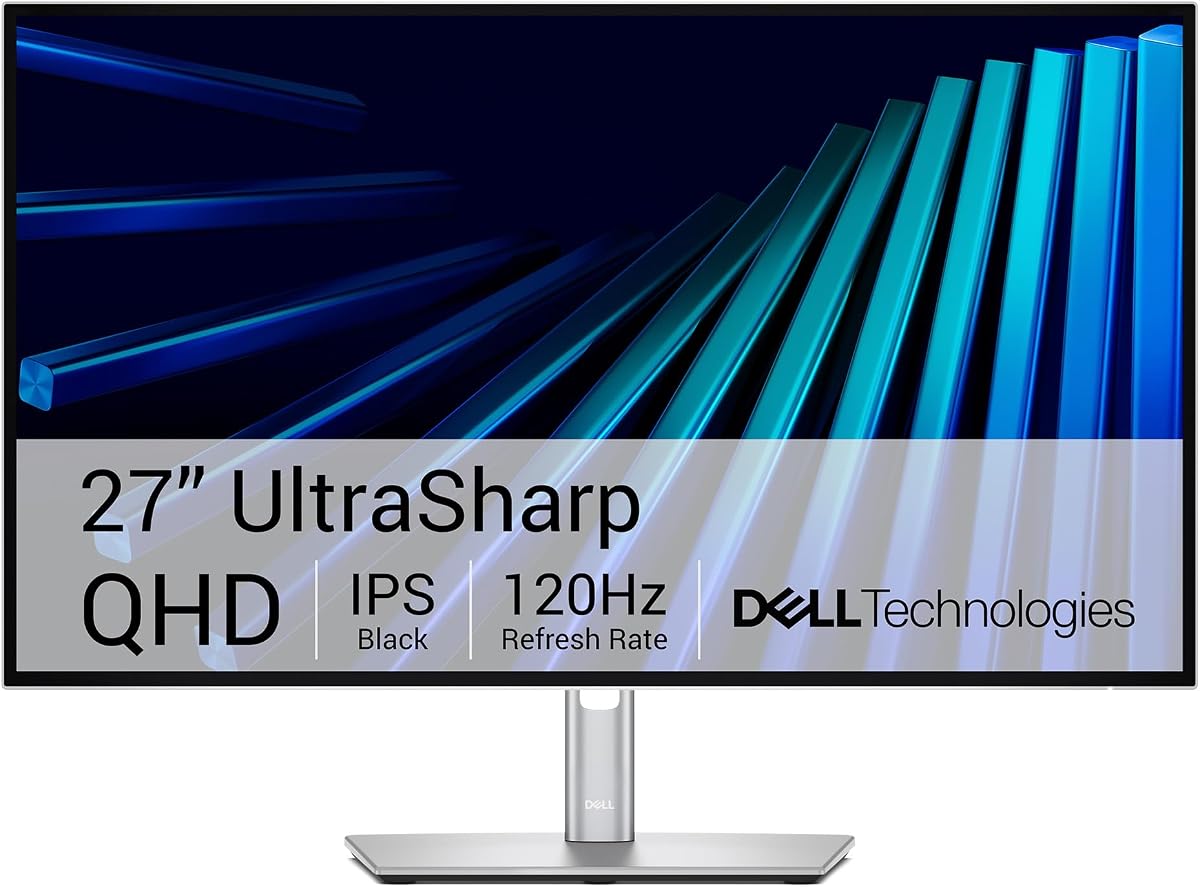
The Dell UltraSharp U2726DER is positioned as a premium Thunderbolt hub monitor for creators, developers, designers, and Mac users. It carries a 5.0 rating, the highest listed score in the roundup, and pairs a 27-inch QHD panel with 98% Display P3 coverage, factory calibration, a 120Hz refresh rate, and built-in KVM functionality.
We may earn a commission when you buy through this link, at no additional cost to you.
Color accuracy is the defining feature. The 98% Display P3 coverage and factory-calibrated configuration are intended to make photos, videos, and designs appear true to life, while the included Dell Display and Peripheral Manager app provides a way to fine-tune settings. Dell specifically notes that the Thunderbolt display has been tested with devices running macOS, making it a particularly relevant option for MacBook Pro owners.
The built-in KVM function allows a user to switch between two machines, such as a personal laptop and a work device, using one keyboard and mouse. That is highly useful in a multi-computer workflow, while the 120Hz refresh rate keeps motion smooth for design, media, and general interaction. The virtually borderless screen and light ash finish also give the monitor a clean, professional appearance.
The principal compromise is its QHD resolution, which provides less pixel density than the 4K models in this guide. Users who need extremely fine text at a large scale should compare that resolution with their sight distance and operating system scaling. Even so, the combination of a 5.0 rating, premium color accuracy, KVM switching, Mac testing, and a smooth panel makes this a leading choice for a sophisticated creative workstation.
Factory calibration and 98% Display P3 coverage make the U2726DER particularly compelling for visual workflows. The dedicated Dell management app provides additional control for refining the display after installation.
Built-in KVM switching is a meaningful advantage for MacBook Pro users who also operate a second computer. A single keyboard and mouse can be shared between machines, reducing desk clutter and simplifying transitions.
We may earn a commission when you buy through this link, at no additional cost to you.
The BenQ PD2706QN is a Mac-ready QHD monitor designed around accurate and consistent color. Its 4.5 rating, 95% P3 coverage, 100% sRGB/Rec.709 coverage, and average Delta E of no more than 2 make it particularly compelling for designers who work across color spaces or compare the same assets on different displays.
We may earn a commission when you buy through this link, at no additional cost to you.
ICCsync is one of the monitor's most Mac-specific features. It automatically matches and synchronizes ICC profiles between a Mac and the BenQ display when switching color modes, reducing the chance that a project will look different from what was intended. The all-in-one 90W USB-C connection carries images, video, and data while charging the MacBook, which keeps the desk uncluttered.
The anti-glare Nano Matte panel diffuses ambient light to protect color accuracy and contrast in bright rooms. At the same time, its 100Hz refresh rate offers smoother motion than a standard 60Hz productivity panel. Daisy-chain support through MST can also simplify a multi-monitor arrangement, although users should confirm the exact connection and Mac support for their chosen setup.
This is an excellent option for a MacBook Pro creator who values color consistency over maximum resolution. The 2560-by-1440 panel offers less fine detail than a 4K display, and the matte treatment can make vivid imagery appear less punchy than on a glossier panel. For design professionals who prioritize accurate, repeatable color and convenient one-cable operation, however, these trade-offs are easy to justify.
ICCsync provides a more consistent relationship between the Mac and the monitor when color modes change. That focus on profile synchronization differentiates this model for users who regularly alternate between general editing and color-sensitive applications.
The Nano Matte finish helps diffuse reflections and ambient light. It is especially useful for long creative sessions in rooms where a glossy display would be dominated by glare, though it slightly softens perceived vibrancy.
We may earn a commission when you buy through this link, at no additional cost to you.
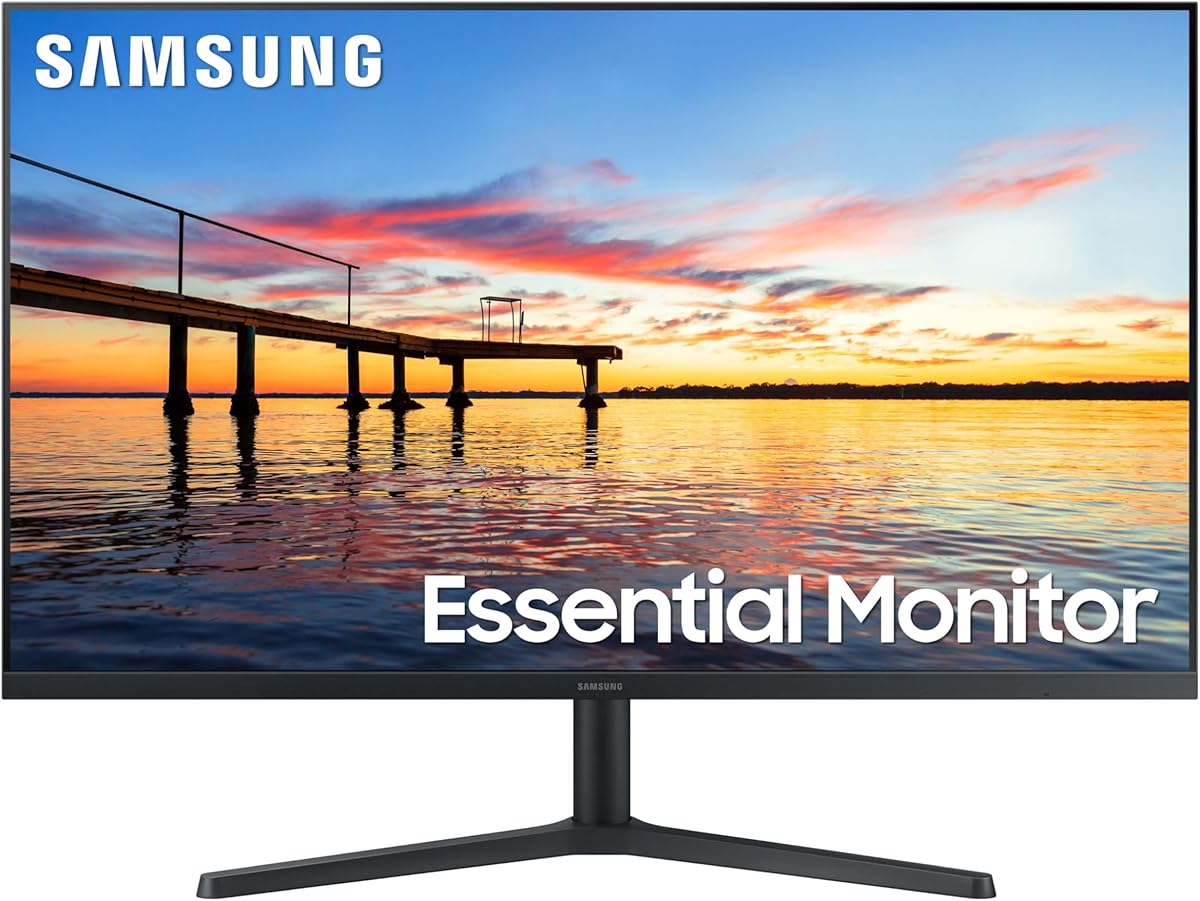
The Samsung 32-inch Flat Computer Monitor prioritizes workspace size, making it a useful extension display for MacBook Pro users who routinely work with timelines, spreadsheets, communication windows, and reference material at the same time. Its 4.5 rating indicates a generally well-received large-screen experience, while the 75Hz refresh rate provides smooth enough motion for most productivity tasks.
We may earn a commission when you buy through this link, at no additional cost to you.
The three-sided borderless display creates a clean, modern appearance and is designed to line up neatly in a multi-monitor arrangement. AMD FreeSync synchronizes the panel with compatible graphics output to reduce image tearing, while Game Mode adjusts picture settings for a fuller-screen gaming presentation. Flicker Free technology and Eye Saver Mode focus on reducing sources of visual fatigue during extended use.
As with several other large displays in this category, the product information does not list USB-C charging. MacBook Pro owners should therefore expect to use HDMI or another suitable wired or wireless connection for video while keeping charging separate, or use a docking solution that combines the required connections.
The 32-inch format is the model's defining strength and weakness. It offers a broad field of view but also demands more desk space and may encourage users to sit farther away. It is well suited to multi-window work, presentations, and casual gaming, while users who need extremely fine text, extensive color work, or a single-cable laptop arrangement may prefer a smaller 4K or QHD alternative.
The large screen makes it easier to keep communication, planning, editing, and reference applications visible. That can reduce constant window switching and makes the display a natural central workspace for a MacBook Pro.
Flicker Free operation and Eye Saver Mode address common sources of strain during long sessions. These features complement the large format, which can otherwise encourage extended viewing without regular breaks.
We may earn a commission when you buy through this link, at no additional cost to you.
The LG 27U631A-B is a well-rounded 27-inch QHD monitor that combines a 100Hz IPS panel with useful productivity and gaming features. Its 4.3 rating reflects a capable general-purpose option for MacBook Pro users who want more detail than Full HD, smoother motion than many office displays, and convenient multitasking controls.
We may earn a commission when you buy through this link, at no additional cost to you.
The 2560-by-1440 resolution provides a useful middle ground between compact Full HD screens and dense 4K panels. The IPS technology supports vivid color and wide viewing angles, while HDR10 and up to 99% sRGB coverage improve the presentation of compatible media and games. A 5ms gray-to-gray response time and 100Hz refresh rate keep motion fluid enough for general entertainment.
The Switch app can split the display into as many as six sections, customize layouts, and launch video calls through a hotkey. This is valuable for MacBook Pro users who want to move between work, streaming, and communication without constantly rearranging windows. Reader Mode, Flicker Safe, Black Stabilizer, and Dynamic Action Sync round out the feature set.
Its USB Type-C connection supports up to 15W power delivery, which is modest for charging a MacBook Pro and may be more relevant to smaller devices or supplementary power tasks. The virtually borderless three-sided design and slim stand also help keep the desk visually tidy. Overall, it is a solid choice for productivity, education, and general media use when QHD detail and smoother motion matter more than extensive connectivity.
QHD provides substantially more room for side-by-side applications than Full HD while remaining easier to drive at standard scaling. The 27-inch size is a familiar balance between productivity and desk footprint.
The ability to divide the display into multiple configurable areas makes the monitor well suited to communication-heavy work. A single hotkey can also bring up video calls, reducing interruptions during the workday.
We may earn a commission when you buy through this link, at no additional cost to you.
The most suitable display depends on how the MacBook Pro is used, which applications matter, and whether one-cable operation is a priority. Resolution, color, charging, connectivity, motion, ergonomics, and eye comfort should be considered together rather than in isolation.
Resolution determines how much information fits on screen and how sharply text and interfaces appear. A 23.8-inch Full HD monitor provides a familiar scale and is sufficient for browsing, office work, and secondary-screen use, but a 27-inch QHD display offers more pixels in a similarly practical size. A 27-inch 4K monitor provides the greatest pixel density and can show more applications and fine detail, although macOS scaling must be configured appropriately for comfortable text. A 32-inch screen prioritizes physical workspace and broad visibility rather than maximum density.
Choose 4K for dense documents, code, photo previews, and multitasking. Choose QHD for a balanced productivity display, and consider Full HD when desk space, simplicity, or a lower-cost secondary role matters most.
macOS users who edit photos, video, graphics, or presentations may prefer a monitor designed around Mac color behavior. The BenQ MA270UP is explicitly tuned for MacBook displays and offers P3 coverage, while the BenQ PD2706QN provides 95% P3, full sRGB/Rec.709 coverage, factory calibration, and ICC profile synchronization. The Dell UltraSharp U2726DER combines 98% Display P3 coverage with factory calibration and macOS testing.
Prioritize documented coverage, calibration claims, and reliable profile behavior. A wide gamut alone does not guarantee accuracy, so consider the complete color specification and the applications in which the display will be used.
USB-C can carry video, data, and power over one connection, which is particularly convenient for a MacBook Pro. The Dell S2725QC offers up to 65W, the BenQ MA270UP and PD2706QN provide up to 90W, and the LG 27U631A-B lists 15W. Power requirements vary across MacBook Pro configurations and workloads, so buyers should check whether the available delivery is sufficient for their exact setup.
Favor a model with adequate USB-C power delivery when a clean desk is important. If the display lacks USB-C charging, plan on using a suitable adapter or dock rather than assuming that one connection will handle everything.
A MacBook Pro is often part of a wider desktop ecosystem that includes storage, input devices, webcams, speakers, and additional displays. The LG 27UP850K-W offers the broadest listed selection, including USB-C, DisplayPort, two HDMI connections, two USB 3.0 ports, and a headphone jack. The BenQ MA270UP includes dual USB-C, HDMI, and an integrated USB hub, while the Dell UltraSharp includes a Thunderbolt hub and KVM switching.
List the peripherals you already own before choosing a monitor. More ports can prevent adapter clutter, but they should support the connection types and bandwidth required by your equipment.
Refresh rate affects scrolling, animation, video, and games. The Dell S2425HSM reaches 144Hz, while the Dell S2725QC and UltraSharp U2726DER support 120Hz. The LG 27U631A-B, BenQ PD2706QN, and Philips 241V8LB offer 100Hz, and the LG 27US500-W and Samsung 32-inch model use 75Hz. The BenQ MA270UP is optimized for color and Mac integration rather than a listed high refresh rate.
Choose a higher refresh rate if the external display will regularly handle fast motion or games. For document editing and general productivity, a 75Hz or 100Hz panel is likely sufficient, while smoother models add flexibility.
HDR support can improve the presentation of compatible high-dynamic-range content, but the listed certifications represent different levels of capability. The LG 27UP850K-W supports DisplayHDR 400, the LG 27US500-W supports HDR10, and the Dell S2725QC is described as HDR ready. Color specifications range from standard 99% sRGB to as much as 98% Display P3.
Check both the color gamut and HDR format used by your content. For professional grading or publishing, factory calibration and dependable color consistency are more important than a basic HDR label.
A monitor that cannot be positioned comfortably can undermine an otherwise capable setup. Height, tilt, swivel, and pivot adjustment are listed for the Dell S2425HSM, while the BenQ MA270UP and PD2706QN also support comprehensive positioning. The LG 27UP850K-W includes height, tilt, and pivot, whereas the LG 27US500-W lists tilt adjustment and the Samsung model's listed stand information is limited.
Measure the available desk area and compare the monitor footprint with your current laptop arrangement. Pay close attention to stand depth, neck position, and whether the screen can be placed at eye level without a separate riser.
Long MacBook Pro sessions can involve extended reading, scrolling, and video calls. The Philips 241V8LB includes EasyRead mode, while several LG models offer Reader Mode and Flicker Safe. The Dell S2425HSM is TÜV-certified for eye comfort, and the Dell S2725QC uses ComfortView Plus to reduce harmful blue light emissions. Integrated speakers can also improve the convenience of calls and media.
Treat these features as complements to a sensible viewing distance and regular breaks. They may improve comfort, but they cannot compensate for a badly positioned display or an overly bright room.
Begin by placing the monitor directly in front of the primary user rather than to the side of the MacBook Pro. Adjust the height, tilt, and viewing angle so the top of the screen is near eye level and the text appears comfortable. After connecting the display, select the appropriate resolution and scaling option in macOS, then arrange the laptop either beside the monitor or below it depending on the preferred workflow.
Configure the display to use the widest available color space for the task at hand, and avoid changing color settings unnecessarily between projects. For a single-cable arrangement, confirm that the USB-C cable and monitor support the required charging level, display resolution, and refresh rate. Users of USB-C docks should connect the necessary peripherals through the dock and check whether macOS has recognized each external display as a separate workspace.
Care for the panel by cleaning it with a soft, lint-free microfiber cloth, avoiding abrasive pads, and never spraying liquid directly onto the screen. Leave adequate ventilation around the rear and base, and avoid placing the display where direct sunlight or intense heat may affect performance. Periodically review stand position, cable strain, display scaling, and sleep settings to keep the setup comfortable and reliable.
A 4K monitor is worth considering if you regularly edit detailed documents, work with code, preview high-resolution media, or use several applications at once. Its higher pixel density can make text and controls appear sharper than Full HD or QHD. The appropriate macOS scaling setting still matters, so users should evaluate the monitor in person when possible and confirm that its size feels comfortable at their preferred viewing distance.
It can when the monitor's USB-C connection supports the required display, data, and power functions. Available charging varies considerably across this roundup, from 15W to 90W, while the Dell S2725QC lists up to 65W. Check the wattage required by your MacBook Pro configuration and confirm compatibility before relying on the monitor as the sole charging source.
An sRGB display is appropriate for general office work and web use, while P3 or Display P3 coverage offers a broader range for photo, video, and design workflows. The BenQ MA270UP, BenQ PD2706QN, and Dell UltraSharp U2726DER are especially relevant when Mac color matching or factory calibration is important. Gamut coverage alone does not prove accuracy, so look at calibration claims and workflow features as well.
QHD provides a useful balance of screen detail, physical size, and scaling flexibility, making it a strong general-purpose option for a MacBook Pro. A 4K panel provides more pixel density and can show more information, but it is most useful at a suitable viewing distance and with well-chosen macOS scaling. A 32-inch QHD-class screen offers more physical workspace, while a 27-inch 4K model offers greater detail in a similar footprint.
A higher refresh rate makes scrolling, animation, cursor movement, and compatible games appear smoother. Models offering 100Hz, 120Hz, or 144Hz can therefore feel more responsive than 75Hz alternatives. For static office work, the difference may be modest, but the faster models provide extra flexibility when the same display is also used for media or games.
Built-in speakers are convenient for system audio, video calls, and casual media, and several monitors here include them. They generally should not be assumed to replace dedicated speakers for serious music or entertainment. If audio quality is important, evaluate the available headphone output and the option to connect a separate speaker system.
Stand adjustment can be very important because a MacBook Pro on a stand may place its screen noticeably higher or lower than the external monitor. Height, tilt, swivel, and pivot controls allow the displays to align more naturally, reducing neck strain and improving the appearance of a two-screen workspace. Models with limited adjustment may require a separate riser or more careful desk placement.
Verify the connector type, maximum supported resolution and refresh rate, charging level, and whether an adapter or dock is needed. Color coverage, scaling behavior, HDR support, and the availability of Mac-oriented controls are also important. Finally, check the stand range and desk dimensions to ensure the display can be positioned comfortably beside the MacBook Pro.
The BenQ MA270UP is the strongest Mac-focused recommendation because it combines 4K resolution, P3 color, dual USB-C connections, 90W charging, and direct brightness and volume controls from a Mac keyboard. The Dell UltraSharp U2726DER is the premium creator option, offering factory-calibrated 98% Display P3 color, a 5.0 rating, 120Hz motion, and convenient KVM switching. For a simpler or more economical second display, the Dell S2425HSM combines a 4.7 rating, 144Hz refresh rate, speakers, and extensive stand adjustment.
The right choice depends on priorities. Mac integration and one-cable power favor the MA270UP, color-critical workflows point toward the UltraSharp or BenQ PD2706QN, and maximum detail favors a 4K display. Full HD remains viable for basic secondary-screen duties, while QHD and larger 32-inch formats provide a middle ground between pixel density and physical workspace.
Specifications, compatibility details, and product pricing can change, so readers should confirm the current listing before making a final decision. They should also check the MacBook Pro model, expected power requirements, desk space, preferred scaling, and peripheral connections. With those details settled, the most suitable monitor is the one that combines the right image quality and connectivity without paying for features the intended workflow will not use.