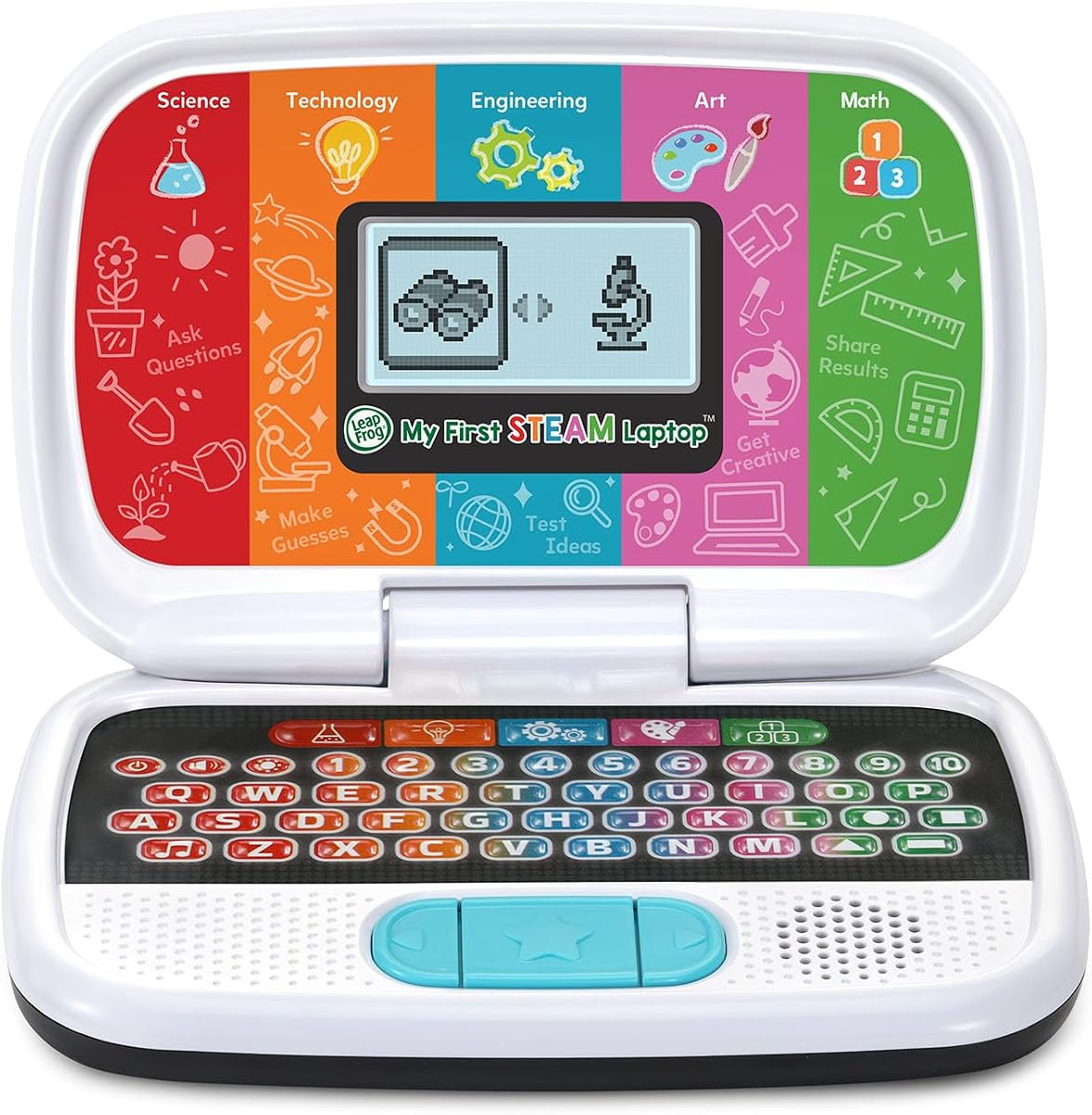
LeapFrog My First STEAM Laptop
4.5Editor score
STEAM learning activities
Designed for ages three-plus
Robots, fossils, and plants
A first laptop should make children feel comfortable while encouraging curiosity, coordination, and independent play. The right choice depends on age, desired learning goals, screen size, portability, and how much supervision the device will require.
We compared all ten options for essential computer skills, educational content, keyboard and pointer familiarity, connectivity, parental controls, and ease of use. The list includes dedicated learning toys, offline laptops, Android tablets with keyboards, and a more advanced Chromebook.
Each pick highlights a different path into technology, from a colorful toy for toddlers to a touchscreen device for school-age children. Ratings and product details reflect the supplied listings, while prices and availability can change at any time.
4.5Editor score

4.5Editor score

4.2Editor score
As an Amazon Associate we earn from qualifying purchases.
The comparison below shows how the ten laptops differ in intended age, screen format, learning approach, connectivity, and control options, making it easier to match a device to a child's developmental stage.



The VTech Genio Bilingual JuniorBook is a well-rounded first laptop for children aged five and older. It has a 4.5 rating in the supplied listing and stands out for combining a grown-up-looking design with more than 80 educational and entertainment activities that work without an internet connection.
We may earn a commission when you buy through this link, at no additional cost to you.
Its full-size QWERTY keyboard and cursor controller introduce familiar computer navigation without exposing a young child to the complexity of a general-purpose operating system. Activities cover math, science, language arts, music, Spanish, calendars, notebooks, and games, while every activity can be played in English or Spanish. That mix makes the device useful for both structured learning and free play.
The main limitation is that it is a closed learning environment rather than a flexible internet laptop. It also requires four AA batteries, and the batteries included for demonstration may need replacing soon after purchase. Some families may also want a larger screen or more advanced capabilities as the child gets older.
Those limitations are reasonable for the intended age group. Parents seeking a safe, self-contained introduction to computers should prioritize this model over an open Android device, particularly when the child is not yet ready for web browsing and complex interfaces.
Because the activities are preloaded, children can begin immediately without accounts, web filtering, or an internet connection. This creates a controlled setting for learning basic cursor movement, typing, calendar use, and subject-based practice.
Full bilingual play lets children switch activities between English and Spanish, adding language exposure without requiring a second app or separate device. The approach can make early learning feel more varied and inclusive.
We may earn a commission when you buy through this link, at no additional cost to you.
The LEXiBOOK LAPTAB 10 is the most advanced entry in this guide, combining a 10.1-inch HD touchscreen with an octa-core processor, 128GB of storage, and access to Google Play. Its 4.2 rating reflects a capable general-purpose device that bridges educational software and ordinary family entertainment.
We may earn a commission when you buy through this link, at no additional cost to you.
The Power Academy app, 300 ebooks through ReadEra, and a 15-language translator give the learning side meaningful depth. Customizable profiles, robust parental controls, and the Qwant Junior browser help adults establish a safer digital environment. Two USB-A ports, one USB-C port, Bluetooth 5.0, WiFi, and a 2MP camera make it easier to treat the tablet-keyboard device like a compact everyday computer.
Unlike a dedicated learning laptop, it opens a much larger world of apps, which means children may encounter content beyond what adults expect. Parental oversight remains important, and some learning features depend on the included software or content being available and configured.
It is a strong choice for a school-age child who is ready for touchscreens, app navigation, and more independent computer use. The larger display and expandable capabilities justify selecting it over a simple toy-style laptop when longevity and versatility matter.
The 10.1-inch HD display offers more room for reading, writing, and interactive activities than the small screens found on most dedicated children's laptops. Touch input also makes the device approachable before the child masters a physical keyboard.
Customizable profiles, time-management features, app controls, and a child-oriented browser give parents several ways to shape the experience. These tools are most valuable when a child is ready to move beyond fixed learning activities.
We may earn a commission when you buy through this link, at no additional cost to you.
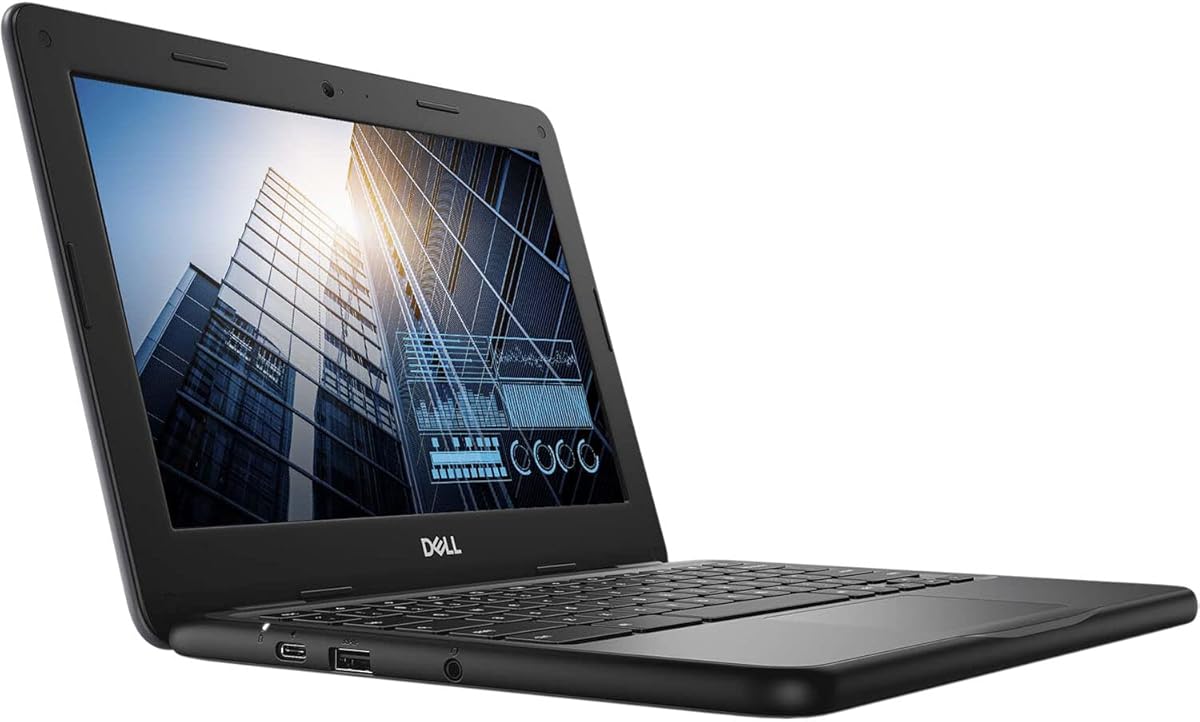
The renewed Dell Chromebook 11 3100 is aimed at older children who are ready for a more conventional computing experience. It has a 4.3 rating and pairs an 11.6-inch touchscreen with a 2-in-1 form factor, making it suitable for browsing, writing, and school-oriented Chromebook activities.
We may earn a commission when you buy through this link, at no additional cost to you.
Its Intel Celeron N4020 dual-core processor, 4GB of RAM, and 32GB of flash memory provide a practical platform for cloud-based work. USB-C connectivity, Bluetooth, and the included 65-watt power adapter support everyday use, while the large display is easier on the eyes than the compact screens on many educational toys.
This is a renewed product, so physical condition may not match a new unit, and the category may carry more complexity than parents expect from a toy laptop. Children will also need more active guidance around software, accounts, web access, and online behavior.
For a child approaching school age or moving into schoolwork, the Chromebook provides a more realistic introduction to laptops. Parents should review the renewed condition and establish a family account and supervision plan before regular use.
Unlike a fixed-content learning toy, a Chromebook exposes children to a familiar laptop workflow with a larger display, physical keyboard, and web-capable applications. That familiarity can make the eventual move to a personal computer less disruptive.
The 2-in-1 touchscreen design allows children to alternate between typing and touch interaction. It is useful for reading, demonstrations, and school activities that benefit from either input method.
We may earn a commission when you buy through this link, at no additional cost to you.
The 48-Mode Educational Laptop provides a straightforward introduction to computers for children aged five and above. It has a 4.0 rating and organizes its content into a large selection of learning modes spanning familiar early-childhood subjects.
We may earn a commission when you buy through this link, at no additional cost to you.
Alphabet, mathematics, colors, animals, general knowledge, logic, music, clock reading, and calendar activities cover core ideas. A 4.3-inch color TFT screen presents the material clearly, while the laptop-inspired shape, realistic mouse, and keyboard help children recognize familiar computer conventions.
Games test logic, memory, and speed after the learning portions, which may help sustain interest over time. However, the product data does not describe an internet connection, open application store, or advanced parental controls, so it is best treated as a focused educational toy.
For families seeking a portable, dedicated first laptop with substantial built-in content, this model is easier to understand than a general Android device. Its subject variety also makes it a solid alternative for children who want more than a single activity collection.
Forty-eight modes make it easy to rotate among literacy, numeracy, general knowledge, music, and practical skills. The variety helps prevent the experience from becoming a single repetitive exercise.
The 4.3-inch display sits in a compact body measuring approximately 11 by 8 by 1.2 inches. Its manageable size and easy-grip design are practical for younger hands and limited storage space.
We may earn a commission when you buy through this link, at no additional cost to you.
The 10.1-Inch Android Laptop offers a conventional large-screen Android experience for learning and entertainment. Its 3.4 rating is the lowest in the group, but the supplied specifications show a capable entry-level platform with a quad-core processor, WiFi, Google apps, and physical ports.
We may earn a commission when you buy through this link, at no additional cost to you.
The 1280 by 800 IPS display provides more usable space than the tiny screens on most dedicated learning laptops. Two USB ports, a USB-C charging connection, and a TF card slot also offer more peripheral flexibility than many compact alternatives. The package includes the laptop, charger, manual, mouse, and bag.
Performance is constrained by 2GB of RAM and 64GB of eMMC storage, so it is better suited to educational applications, browsing, media, and simple productivity than demanding games or heavy multitasking. The 3.4 rating also warrants closer attention to recent customer feedback before purchasing.
Despite those limitations, this can be a practical first laptop for a child ready to use Google Docs, Google Drive, and the Play Store. Adults should configure parental controls and app restrictions immediately rather than treating the Android system as a sealed educational environment.
Access to Google Docs, Google Drive, and the Play Store turns the device into a compact general-purpose computer. That makes it useful for school assignments, video calls, research, and entertainment when supervised appropriately.
Two USB ports, USB-C charging, and a TF card slot can simplify connections to peripherals and removable storage. The included mouse is helpful for children who are not yet comfortable with touch navigation alone.
We may earn a commission when you buy through this link, at no additional cost to you.
The 7-Inch Android Mini Laptop is built around portability, offering a compact screen and a lightweight form for children who want a small personal computer. It carries a 4.0 rating and runs Android 12 with WiFi, a built-in camera, and access to applications such as YouTube and Flash Player.
We may earn a commission when you buy through this link, at no additional cost to you.
The product listing emphasizes its compact footprint, straightforward functionality, and suitability as a children's gift. An optical mouse and charger are included, while several color choices allow the child some ownership over the device. These qualities make it visually approachable and easy to carry.
The product data gives less detail about processor performance, memory, battery capacity, and parental controls than it does for some competing models. Storage is listed at 32GB, which can become limited once system files and applications are included.
This option makes the most sense for a child who values a tiny, familiar computer and needs basic media and internet functions. Adults should confirm current specifications and set up appropriate content controls before handing it over.
The seven-inch format is noticeably smaller than the Chromebook and 10.1-inch Android options in the guide. That portability can make screen-free time, travel, and compact desk setups more convenient.
WiFi, a camera, and access to online video applications create a recognizable mini-computer experience. These functions need active parental oversight, particularly for younger children.
We may earn a commission when you buy through this link, at no additional cost to you.
The LeapFrog My First STEAM Laptop is a budget-friendly introduction to technology for children aged three and above. It shares the guide's top rating of 4.5 and focuses on science, technology, engineering, art, and mathematics through guided activities.
We may earn a commission when you buy through this link, at no additional cost to you.
Children can grow plants, investigate fossils, learn why sunlight matters, build robots and machines, match shapes to parts, and create animal designs. Counting exercises using dinosaur bones and test tubes add a playful way to practice early numeracy. The format feels more like an interactive learning toy than a traditional office computer.
It does not offer the broad app selection, large display, or web access of the premium and general-purpose models. It also requires two AA batteries, with the included examples intended only for demonstration. Parents should not expect the activities to expand in the way an open operating system can.
For families seeking a focused, affordable learning toy that encourages problem-solving and discovery, this is one of the strongest choices in the guide. It is especially well suited to children who are not ready for a dense interface or open browsing.
Robots, machines, fossils, plants, and shape-matching activities encourage active experimentation. The mix supports early engineering curiosity without requiring advanced reading or computer knowledge.
The age-three recommendation and guided themes make this more approachable than a full laptop. Children can concentrate on specific tasks instead of navigating a complicated operating system.
We may earn a commission when you buy through this link, at no additional cost to you.
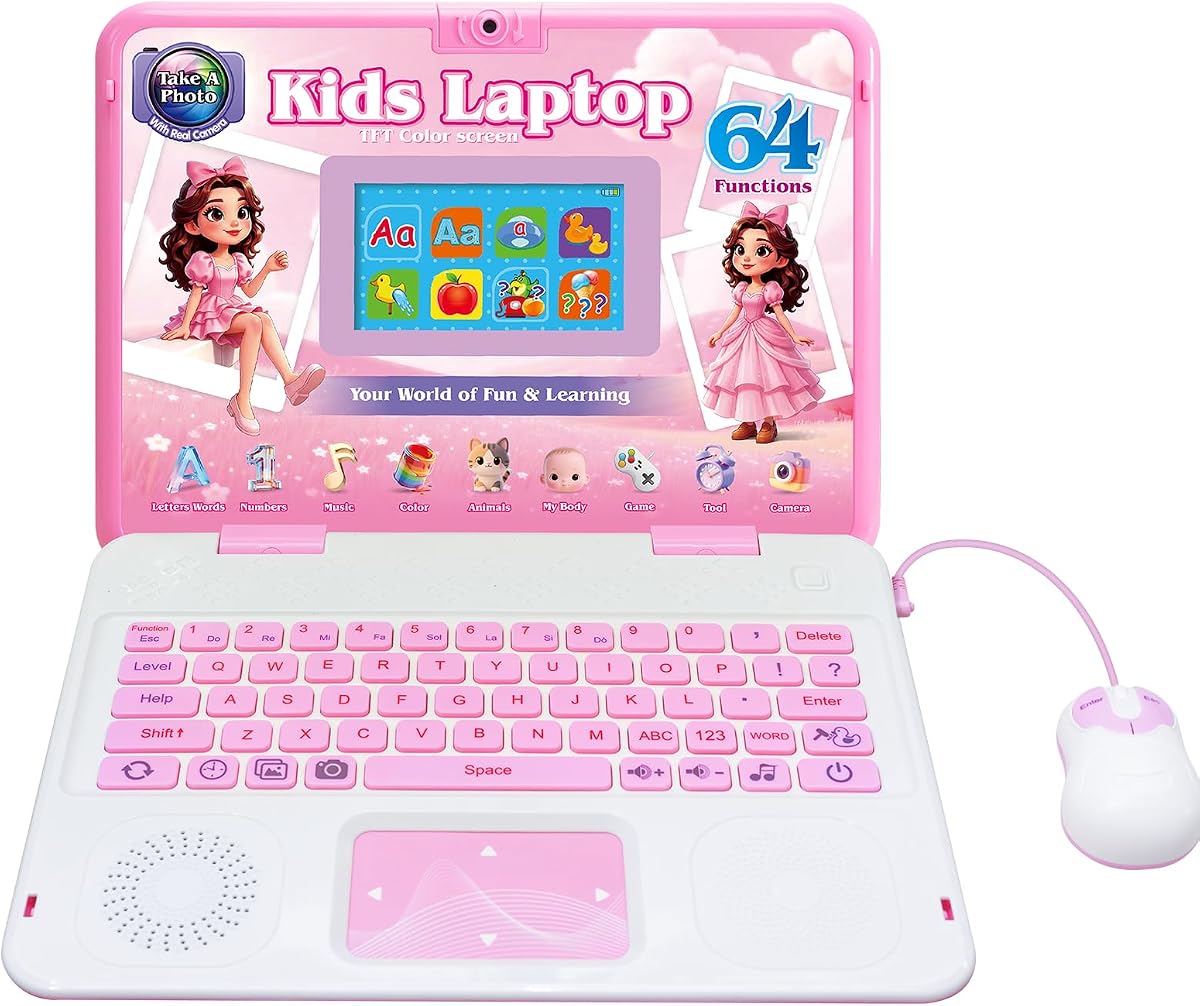
The 64-Mode Kids Camera Laptop combines educational activities with a creative photo feature, earning a 4.6 rating, the highest listed score in the guide. It is intended for children aged five and older who want a colorful, playful introduction to computers.
We may earn a commission when you buy through this link, at no additional cost to you.
Its activity library covers the camera, alphabet, mathematics, colors, animals, music, and games. The camera includes child-friendly frames and filters, while the 4.3-inch TFT display provides clear, vivid visuals. A realistic keyboard and mouse, together with the slim body, make the device look and feel like a miniature laptop.
The camera is the most notable distinction, but it also creates a responsibility for parents. Adults should establish clear rules about taking, saving, and sharing pictures and explain that a camera is not automatically private. As with the other compact learning laptops, the product is not intended for serious productivity work.
For a child who is motivated by creative expression rather than academic simulation, this is an especially engaging option. The balance of learning modes, games, and photography gives it more varied appeal than a basic alphabet-learning toy.
Photo frames and filters make the camera function feel like a game rather than a technical accessory. This can encourage children to experiment with images while building mouse and button-control skills.
A large activity count spans education and entertainment, including language, math, music, animals, and logic-based games. The variety supports repeat play across different interests.
We may earn a commission when you buy through this link, at no additional cost to you.
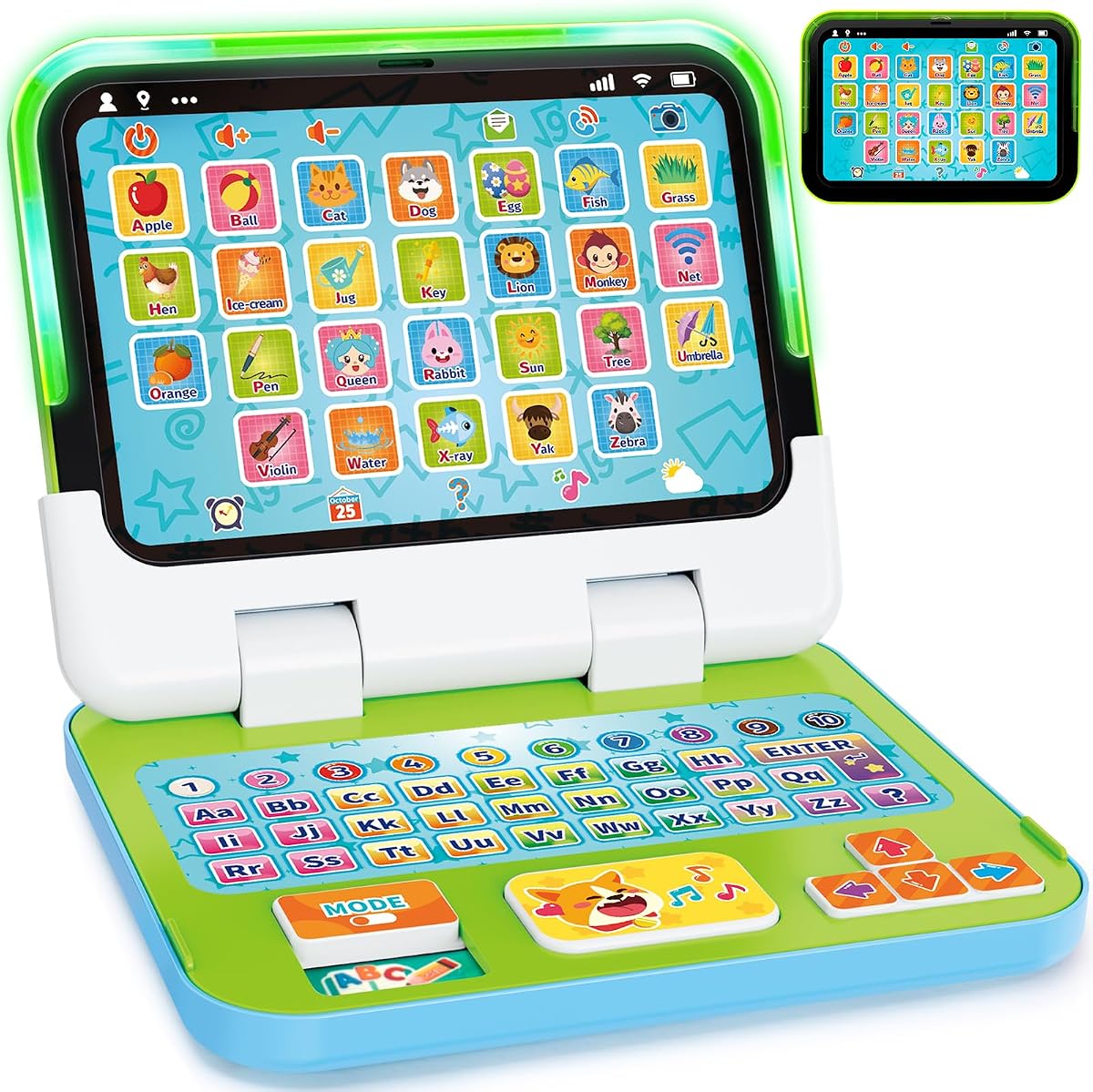
The 2-in-1 Toy Computer is designed specifically for children between one and three years old. Its 4.4 rating reflects a carefully targeted toddler product with a detachable base, lights, sounds, music, and more than 120 early-learning themes.
We may earn a commission when you buy through this link, at no additional cost to you.
Children can use it in keyboard mode or detach the screen for tablet-style play. Learning Mode introduces letters, numbers, and colors, while Spelling Mode offers immediate feedback. Quiz Mode includes more than 70 questions, and Music Mode supports basic musical exploration. Pretend activities such as making calls and sending emails encourage everyday vocabulary and social imitation.
This is not a replacement for a real computer, and it lacks the open application access, large display, and productivity functions found in the other categories. Parents should also supervise all use, particularly because the toy includes sound, lights, and a camera-like pretend-play concept.
For a child still in the toddler stage, the toy is better matched to developmental needs than a conventional laptop. Its rounded edges, strong ABS construction, anti-drop and anti-scratch design, and secured battery compartment are useful features for homes, daycare, and travel.
The detachable base allows the child to alternate between pretending to type and handling the unit as a tablet. That flexibility can sustain interest and introduce different forms of interaction.
Spelling feedback, quizzes, music, and familiar pretend scenarios support vocabulary, listening, memory, fine-motor development, and communication without presenting an adult-level interface.
We may earn a commission when you buy through this link, at no additional cost to you.
The Lexibook Unicorn Educational Laptop offers a colorful, approachable first-computer experience. It has a 4.3 rating and combines English and Spanish activities with mathematics, typing, general knowledge, logic, music, and clock reading in a child-friendly unicorn design.
We may earn a commission when you buy through this link, at no additional cost to you.
Activities are organized so children can learn, test their knowledge, and improve through different levels. Games focused on logic, memory, and speed add an entertaining element, while the music section teaches notes, composing, and playing melodies. Its slim, ergonomic form and realistic mouse and keyboard make it look more like a genuine miniature computer than a basic toy.
The product data does not mention a camera, web access, a general app store, or advanced parental controls, so it belongs in the dedicated learning-toy category. Its content set may eventually feel less advanced for a child accustomed to larger, more flexible devices.
For families drawn to an engaging character design and a balanced set of early learning activities, this remains a useful option. It is especially suitable for children who want a friendly first laptop rather than a general-purpose Android or Chromebook experience.
Bilingual language work, numeracy, typing, music, logic, and clock reading give children several ways to engage. Music-focused lessons in particular make the device feel less like a worksheet machine.
Activities with different levels allow children to test what they know and revisit skills with more challenging material. This supports gradual progression without requiring adult configuration for each session.
We may earn a commission when you buy through this link, at no additional cost to you.
The right first laptop should match a child's age and interests while remaining manageable for parents. Screen size, content, connectivity, input methods, durability, and supervision needs matter more than raw specifications for most young users.
A toddler needs a toy that supports listening, language, fine-motor practice, and pretend play rather than a conventional computer operating system. A five-year-old may benefit from a full-size keyboard, alphabet activities, and simple games, while an older child may be ready for touchscreen navigation, educational applications, typing, and school tools.
Match the device to current abilities and the next skill the child is ready to learn. A device that is too advanced can frustrate, while one that is too simple may be ignored quickly.
Consider whether the child needs subject-specific practice, creative activities, language exposure, reading material, or general entertainment. A large activity count is useful only when the content remains engaging, so varied modes and age-appropriate difficulty are better indicators than raw totals.
Choose content that supports existing interests and can be returned to over time. Parents should also verify whether educational applications are preloaded or must be downloaded.
Small screens are easier for small hands and short learning sessions, while larger touchscreens are more useful for reading, drawing, video, and schoolwork. A physical keyboard teaches typing, and a mouse or trackpad develops pointer skills that may transfer to conventional computers.
The ideal setup depends on the child. Touch-only devices are intuitive for beginners, but adding a keyboard or mouse later can improve precision. Check the included accessories and whether the device supports external input.
Offline devices provide a controlled introduction to computers and are ready to use without accounts or an internet connection. Open Android systems offer much greater flexibility through Google Play but require stronger parental controls, careful app selection, and ongoing supervision.
Decide whether immediate internet access is desirable. For younger children, fewer options can be beneficial; for school-age children, carefully managed connectivity may support research, reading, and communication.
Profiles, time limits, app restrictions, and child-focused browsers are important in any device that can reach online content. A camera also requires a conversation about privacy, consent, and safe sharing, particularly for children who may use it to photograph people without understanding the implications.
Set up profiles, filters, purchase controls, and usage limits before handing over the device. Explain which actions require permission and review installed applications periodically as the child's independence grows.
Young children frequently drop, grip, and transport devices, so rounded edges, a manageable weight, and a secure battery compartment can matter more than a slim profile. Screen size also affects portability: a seven-inch device is easier to carry, while an 11.6-inch display is less suited to small bags.
Consider how the child will actually use the laptop. A device that stays on a desk can justify a larger screen, while frequent travel calls for a compact body, included case, and comfortable controls.
Battery-powered educational toys require regular battery replacement, while rechargeable Android devices and Chromebooks are more convenient for frequent use. A stated battery figure is not the same as a child's actual usage time because display brightness, video, and activity intensity all matter.
For battery-operated products, keep spare compatible batteries and establish a replacement routine. For rechargeable devices, use the supplied charger and avoid leaving the computer in extreme heat or with a damaged charging cable.
A fixed learning laptop can remain useful for years if its activities fit the child's age and interests. A general-purpose device may last longer because it supports web tools, creative applications, communication, and school applications as needs grow.
Avoid buying the most advanced model too early. Choose a fixed learning tool for controlled introductions and a general-purpose laptop when the child can navigate menus, manage accounts, and understand online rules independently.
Begin with a short, supervised session and explain the basic sequence of opening, navigating, selecting, and closing activities. For fixed learning laptops, demonstrate one or two educational modes and allow free play afterward. For Android devices and Chromebooks, create the child's profile, enable parental controls, set time limits, and explain which buttons or actions always require permission.
Use age-appropriate routines rather than allowing continuous screen time. Short lessons followed by an offline creative or physical activity can help children retain what they practiced. Let them operate the keyboard, mouse, or touchscreen themselves, but remain nearby when online features, purchases, or camera functions are available.
Care for the device by keeping liquids away from the screen and ports, using a dry microfiber cloth for cleaning, and avoiding harsh sprays. Protect the screen from impacts, respect battery guidance, and use replacement batteries of the correct type. Check the manufacturer's guidance for software updates, storage management, and cleaning before experimenting with unfamiliar settings.
The right age depends on the product and the child's development. Devices specifically designed for ages one through three work best as interactive learning toys, while children around five may be ready for a keyboard, alphabet games, and simple subject activities. Older children can use touchscreen laptops or Chromebooks with appropriate supervision.
An offline laptop can be ideal for younger children because it offers controlled content without ads, messaging, or accidental web access. Internet-connected models are more useful for school-age children who need reading, research, video, and communication tools. In either case, parental controls and clear household rules are essential.
A Chromebook can be a suitable choice for an older child because it provides a familiar keyboard, large display, and web-focused productivity tools. The Dell Chromebook in this guide is a renewed 11.6-inch model, so families should inspect its condition and understand the account-management requirements before purchase.
Yes, particularly when the device can browse the web, download applications, use a camera, or make purchases. Useful controls include user profiles, time limits, app permissions, content filtering, and purchase locks. Dedicated offline toys need fewer digital controls, but adult supervision is still important.
A laptop is better when the child is ready to practice typing and learn computer navigation, while a tablet is often easier for touch-based learning and video. A two-in-1 device can bridge both approaches, as shown by the LAPTAB 10 and the detachable toddler toy in this guide.
Keep the first lessons concrete and brief. Show how to open a menu, select an icon, use the mouse, type a few letters, and exit safely. Repeat the same sequence regularly, connect screen practice with offline activities, and praise effort rather than speed or perfect results.
Most dedicated educational laptop toys are simplified devices rather than general-purpose computers. They are designed to teach specific skills through controlled activities, games, music, or pretend play. If your child needs web access, document creation, or a wide application library, choose an Android laptop or Chromebook instead.
Set predictable time limits, use activity reminders, and pair screen sessions with reading, outdoor play, drawing, or hands-on building. For open devices, schedule check-ins rather than constant interruption, and talk with the child about what they used and learned. Clear routines usually work better than unpredictable restrictions.
The VTech Genio Bilingual JuniorBook is the strongest all-around choice for a child aged five or older because it combines a realistic keyboard, extensive offline activities, and English-Spanish learning without an open web environment. The LeapFrog My First STEAM Laptop stands out for younger children and budget-conscious families, while the LEXiBOOK LAPTAB 10 offers the broadest mix of education, apps, and larger-screen versatility.
The right choice should follow the child's stage rather than the most advanced specifications. Toddlers benefit from simple learning toys, younger elementary children gain from offline subject activities and basic typing practice, and school-age children may be ready for touchscreen apps, a Chromebook, or a connected Android device. Input method, content quality, supervision needs, and durability should be weighed carefully.
Before buying, verify the current specifications, included accessories, age guidance, warranty details, and return terms. Prices and availability can change, so compare the current listing carefully and choose the device that best matches the child's present abilities and your family's comfort with technology.