
PicassoTab A10
4.3Editor score
Compact 10-inch laminated display
4096-level pressure-sensitive stylus
Beginner tutorials and app upgrades
Standalone octa-core performance
A standalone drawing tablet combines a pressure-sensitive pen, a built-in display, and enough computing power to create artwork without a separate computer. The right model should offer a comfortable screen, responsive pen input, useful creative software, dependable battery life, and enough storage for the kind of work you plan to do.
This guide compares ten tablets using the information supplied for each model, focusing on screen size, resolution, pressure levels, processing power, memory, storage, included accessories, app support, portability, and direct pen-to-screen performance. It covers both true standalone devices and traditional tablets that require a computer, helping buyers distinguish the differences.
Each review explains who the product is best suited for, where it offers a clear advantage, and which compromises deserve attention. The leading choices range from compact models for beginners to larger screens and more capable hardware for experienced artists. Prices and availability can change, so confirm current listings before purchasing.
4.3Editor score

4.5Editor score

4.2Editor score
As an Amazon Associate we earn from qualifying purchases.
This side-by-side comparison highlights display size, pen sensitivity, performance, storage, and standalone capability. It also makes clear which products function as complete tablets and which require a separate computer.



The RubensTab T11 Pro is a genuinely standalone drawing tablet with a 4.4 rating, combining a 10.1-inch Full HD IPS display, multi-touch, Wi-Fi, and a pressure-sensitive pen in one portable device. It can run creative applications without a separate computer, making it convenient for artists who sketch away from a desk, students, and users who want a flexible note-taking tool as well as a drawing surface.
We may earn a commission when you buy through this link, at no additional cost to you.
Its 1920 by 1200 resolution provides enough detail for illustration, sketching, photo editing, classroom work, and meeting notes. The pen works without a battery and supports adjustable pressure, while touch gestures make it easier to pan, zoom, and navigate the interface. A 5800mAh battery is listed for as much as five hours of continuous use, and USB-C charging adds convenient power options for travel or long sessions.
The main limitation is the tablet's compact 10.1-inch canvas. Artists working on detailed character art, large illustrations, or expansive scenery may eventually want more room, and the stated battery duration is less substantial than the 8000mAh or 10000mAh batteries found in some alternatives. The supplied information also does not assign a specific pressure-level count, so buyers who consider that number essential should verify it directly.
Even with those limitations, the T11 Pro is a sensible choice for people prioritizing portability, immediate usability, and freedom from a wired computer setup. It includes an adjustable stand case, preinstalled drawing software, and multi-purpose functions for school, work, and travel. The recommendation is strongest for sketchers and casual-to-intermediate digital artists who value a complete package in a manageable screen size.
The self-contained operating system is the defining advantage here. Users can power on the tablet, open installed creative software, and begin working without arranging a host device, cables, or a compatible drawing application first.
Note-taking, classroom work, presentations, browsing, and cloud access extend the device beyond illustration. The included stand case also makes it easier to shift between a propped-up working position and a more portable arrangement.
We may earn a commission when you buy through this link, at no additional cost to you.
The PicassoTab A10 is one of the most approachable standalone drawing tablets in this comparison, earning a 4.3 rating while offering a complete tablet-and-pen package. It runs creative software directly on the device and includes a laminated 10-inch screen, 4096 pressure levels, and a 4096-level active stylus for users who are building their first digital art setup.
We may earn a commission when you buy through this link, at no additional cost to you.
Its paper-like display is designed to reduce glare and parallax, which can make line placement and sketching feel more natural than an untreated glossy panel. The octa-core processor and 6GB of RAM provide a more substantial foundation for drawing apps, schoolwork, streaming, and multitasking. Storage begins at 64GB but can be expanded to as much as 1TB, making the A10 adaptable as a larger creative library develops.
This is not the strongest option for demanding professional illustration because its 10-inch canvas leaves less working space than the 11-inch, 12-inch, and 14.1-inch alternatives. The supplied information also does not list its exact screen resolution, battery capacity, or supported operating system. Those details matter for buyers comparing it with more premium standalone devices.
The A10 is especially well suited to beginners, students, casual sketchers, and anyone who wants to test a standalone workflow without beginning with a larger device. Lifetime tutorial access, app upgrades, a drawing glove, a case, a universal power adapter, and a preinstalled screen protector make the package especially complete. It is the strongest budget-oriented recommendation in the list.
The Artixo tutorials, guided exercises, and Xplore guidance give beginners a structured way to learn basic marks, shapes, and digital workflows. Two included app upgrades also reduce the need for separate purchases when the user is ready to explore more advanced creative features.
Six gigabytes of RAM, an octa-core processor, and expandable storage make the A10 useful for schoolwork, streaming, and everyday multitasking as well as drawing. The bundled case and universal adapter further improve its portability.
We may earn a commission when you buy through this link, at no additional cost to you.
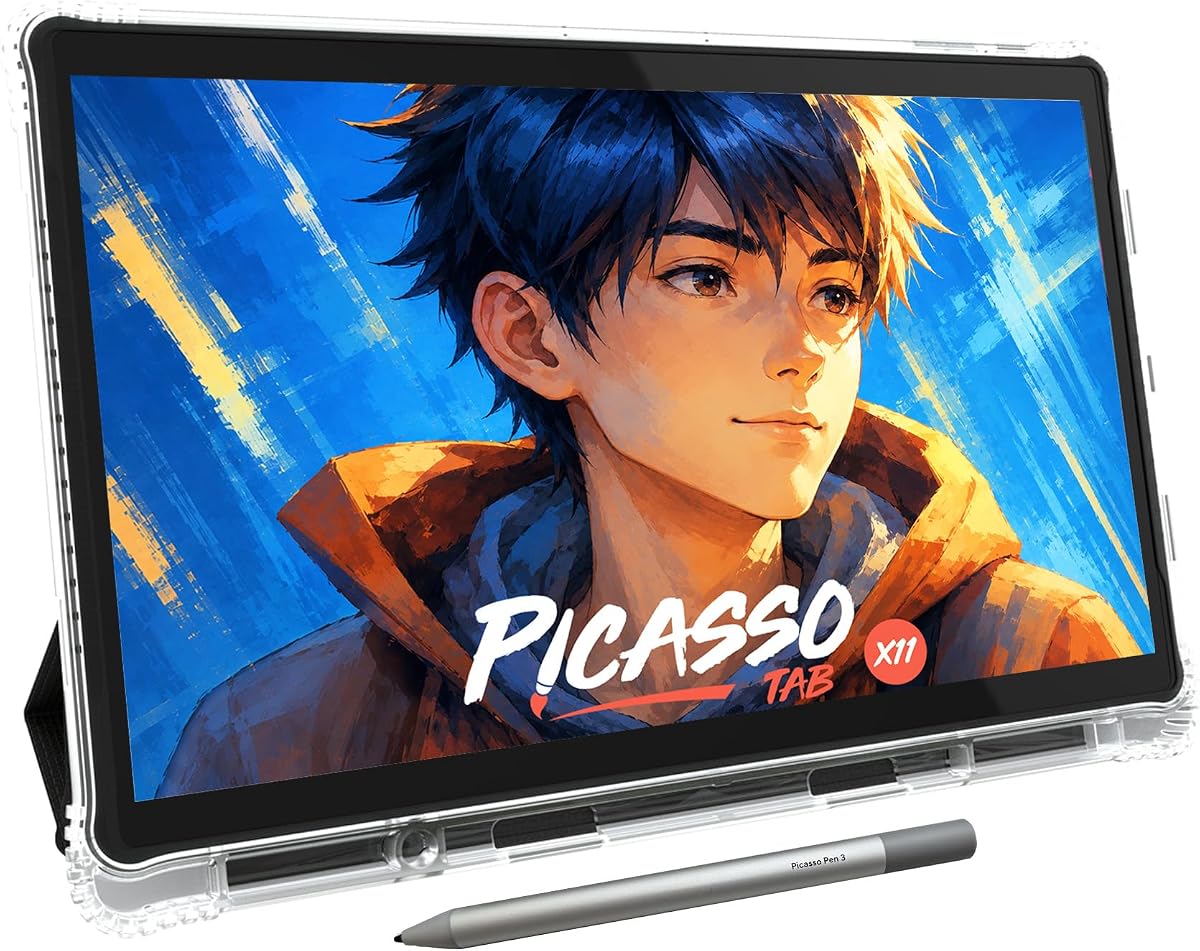
The PicassoTab X11 offers a balanced middle ground between compact portability and a roomy creative display. Its 4.2 rating accompanies an 11-inch fully laminated 2K screen, a 4096-level stylus, and a standalone Android-style creative environment. It is a logical choice for illustrators who find a 10-inch canvas slightly cramped but do not want to carry the largest tablet available.
We may earn a commission when you buy through this link, at no additional cost to you.
The laminated panel is intended to minimize glare and parallax, helping the screen feel closer to paper. Beneath that surface, the listed octa-core processor and 6GB of RAM are suitable for drawing, painting, animation, schoolwork, streaming, and multitasking. Its 128GB of storage can be expanded to 1TB, providing a meaningful advantage over configurations that begin with only 64GB.
The X11 is held back by some unspecified specifications in the supplied data. Battery capacity and expected runtime are not stated, and the 6GB memory configuration trails the 8GB offered by the HUION KAMVAS Slate 11. More demanding workflows may also benefit from a higher refresh rate, although the X11's 2K resolution provides plenty of visual detail for many creative tasks.
For users who prioritize screen resolution, a moderate physical size, and beginner-friendly instruction, the X11 is highly competitive. It includes five preloaded creative apps, lifetime tutorial access, two app upgrades, a premium case, drawing glove, universal power adapter, and preinstalled screen protector. It is a versatile choice for students, developing artists, and anyone who wants standalone freedom with a practical canvas size.
The 11-inch 2K display offers more visual detail and working area than the 10-inch A10 without approaching the bulk of a 14-inch model. That balance makes it convenient for travel, classrooms, cafés, and shared workspaces.
Preloaded drawing, painting, animation, tutorial, and guide applications reduce the setup burden for newcomers. The included app upgrades and beginner exercises make this a practical choice for users who want guided instruction alongside a capable drawing environment.
We may earn a commission when you buy through this link, at no additional cost to you.
The PicassoTab X14 is built for artists who want maximum canvas space without connecting a tablet to a desktop. It carries a 4.2 rating and provides a large 14-inch laminated display, 4096-level active pen, five preloaded creative apps, and a standalone configuration that supports drawing, design, animation, and learning.
We may earn a commission when you buy through this link, at no additional cost to you.
The spacious screen is the model defining feature. It offers more room for detailed illustrations, concept work, digital painting, and side-by-side reference than smaller devices, while the laminated surface is intended to reduce reflections and visual separation between the pen tip and drawn line. A 4096-level stylus provides useful variation for line weight, shading, and controlled strokes.
Its octa-core processor, 6GB RAM, and expandable 128GB storage are adequate for the listed mix of creative apps, schoolwork, streaming, and multitasking. However, this X14 does not offer a stated 2K resolution in the supplied information, so its pixel density cannot be directly compared with the PicassoTab X11. It also does not specify its refresh rate, battery capacity, or operating system.
The X14 is a good match for illustrators, concept artists, and students who value workspace over pocketability. Its full case, drawing glove, universal power adapter, screen protector, app upgrades, and tutorial access create a well-rounded package. The tradeoff is straightforward: the large display improves creative freedom but makes the device less convenient for users who prioritize the lightest possible travel setup.
A 14-inch workspace makes side panels, reference images, and larger illustrations easier to manage. The additional space is particularly useful for artists who frequently zoom out to compose a scene or work on multiple visual elements at once.
The X14 can run drawing, painting, animation, and tutorial applications without a separate computer. That makes the larger hardware useful for both creative sessions and broader tasks such as coursework, streaming, or ordinary tablet navigation.
We may earn a commission when you buy through this link, at no additional cost to you.
The HUION KAMVAS Slate 11 is the most technically advanced standalone tablet in this group, with a 4.2 rating and a feature set aimed at serious creative work. Its 10.95-inch Full HD Plus display combines 207 pixels per inch, a 99% sRGB gamut, and a 90Hz refresh rate, while the built-in computer runs Android 14 and supports Google Play.
We may earn a commission when you buy through this link, at no additional cost to you.
Display responsiveness is the Slate 11's standout strength. The 90Hz refresh rate can make pen movement, scrolling, animation previews, and general interface navigation feel smoother than on standard 60Hz tablets. Its nano-etched, anti-fingerprint matte finish is designed to reduce glare, while full lamination minimizes parallax and contributes to a more paper-like drawing experience.
The H-Pencil provides 4096 pressure levels and 60-degree tilt recognition, allowing more natural line variation and shading. Internally, an eight-core processor, 8GB RAM, and expandable 128GB storage offer more memory than the PicassoTab configurations. The 8000mAh battery and front and rear cameras broaden its usefulness as an all-purpose mobile creative device.
The Slate 11 is a premium recommendation for artists who value smooth performance, accurate display characteristics, app flexibility, and stylus control. Its 10.95-inch screen is smaller than several alternatives, so it is not the first choice for those who want maximum canvas area. The preinstalled Clip Studio Paint and ibisPaint X access is attractive, although the inclusion of up to three months of free memberships should be checked for current terms.
The 90Hz refresh rate gives this model an advantage for pen interaction, scrolling, and animation work. Combined with the 207 PPI display and 99% sRGB color coverage, it is well suited to users who notice motion smoothness and color presentation.
Android 14 and Google Play support make the tablet less dependent on a fixed set of preinstalled tools. Clip Studio Paint and ibisPaint X are included, while downloadable software provides room to adapt the device to illustration, animation, note-taking, or other creative workflows.
We may earn a commission when you buy through this link, at no additional cost to you.
The RubensTab T12 is an Editor's Choice because it balances display size, useful software, portability, and everyday performance in a particularly coherent package. Its 4.5 rating is among the highest in the comparison, and the tablet combines a 12-inch fully laminated Full HD screen with a standalone operating environment and a selection of established drawing and animation applications.
We may earn a commission when you buy through this link, at no additional cost to you.
The supplied information identifies Sketchbook, Krita, Infinite Painter, and Flipaclip among the preinstalled applications, covering sketching, illustration, painting, and animation. A 6GB RAM configuration and 128GB of storage provide useful headroom for artwork, reference files, and creative applications. Its octa-core processor is specified for smooth switching between creative tasks and entertainment.
The fully laminated display reduces parallax, while the anti-glare coating is intended to create a paper-like feel and limit reflections. That combination matters more in everyday use than raw resolution alone because stable hand placement and a clear image can directly affect the perceived precision of the pen. On the other hand, the data does not state a pressure-level count, battery capacity, refresh rate, or supported operating system, so those claims should not be assumed.
The T12 is best for intermediate and experienced artists who want a meaningful canvas without moving to a very large 14.1-inch device, as well as for students who value substantial storage and several creative apps. A protective case, drawing glove, universal power adapter, and pre-applied screen protector complete the package. For a versatile standalone creative tablet, the balance is difficult to overlook.
Sketchbook, Krita, Infinite Painter, and Flipaclip cover several common artistic needs. Their inclusion helps users begin drawing immediately and experiment with different styles without committing to a single application from the outset.
The 12-inch display provides more room than compact 10-inch models while remaining less expansive than the largest tablets. Fully laminated construction and an anti-glare finish support clear viewing and more natural pen placement during longer work sessions.
We may earn a commission when you buy through this link, at no additional cost to you.
The RubensTab T14 is a large standalone drawing tablet with a 4.5 rating, a 14.1-inch Full HD IPS display, and the largest listed battery capacity in the comparison. It is designed for artists and students who want roomy screens, immediate access to creative applications, and the ability to work without a separate computer.
We may earn a commission when you buy through this link, at no additional cost to you.
Its 1920 by 1200 resolution delivers a conventional Full HD pixel count, while wide viewing angles and IPS technology make it suitable for different working positions. The pressure-sensitive pen needs no battery, and multi-touch provides familiar zoom, pan, and scroll gestures. A 10000mAh battery is specified for up to five hours of continuous use, and USB-C charging allows a mobile power bank to extend operation while traveling.
The primary trade-off is portability. A 14.1-inch display creates more drawing area and easier reference viewing, but it also means more bulk than the 10-inch, 10.95-inch, 11-inch, and 12-inch options. The supplied details do not state the operating system, exact pressure sensitivity level, built-in storage, RAM, or screen refresh rate, making direct hardware comparisons more limited than for models with fuller specifications.
The T14 is a compelling recommendation for illustrators and students who want a large canvas and a generous battery. Its adjustable stand case supports desktop use and transport, while preinstalled drawing applications and tutorials make it approachable. It is best suited to creators who place screen size and freedom from a computer above maximum pocketability.
The 14.1-inch display gives artists room for larger compositions, detailed rendering, and side-by-side references. It is a meaningful upgrade for users who regularly work on intricate illustrations or digital paintings.
USB-C charging and support for a mobile power bank make it easier to manage power away from an outlet. The adjustable stand case protects the tablet and provides a practical viewing angle while it is being used as a portable creative station.
We may earn a commission when you buy through this link, at no additional cost to you.
The Wacom Intuos Small has a 4.6 rating, the highest customer rating among the products listed, and is included as a useful point of comparison. Unlike the standalone tablets above, it is a traditional graphics tablet that requires a separate computer. The pen draws on the active surface while the artwork appears on the computer display.
We may earn a commission when you buy through this link, at no additional cost to you.
Wacom's EMR technology provides a battery-free pen with a pen-on-paper feel. The tablet can be used with software programs for drawing, painting, photo and video editing, design, and document markup. Registration also provides access to creative software and online training, adding practical value for users who want both hardware and instruction.
This model lacks the defining benefits of a true standalone drawing tablet. It has no built-in display or computer, and it must remain connected to a compatible system. Its small drawing area is also much more limited than any of the screen-equipped models, making it best suited to line work, annotations, retouching, and compact illustrations rather than immersive drawing on the device itself.
Despite that limitation, the Intuos Small is a strong alternative for a desktop-based artist who prioritizes reliable pen input, established software compatibility, and a small footprint. It is also often more practical for users who already own a powerful computer. Readers who need true standalone operation should skip it; those who do not should appreciate its focused drawing experience and 4.6 rating.
Keeping the display on a separate computer can provide a larger or higher-resolution workspace than many built-in screens. This makes the Intuos appealing when drawing accuracy is judged on a desktop monitor rather than a compact integrated display.
The battery-free EMR pen is a central reason to consider Wacom even when the tablet is not standalone. Its established pen-on-paper feel and broad software compatibility suit sketching, illustration, retouching, and document work.
We may earn a commission when you buy through this link, at no additional cost to you.
The Wacom Intuos Pro Large is a high-end traditional drawing tablet with a 4.3 rating, designed for artists who want advanced pen control and a large workspace. It requires a separate computer, but it adds a large active area, 8192 pressure levels, tilt support, customizable controls, and wireless switching between computers.
We may earn a commission when you buy through this link, at no additional cost to you.
The ProPen 3 supports three grip options, balance adjustment, and customizable button placement. Users can also assign functions to ten ExpressKeys and manipulate settings with two mechanical dials. These controls can reduce reliance on keyboard shortcuts and improve workflow efficiency for drawing, editing, animation, and other precision applications.
Its large 16:9 format is designed to align with modern widescreen monitors and multi-display setups. The active area measures 14.8 by 9.9 inches, while the full device is only 4 millimeters thick at its thinnest point. Magnesium construction adds a professional feel, and Bluetooth connectivity allows convenient switching among multiple computers, with USB also available.
The Intuos Pro Large is best for a professional or advanced desktop workflow rather than mobile standalone creation. It cannot be used independently for drawing, and the full-screen experience remains dependent on an external display. Buyers who want high pen precision, large control surfaces, and wireless flexibility may prefer it to a budget non-screen tablet, but those wanting a complete tablet should choose one of the standalone models.
Pressure levels, tilt response, interchangeable grip styles, and adjustable button placement provide a highly configurable writing experience. These options can help artists refine line behavior and reduce unwanted actions during a session.
ExpressKeys, dual dials, multi-computer Bluetooth switching, and a modern 16:9 layout make the tablet well suited to established production environments. It can become a central control surface for a creative workstation rather than a self-contained portable device.
We may earn a commission when you buy through this link, at no additional cost to you.
The Wacom Cintiq 22 is a 22-inch pen display with a 4.5 rating, combining a large Full HD screen, the Pro Pen 2, and workstation-oriented controls. It offers a direct pen-on-screen experience, but it is not a standalone tablet: a compatible Windows or macOS computer is required to run the drawing software and provide the operating environment.
We may earn a commission when you buy through this link, at no additional cost to you.
The Pro Pen 2 delivers 8192 pressure levels, tilt recognition, virtually lag-free tracking, and two customizable switches. The display is designed for uniform brightness, high resolution, and realistic color, while reduced parallax and fingertip control make it possible to use gestures in applications that support them. The large canvas is especially useful for illustration, animation, concept development, and detailed retouching.
Its main limitation is obvious but important: it cannot run independently. That means it lacks the immediate portability, built-in battery, and complete application environment associated with the true standalone models. It also occupies substantially more desk space, making it a dedicated studio tool rather than a portable sketching solution.
The Cintiq 22 is best for professional artists, students, and animators who already have a capable computer and want a large, consistent drawing surface. The included package is thorough, with the tablet, Pro Pen 2, replacement nibs, nib remover, connectivity cable, power components, and a quick-start guide. For desk-bound creative work, it offers a polished and highly focused alternative to a self-contained tablet.
The 22-inch display provides ample room for detailed artwork, animation timelines, references, and interface-heavy creative software. It is better suited to a permanent studio or desk setup than to sketching in confined spaces.
Tilt recognition, switch customization, high pressure resolution, and low-latency tracking give the Pro Pen 2 a refined feel. Reduced parallax and fingertip support further improve the relationship between hand movement and the on-screen result.
We may earn a commission when you buy through this link, at no additional cost to you.
A useful standalone drawing tablet depends on more than screen size. The most important considerations are the direct drawing experience, software freedom, performance, portability, and whether the device must also handle work beyond illustration.
A true standalone drawing tablet includes its own operating system, processor, memory, storage, wireless connectivity, and battery, allowing artwork to be created without a separate computer. Several traditional graphics tablets in this comparison, including the Wacom Intuos Small, Intuos Pro Large, and Cintiq 22, require a host device and are therefore not standalone. Check every listing carefully because a built-in screen does not automatically mean that a tablet can run independently.
Screen size affects both creative freedom and portability. Compact 10-inch models are convenient for travel, school, and quick sketches, while 11-inch and 12-inch screens provide a more comfortable balance for illustration and note-taking. The 14-inch and 14.1-inch models offer substantial canvas space but demand more room in a bag. The 22-inch Cintiq goes much further and is best treated as a stationary professional display rather than a portable tablet.
Resolution determines how much fine detail the display can present, while lamination reduces the visual gap between the pen tip and the image. Anti-glare coatings can improve comfort in bright rooms, and a 90Hz refresh rate offers smoother visual feedback. The most natural results usually come from a combination of adequate resolution, a laminated surface, a capable pen, and low latency rather than from any single specification alone.
Pressure sensitivity determines how many distinct levels of force the tablet can detect, giving artists greater control over line width, opacity, and shading. Tilt recognition can reproduce the broad marks associated with a tilted pencil or charcoal stick. The PicassoTab models and the HUION Slate 11 use 4096 levels, while the Wacom Pro Pen models offer 8192 levels. The RubensTab models are described as pressure-sensitive, but their exact levels are not stated in the supplied information.
Drawing, streaming, and multitasking impose different demands on a tablet. An octa-core processor, 6GB of RAM, and 64GB or 128GB of storage form the baseline for most models here, while the HUION Slate 11 raises memory to 8GB. For artists, storage can fill quickly with exported images, animation files, brushes, references, and project data, so expandable storage is a meaningful advantage.
A standalone tablet is only useful if it can run the creative software required by the user. The RubensTab T12 includes Sketchbook, Krita, Infinite Painter, and Flipaclip, while the HUION Slate 11 includes Clip Studio Paint and ibisPaint X and supports Google Play. The PicassoTab tablets emphasize drawing, painting, animation, tutorials, and guided lessons, making them especially accessible for beginners. Verify current software versions and membership terms before buying.
A large screen is difficult to carry comfortably, while a small battery can limit work away from an outlet. The listed RubensTab capacities range from 5800mAh to 10000mAh, and the HUION Slate 11 uses an 8000mAh battery, though only some capacity figures translate directly into the stated five-hour runtime. USB-C charging and mobile power-bank support can extend freedom, but the physical size and weight of the selected display remain important.
Cases, adjustable stands, drawing gloves, screen protectors, universal power adapters, and preinstalled tutorials can make a new tablet easier to use immediately. The PicassoTab range and RubensTab T12 include several of these items, and the Wacom Cintiq 22 arrives with nibs, a nib remover, cabling, and a power supply. Also consider warranty coverage, customer support, and whether the included accessories align with your working style.
Begin by fully charging the tablet and reviewing the included setup guide, then confirm that the operating system is updated and that the required creative applications are installed. Pair the supplied pen with the device if pairing is required, update the pen firmware when available, and test the tip on a blank canvas. A short calibration exercise with light, medium, and heavy pressure can reveal whether input feels consistent before beginning a serious project.
Choose a comfortable working position with the screen supported at a slight angle. For a standalone model, use its included case or stand and keep the tablet stable on a desk, lap desk, or drawing table. Create separate folders for projects, exported images, reference files, and brushes, and save work frequently to the device's internal storage or an expanded storage option. Use cloud storage when available, but retain local copies of important artwork.
Clean the display with a soft microfiber cloth and avoid abrasive materials or liquids that could damage the anti-glare coating. Protect the pen tip from contact with hard surfaces, replace worn nibs before they scratch the screen, and keep the tablet in its protective case during transport. Charge with a compatible USB-C power source, avoid leaving the device in extreme heat or cold, and update its software and applications regularly to preserve compatibility and stability.
A standalone drawing tablet includes its own display, processor, memory, operating system, and apps, so it can create artwork without a separate computer. A regular graphics tablet such as the Wacom Intuos Small usually has no built-in screen and depends on a host computer for software and display output. The Cintiq has a screen but still requires a computer, so screen size alone does not make a device standalone.
No. A larger screen provides more canvas space and makes detailed work easier, but it also reduces portability. Compact models are often more convenient for travel, school, and quick sketches, while 12-inch and 14-inch screens are better for extended illustration. The best choice is the smallest display on which the user can comfortably compose and edit typical projects.
The core creative functions generally work offline once the required applications and files are stored on the device. Wi-Fi becomes useful for tutorials, cloud storage, updates, browsing, and other online resources. Because app compatibility and account requirements can change, users should keep essential software and backups available locally.
Pressure levels indicate how many distinct force values the pen can detect. More levels can provide finer control over line width, opacity, shading, and brush density. The practical difference depends on the application, brush design, and user technique, so a higher number is useful but does not replace display quality, pen tracking, or comfortable handling.
Yes. The RubensTab models support note-taking and other everyday tasks, and the PicassoTab range is also described as suitable for schoolwork and learning. A pressure-sensitive pen can be useful for handwriting, diagrams, and annotations, although artists may still prefer a separate stylus or keyboard for extensive text entry.
It can be very important for direct pen-on-screen work. Lamination reduces the visual distance between the pen tip and the drawn line, while anti-glare treatment helps control reflections in bright environments. Together, these features can improve precision and comfort, although the overall experience also depends on pen tracking, latency, resolution, and viewing angle.
The Cintiq 22 is best for a desk-based artist who already owns a powerful computer and values a large, professional pen display. A standalone tablet is better for untethered creation, travel, and users who want one device to handle drawing, notes, browsing, and entertainment. A Cintiq offers more dedicated display space, but it cannot function independently.
Storage needs vary greatly according to resolution, animation, project length, and the number of reference images. A 64GB configuration may be sufficient for light sketching, while 128GB is more comfortable for collections of artwork, creative applications, and media. Models with expandable storage give buyers additional flexibility as their library grows.
The PicassoTab A10 is the strongest budget-oriented choice for beginners who want a compact, tutorial-focused package. The RubensTab T12 stands out as the most balanced overall model, combining a useful 12-inch laminated display with major creative apps and 128GB of storage. For buyers who prioritize smoother visuals, extensive memory, Android flexibility, and advanced pen features, the HUION KAMVAS Slate 11 is the premium selection.
Those willing to work with a larger canvas can consider the PicassoTab X11 for its 2K screen, the X14 for maximum PicassoTab workspace, or the RubensTab T14 for a large Full HD display and high battery capacity. The Wacom models remain important alternatives for desktop-based workflows, but buyers should remember that a pen display or graphics tablet without standalone computing power cannot replace a computer.
Before ordering, verify the current listing, operating system, software access, accessories, warranty, and exact specifications. Prices, promotions, and bundle contents can change over time, and manufacturer updates may also affect app availability. Use the comparison to prioritize direct pen feel, adequate canvas size, practical storage, and genuine independence from a computer.