
4URPC Mac Mini M4 Dock
4.8Editor score
13-in-1 port selection
8TB NVMe expansion
Dual display outputs
Our Mac Mini M4 Dock guide compares ten docking stations for storage, displays, USB expansion, cooling, compatibility, and everyday productivity needs.
A Mac Mini M4 dock can transform a compact desktop into a more practical workstation by adding storage, displays, card readers, USB-A connectivity, and power management. The best model depends on whether you prioritize clean design, fast media workflows, multiple displays, or simply adding the ports the Mac Mini lacks.
We compared all ten featured docks using their stated specifications, including supported Mac Mini models, storage capacity, transfer speeds, display outputs, port layouts, cooling provisions, and included accessories. The list covers purpose-built Mac Mini stands as well as a general Thunderbolt dock that can also serve a Mac Mini.
Each review explains the strongest use case, important limitations, and who is most likely to benefit. Product configurations and availability can change, and pricing also changes over time, so readers should confirm current specifications and costs before making a final purchase.
4.8Editor score

4.5Editor score
4.5Editor score
The comparison below highlights the major differences among all ten docks, including their storage architecture, display capabilities, wired connectivity, and practical limitations. It is designed to help buyers identify the model that best matches their Mac Mini workflow.


The UGREEN Mac mini Dock & Stand combines an integrated Mac Mini platform, an NVMe SSD enclosure, and an unusually useful mix of USB ports. It carries a 4.5 rating, making it one of the strongest all-around options in the guide. Its main attraction is how much functionality it places behind one relatively tidy footprint without forcing the user to assemble several separate accessories.
We may earn a commission when you buy through this link, at no additional cost to you.
Storage expansion reaches 8TB when populated with a compatible M.2 NVMe drive in one of the supported 2230, 2242, 2260, or 2280 sizes. The enclosure provides data transfer speeds up to 10Gbps, making it useful for project files, media libraries, and local backups. Connectivity includes three 10Gbps USB-A ports, two 5Gbps USB-A ports, two 10Gbps USB-C data ports, and a UHS-I SD/TF reader capable of transfer speeds up to 170MB/s. The Mac Mini can power the dock, while an external adapter is recommended for demanding multi-device setups.
The tradeoff is that this model does not provide a dedicated DisplayPort or HDMI output. Video therefore remains dependent on the Mac Mini's built-in ports or a separate display adapter, and the enclosure requires users to supply their own SSD. It is also important to follow the power guidance when attaching several high-bandwidth devices, since bus-powered accessories can strain a host-powered connection.
This UGREEN is best for buyers who want a strong balance of storage, card access, USB-A convenience, and a tidy Mac Mini stand. It suits creative professionals, students, and office users who regularly transfer files but do not need the dock itself to drive multiple high-refresh displays.
The built-in NVMe enclosure turns the dock into more than a port hub. With a compatible drive installed, it can provide fast local storage while the card reader handles camera media and the USB ports support backup devices.
The stand positions the Mac Mini above the desk while keeping frequently used USB-A ports within easy reach. A short included cable and an accessible power-button lever help maintain a compact workstation.
We may earn a commission when you buy through this link, at no additional cost to you.
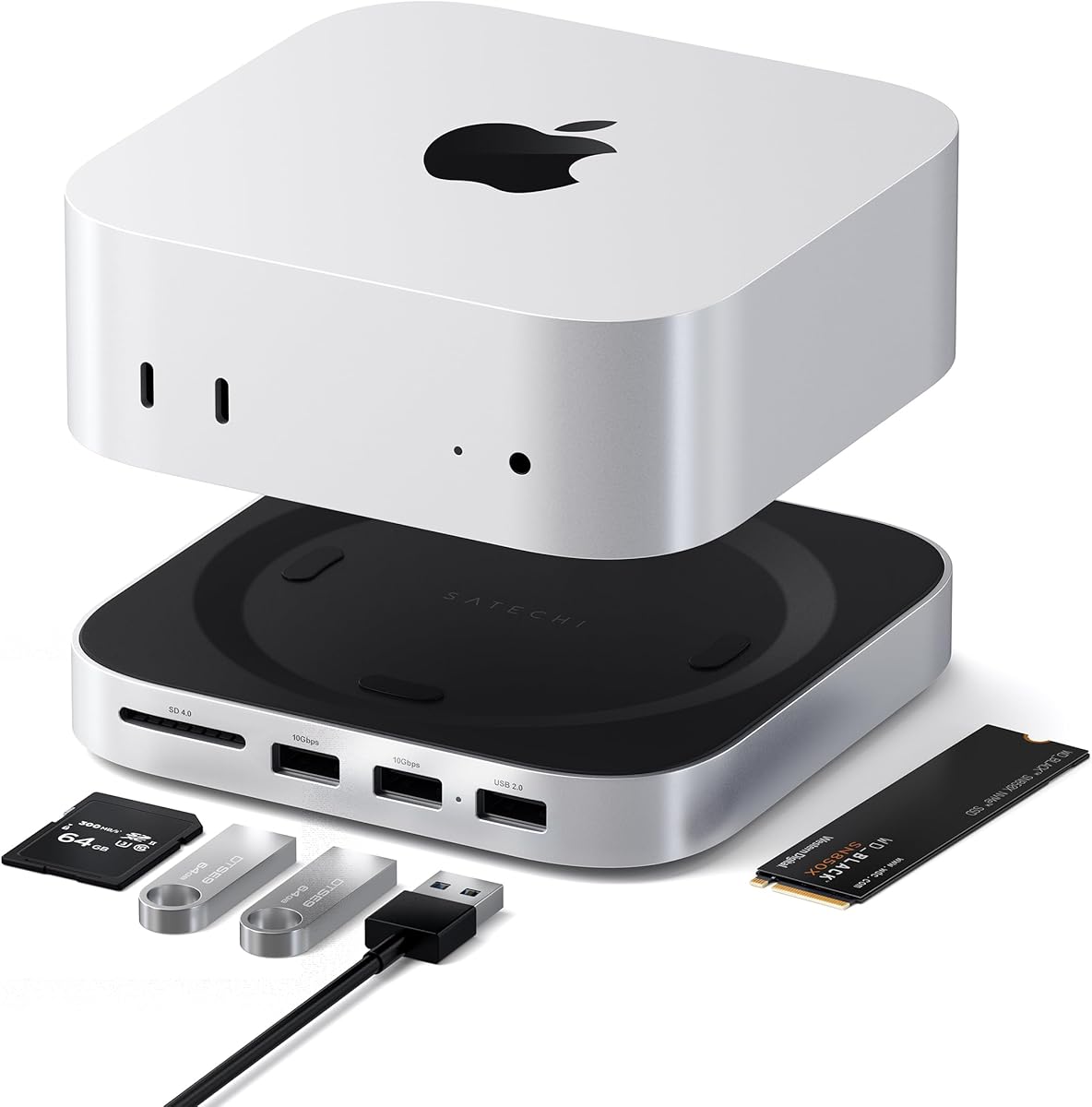
The Satechi Mac mini Hub & Stand is the most design-focused product in this guide, pairing a 4.5-rated feature set with an aluminum enclosure and measured proportions. It is especially compelling for buyers who want a Mac Mini setup to look intentional rather than like a collection of functional plastic adapters. The dock supports Mac mini M6, M5 Pro, and M4 systems.
We may earn a commission when you buy through this link, at no additional cost to you.
Its NVMe enclosure accepts 2230, 2242, 2260, and 2280 M.2 drives with transfer speeds up to 10Gbps and a maximum listed capacity of 4TB. The front panel provides two 10Gbps USB-A 3.2 ports, one 480Mbps USB-A 2.0 port, and a UHS-II SD reader with transfer speeds up to 312MB/s. That reader makes the unit particularly attractive to photographers and videographers who regularly import large media files.
The important limitation is the smaller port count and the narrower storage ceiling compared with several rivals. SSD models with heatsinks or double-sided construction are incompatible, reducing the range of drives that can be used. The listed USB-A limitations also include no support for CD readers, Apple SuperDrive, or iPad charging, and the manufacturer recommends connecting one bus-powered device at a time.
The Satechi is a premium choice for users who prioritize construction, fast media import, front access, and a coordinated appearance. It is less suitable for anyone who needs numerous ports, dual-bay storage, or a dedicated display output, but it remains an elegant option for a focused personal workstation.
The aluminum body and recessed top are designed to blend closely with the Mac Mini. Heat-dissipating bottom vents are positioned to avoid obstructing the computer's fan.
The UHS-II reader reaches up to 312MB/s, exceeding the stated speed of several competing card readers. It is a meaningful distinction for media creators who move footage directly from compatible cameras.
We may earn a commission when you buy through this link, at no additional cost to you.
The UGREEN DP Hub & Stand is built for users who want the dock to handle a high-refresh display while also expanding Mac Mini storage. It has a 4.4 rating and stands out from many compact hubs because its DisplayPort output supports 4K at 144Hz on the M4 and up to 4K at 240Hz on the M4 Pro.
We may earn a commission when you buy through this link, at no additional cost to you.
A compatible M.2 NVMe SSD can add up to 8TB of storage with transfer speeds up to 10Gbps. The supported drive sizes match the broader UGREEN M4 dock family, and the SSD itself is not included. Connectivity covers 10Gbps USB-A and USB-C data ports along with an SD/TF card reader and audio, giving the dock a more balanced workstation role.
Multi-screen use requires careful port planning. The product can combine its DisplayPort connection with a Thunderbolt port on the Mac, but the dock itself has only one dedicated display output. Buyers should also verify the resolution and refresh rate supported by their specific Mac Mini configuration, cable, monitor, and operating system before purchase.
This model is ideal for creative work, competitive gaming, high-refresh productivity panels, and video editing. It is a strong alternative to the regular 11-in-1 UGREEN when DisplayPort performance matters more than a broad collection of additional ports.
The DisplayPort output is the defining feature, supporting up to 4K@144Hz for the M4 and 4K@240Hz for the M4 Pro. It can reduce motion blur and improve responsiveness in supported games and creative applications.
Adding an NVMe drive inside the stand creates a compact local storage solution. Users gain fast access to large project files while the Mac Mini itself remains uncluttered.
We may earn a commission when you buy through this link, at no additional cost to you.
The 4URPC Mac Mini Dock is the highest-rated product featured, carrying a 4.8 rating. It combines a 13-in-1 connection hub, an 8TB-capable NVMe enclosure, and a Mac Mini stand in one platform. That combination makes it an attractive value-oriented option for users who want several essential dock functions without assembling separate adapters.
We may earn a commission when you buy through this link, at no additional cost to you.
Storage is handled through a single M.2 NVMe enclosure that supports 2230, 2242, 2260, and 2280 drives at up to 10Gbps. A maximum capacity of 8TB is listed, and the enclosure is intended for NVMe drives only; SATA SSDs are not supported. The video section includes DisplayPort up to 4K@144Hz and HDMI up to 4K@60Hz, allowing the dock to support a high-refresh primary display and a second display when combined with the Mac Mini's built-in outputs.
Wired expansion includes two 10Gbps USB-A 3.2 ports, two USB-A 2.0 ports, one USB-C 2.0 port, a 3.5mm audio connection, and SD and microSD slots. The relatively modest number of high-speed USB-A ports means keyboard, mouse, and drive users may still need to plan what connects where. Buyers should also verify the exact multi-monitor arrangement for their Mac Mini model and display adapters.
The 4URPC is well suited to students, freelancers, office workers, and creative users seeking a capable one-stop dock. Its 4.8 rating and broad feature set support a strong recommendation, provided the buyer chooses an NVMe drive rather than a SATA model and confirms display requirements in advance.
The 13-in-1 design reduces the need for separate card readers, USB hubs, and a separate stand. Frequently used peripherals can remain connected without taking over the available Mac Mini ports.
DisplayPort supports up to 4K@144Hz while HDMI supports up to 4K@60Hz. Used alongside the Mac Mini's native outputs, this can support an editing timeline, reference display, and communications application in a larger workspace.
We may earn a commission when you buy through this link, at no additional cost to you.
The ACASIS 40Gbps Dock & Stand is built for demanding storage configurations. It supports two M.2 NVMe SSDs, offering up to 16TB in RAID 0 and up to 8TB in other modes. It is therefore the most flexible choice here for users who may outgrow a single-drive enclosure, particularly photographers and video editors managing extensive local archives.
We may earn a commission when you buy through this link, at no additional cost to you.
The product includes an aluminum enclosure, side ventilation, and two automatic cooling fans that activate as needed. Its listed performance reaches 2869MB/s in RAID 0 and 1594MB/s in other configurations. A 65W PD adapter provides stable self-power and reduces the risk of disconnection, display problems, or drive failure when several devices are connected. SSDs should never be inserted or removed while the system is powered.
Video connectivity is a major strength, with two DisplayPort outputs supporting 4K@144Hz on a single screen or 4K@60Hz across two screens. The dock can also be combined with the Mac Mini's HDMI or Thunderbolt connection for additional displays. Three 10Gbps USB-A ports and UHS-I SD/TF 4.0 slots provide fast peripheral and media connectivity.
The 3.9 rating is the lowest among the featured products, and that is worth considering against its ambitious specifications. The dock also requires more deliberate setup because of its storage modes, power adapter, and cooling hardware. It remains a strong choice for users who need two drive bays and high-speed multi-display performance rather than a minimal desktop accessory.
Two drive bays separate the dock from simpler single-slot models. RAID 0 prioritizes speed and capacity, while other modes offer alternatives for users who place greater importance on resilience or flexibility.
The dual-fan system and side vents are intended to manage heat during extended storage transfers. Active cooling is especially relevant when both NVMe drives are working at full advertised speeds.
We may earn a commission when you buy through this link, at no additional cost to you.
The RayCue Mac Mini Dock offers a compact 10-in-1 design focused on connectivity rather than display management. It carries a 4.3 rating and fits closely around the Mac Mini footprint, making it useful for desks where visual compactness and everyday device access matter more than multiple dedicated display connectors.
We may earn a commission when you buy through this link, at no additional cost to you.
An M.2 NVMe enclosure supports up to 8TB with transfer speeds up to 10Gbps and accepts the common 2230, 2242, 2260, and 2280 formats. The hub adds two 10Gbps USB-A ports, two 5Gbps USB-A ports, one 10Gbps USB-C data port, a dedicated USB-C charging port, a UHS-II SD/TF reader rated up to 170MB/s, and a 3.5mm audio jack.
Its principal limitation is the lack of a dedicated DisplayPort or HDMI output, meaning display arrangements depend on the Mac Mini's native ports and a separate adapter. The card reader is also listed at 170MB/s, which is quick for routine transfers but slower than the 312MB/s UHS-II reader in the Satechi. The NVMe drive is not included.
The RayCue is a strong fit for compact desks, office work, general productivity, and users who want USB-C charging and fast USB expansion in one small accessory. Buyers should not choose it solely for high-end display workflows, but for a tidy, versatile hub it offers a balanced and practical set of features.
The integrated stand places the Mac Mini above a collection of front and rear connections. A dedicated USB-C charge port and a short 20cm cable help reduce visible desk clutter.
The product's conductive paint shielding is designed to reduce 5GHz Wi-Fi interference. This may be particularly helpful in crowded wireless environments or when a hub is positioned close to the Mac Mini.
We may earn a commission when you buy through this link, at no additional cost to you.
The ACASIS Dual-Bay Dock is a 4.6-rated alternative to the company's 40Gbps model. It retains the same broad appeal of two integrated NVMe bays, active cooling, and a Mac Mini-shaped stand while offering a more conventional HDMI-based display arrangement. That makes it potentially easier to introduce into a workspace that already uses HDMI monitors.
We may earn a commission when you buy through this link, at no additional cost to you.
The enclosure supports up to 16TB in RAID 0 or 8TB in other modes. Stated transfer performance reaches 917MB/s in RAID 0 and 474MB/s in other modes, making it slower than the 40Gbps ACASIS dock but still designed for high-speed local workflows. As with other dual-bay models, SSDs should not be connected or disconnected while powered on.
The HDMI output supports 4K@60Hz for mirroring or extension. Users can combine it with the Mac Mini's Thunderbolt or HDMI connection for a broader multi-screen arrangement. Three 10Gbps USB-A ports handle fast peripherals, while the SD and TF 3.0 slots support up to 104MB/s. Aluminum construction, side vents, and two automatic fans are designed to sustain cooler operation during long transfers.
The 4.6 rating is among the strongest in the guide, and the balance between storage capacity, cooling, and display simplicity is compelling. It is best for creators who want two-bay expansion without paying a premium for the fastest dual-DisplayPort configuration. Its single HDMI port and slower card reader should be checked against the user's exact setup.
The two-bay layout offers room to start with one drive and add another later. This flexibility is useful for projects whose storage needs can grow quickly without immediately reaching the maximum capacity.
A single 4K@60Hz HDMI output is easy to deploy with many desktop monitors. It is a more conventional choice than dual DisplayPort when one primary display is the main requirement.
We may earn a commission when you buy through this link, at no additional cost to you.
The UGREEN 8-in-1 Thunderbolt 4 Dock is the most general-purpose product in the guide. It is designed for laptops, tablets, and desktop computers rather than being molded exclusively around the Mac Mini. Its 4.3 rating and robust port selection make it relevant to Mac Mini users who want one dock to support several devices over time.
We may earn a commission when you buy through this link, at no additional cost to you.
The hub includes one upstream and three downstream Thunderbolt 4 ports, three 10Gbps USB-A 3.2 ports, Gigabit Ethernet, and a 140W DC input. Thunderbolt 4 provides 40Gbps bandwidth, and the included GaN charger can deliver up to 85W to a connected laptop. It is compatible with Thunderbolt 4, Thunderbolt 3, USB4, and USB-C systems, including supported MacBook, Mac mini, Windows, and tablet configurations.
Display support depends on the connected computer. Systems based on Pro or Max M-series chips and supported Intel configurations can extend to two 4K@60Hz displays or one 4K@60Hz display, while basic M-chip systems are listed as supporting one 4K@60Hz display. The dock is also not compatible with the 2018 Intel Mac mini, and full-featured USB-C devices may support only a single display.
This UGREEN is an excellent choice for a mixed-device desk or a portable workstation setup. It lacks a Mac Mini stand and storage enclosure, so it is less visually integrated, but its Thunderbolt expansion, Ethernet, charging, and broad compatibility make it one of the most versatile options listed.
Three downstream Thunderbolt 4 ports make it possible to connect several high-speed accessories through one host connection. The design can remain useful when a Mac Mini shares the desk with a portable computer.
Gigabit Ethernet provides a dependable wired network option, while the included GaN power supply offers up to 85W laptop charging. Together they simplify desk connections for extended work sessions.
We may earn a commission when you buy through this link, at no additional cost to you.
The RayCue HDMI Dock & Stand provides a 10-in-1 hub with an integrated SSD enclosure and a conventional 4K HDMI output. Its 4.3 rating reflects a practical feature mix for users who want a single accessory to hold the Mac Mini, add storage, connect peripherals, and drive a standard display.
We may earn a commission when you buy through this link, at no additional cost to you.
The enclosure is a key distinction because it supports both M.2 NVMe and SATA SSDs up to 8TB in the 2230, 2242, 2260, and 2280 formats. Users therefore have more drive-choice flexibility than with most NVMe-only competitors. The hub includes 10Gbps USB-A and USB-C data connections, two 5Gbps USB-A ports, a USB-C charging input, SD/TF card slots, and a 3.5mm audio connection.
The HDMI port supports 4K@60Hz for mirroring or extending a display, but the product supports only one external monitor through that connection. For multi-screen work, the Mac Mini's native Thunderbolt and HDMI outputs can be used alongside the dock. The manufacturer recommends connecting the rear USB-C charging input when using a hard drive to reduce the chance of disconnection.
The RayCue is a good fit for general office productivity, students, and users who prefer HDMI or need an enclosure that accepts SATA drives. It is less appropriate for demanding multi-monitor workflows, but its brushed aluminum construction and broad port selection make it a versatile addition to a Mac Mini desk.
Supporting both NVMe and SATA M.2 drives gives users access to a wider selection of storage products. The enclosure remains easy to expand, although the stated interface speed is below some NVMe-focused rivals.
HDMI remains the most straightforward option for many monitor setups. The dock's 4K@60Hz output can handle productivity applications, presentations, and high-resolution media.
We may earn a commission when you buy through this link, at no additional cost to you.
The M5 Retro Dock Station is the most unconventional choice, combining a Mac Mini dock with a built-in five-inch 1280×720 display. It has a 4.4 rating and appeals to buyers who value novelty, a distinctive workstation aesthetic, and an always-visible secondary panel for utilities rather than a conventional collection of hubs.
We may earn a commission when you buy through this link, at no additional cost to you.
The integrated screen reaches approximately 290 pixels per inch and can display notifications, monitoring applications, photographs, music lyrics, a clock, and other secondary information. It does not replace a full-size productivity display, but it can reduce the need to move a phone or open a small utility window when checking system information.
Connectivity is broad, with a 14-in-1 hub that includes 10Gbps USB-C, 10Gbps USB-A, 8K DisplayPort, HDMI input, SD and microSD readers, and an audio jack. A built-in M.2 NVMe enclosure supports 2230, 2242, 2260, and 2280 drives up to 8TB. The Mac Mini slides directly into the dock, reducing desk footprint and consolidating its connections.
The product is also offered in 10Gbps and Thunderbolt 5 80Gbps versions, although the supplied information states that the 80Gbps version was planned for an end-of-October launch. Buyers should verify which version they are purchasing. The M5 Retro is best for creative enthusiasts and desk-focused users who want the built-in display as a deliberate productivity feature rather than a conventional secondary monitor.
The five-inch display is best treated as a glanceable utility screen for notifications, status information, media, or a clock. Its 1280×720 resolution is not intended to replace a larger creative workspace.
The classic Macintosh-inspired enclosure changes the character of a Mac Mini desk. Beneath the nostalgic appearance is a modern hub with fast USB connections, high-resolution video, card readers, and NVMe expansion.
We may earn a commission when you buy through this link, at no additional cost to you.
The right Mac Mini M4 dock depends on the devices you connect, the displays you use, and the amount of local storage you need. Compatibility, power delivery, and supported Mac Mini generations should be checked before focusing on the broadest port count.
Most purpose-built docks in this guide state compatibility with the Mac mini M4, M5 Pro, and M6, while some models are designed for M4 and M4 Pro specifically. The physical stand and rear connections must match the Mac Mini being used, and future generations may not share identical dimensions or port placement. The general UGREEN Thunderbolt 4 dock offers broader device support but does not provide a Mac Mini-shaped stand and is not compatible with the 2018 Intel Mac mini.
Single-bay enclosures typically support M.2 NVMe drives and may reach 8TB, while dual-bay designs can offer up to 16TB in RAID 0. Compatibility is more important than headline capacity: some enclosures accept only NVMe, while the RayCue HDMI Dock & Stand also supports SATA. Check the listed drive sizes, especially for unusually short 2230 or 2242 drives, and note that SSDs are generally not included.
A 4K@60Hz HDMI output is sufficient for many office monitors, but creative applications, fast games, and timeline editing may benefit from 4K@144Hz or higher. DisplayPort models are better suited to high-refresh combinations, while some docks add a second display connection. Multi-screen support also depends on the Mac Mini's native Thunderbolt and HDMI capabilities, macOS limitations, cable quality, and whether the selected dock consumes a display-capable port.
A 10Gbps USB port is the minimum that feels appropriate for modern external SSDs, flash drives, and high-resolution card readers. Ports labeled 5Gbps are better suited to keyboards, mice, and lighter accessories, while USB-C data ports offer greater flexibility for contemporary peripherals. Pay attention to total bus allocation because several high-speed devices connected to one host can share the Mac Mini's available bandwidth.
Some docks draw power from the Mac Mini, while others include a dedicated 65W adapter or a USB-C charging input. Self-powered models can reduce instability when drives, displays, and multiple peripherals are connected, but they add another cable to the desk. Low-power keyboards and mice may work without external power, while hard drives, card readers, and display adapters are more likely to benefit from a stable dedicated supply.
Card reader speed depends on the underlying standard as well as the advertised maximum. The Satechi UHS-II reader is listed at up to 312MB/s, several alternatives reach 170MB/s, and one dual-bay ACASIS model is rated at 104MB/s. Faster readers materially reduce import times for high-resolution video and RAW photo workflows, but the actual result also depends on the camera, card, reader implementation, and file format.
A Mac Mini stand can improve desk organization, but storage and power electronics also need room to dissipate heat. Designs with bottom vents, side openings, and automatic fans are best for sustained maximum-speed transfers, while simpler stands may rely on passive cooling. Visual fit is also important: some docks are minimalist and nearly invisible, while the M5 Retro Dock deliberately becomes the centerpiece of the workstation.
Purpose-built enclosures often include a short cable, screws, a screwdriver, and a thermal pad for installing an SSD. Some models also include a power adapter, while general Thunderbolt docks may include a large GaN charger. Warranty length, installation instructions, and included cooling materials can affect long-term convenience, especially for products that require the user to open the enclosure and mount a drive.
Begin by placing the dock on a stable, hard surface and checking that the Mac Mini model fits correctly. Install an M.2 SSD while the system is completely disconnected, secure it with the provided screw or snap, and apply the thermal pad if the manufacturer includes one. Do not insert or remove storage while the dock is powered. Connect the Mac Mini, display, power supply, and peripherals before starting the computer.
When connecting displays, use the dock's intended video output and a cable capable of the target resolution and refresh rate. Connect storage to 10Gbps ports for the strongest throughput, reserving 5Gbps USB-A connections for keyboards, mice, and similar devices. If the Mac Mini has limited bus power, connect the recommended external adapter or charging input before attaching high-power drives and card readers.
For care, keep the vents and bottom openings free from dust, and avoid placing the dock on soft fabric that can block airflow. Back up important data and follow the storage manufacturer's guidance when formatting a new drive. Periodically inspect cables and connections, and avoid repeated unplugging of SSDs or display adapters under load. If a display fails, the listed ACASIS troubleshooting guidance suggests disconnecting other USB devices, checking the power adapter and PD connection, and trying a different DisplayPort cable.
No. The featured enclosures support user-installed M.2 SSDs, but the storage drive is generally not included. Some models accept only NVMe drives, while the RayCue HDMI Dock & Stand also lists SATA compatibility. Check the drive format, physical size, and capacity requirements before purchasing an enclosure.
It depends on the dock and the Mac Mini's remaining native ports. Several models add DisplayPort or HDMI while the Mac mini also has built-in HDMI and Thunderbolt connections. The exact number of supported displays can vary with the Mac Mini generation, macOS, resolution, and refresh rate, so the dock's maximum configuration should be checked against the user's intended setup.
A dedicated stand usually provides a more integrated appearance, closer port access, and sometimes an integrated SSD bay. A general Thunderbolt dock offers broader device compatibility, more bandwidth per port, Ethernet, and laptop charging, but it does not visually integrate with the Mac Mini. The better choice depends on whether workstation polish or cross-device flexibility is the priority.
Some models can draw power from the Mac Mini, while others include or recommend an external adapter. External power is advisable when using hard drives, multiple high-speed peripherals, or demanding display configurations because it reduces the risk of disconnection or unstable performance. Always follow the specific power instructions supplied with the chosen dock.
A single-bay enclosure holds one NVMe drive and is generally simpler, smaller, and less expensive. A dual-bay model accepts two drives, can offer a larger combined capacity, and may support RAID configurations for speed or other storage arrangements. The ACASIS dual-bay models are particularly suitable for users whose project libraries and backup requirements continue to grow.
Most docks are designed to add wired ports rather than improve wireless performance directly. Some products use conductive coatings or shielding intended to reduce 5GHz interference, but actual Wi-Fi quality also depends on router placement, distance, walls, interference, and the network environment. A dock with Ethernet may provide a more dependable alternative for large transfers.
Yes. The Mac Mini M4 has a limited number of USB-A ports, so many docks add several for keyboards, mice, game controllers, capture devices, printers, and legacy peripherals. Users should connect high-bandwidth storage to 10Gbps ports and reserve 5Gbps USB-A connections for accessories that do not require maximum transfer speed.
The dock should be placed on a hard surface that does not cover its bottom vents or side openings. Models with active fans are particularly useful during long NVMe transfers or sustained maximum-speed operation. Users should keep dust away from the openings and ensure that an installed thermal pad and any supplied cooling hardware are correctly positioned.
The 4URPC Mac Mini Dock stands out as a budget-minded all-rounder with the highest listed rating, 13-in-1 connectivity, dual display outputs, and an 8TB NVMe enclosure. The UGREEN Mac Mini Dock & Stand is the strongest editorial choice for buyers seeking an especially broad USB and media-card hub, while the Satechi Mac Mini Hub & Stand is the premium option for refined construction and fast UHS-II media import.
Buyers with heavier storage requirements should investigate the ACASIS dual-bay models, while high-refresh gaming and fast video workflows may favor the UGREEN DisplayPort hub. The general UGREEN Thunderbolt 4 dock serves a different need, offering broad laptop and desktop compatibility, Ethernet, charging, and exceptional interface bandwidth. The M5 Retro Dock is best approached as a specialty workstation accessory centered on its integrated five-inch display.
Before making a final decision, verify the exact Mac Mini generation, supported display configuration, SSD format, power requirements, and included installation hardware. Prices and configurations can change, so checking the current listing and all manufacturer specifications is the best way to avoid purchasing a dock that does not match the intended workflow.