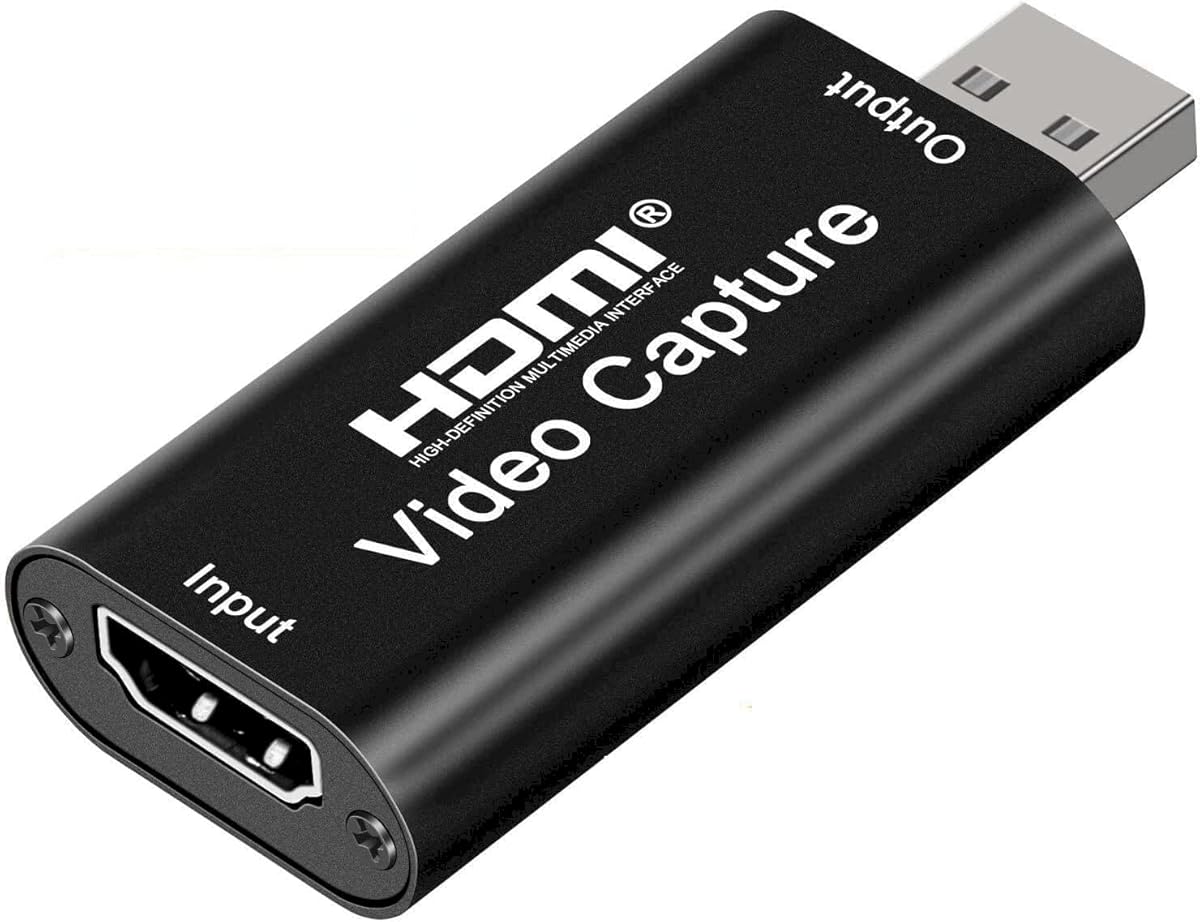
Audio Express AXHDCAP
4.4Editor score
USB 2.0 capture connection
1080p 30fps output
Driver-free setup
Our HDMI to USB capture device guide compares 10 options for resolution, latency, audio, loop-out, compatibility, portability, and ease of use in 2026.
An HDMI to USB capture device turns an HDMI source into a webcam-style video input for a computer, making it useful for game recording, livestreaming, presentations, teaching, and camera capture. The best unit matches the source resolution, maintains responsive performance, transfers clean audio, and works smoothly with the software already installed on your system.
We compared the ten products using their stated input and output resolutions, USB interfaces, latency characteristics, audio features, supported devices, physical design, and setup requirements. The list covers inexpensive plug-and-play models, portable dual-interface options, cards with loop-out or microphone inputs, and a more specialized premium capture device.
Each review explains the product's strongest use case and important limitations without claiming the hardware was personally tested. Ratings and specifications reflect the supplied product information, while availability and pricing can change at any time. Check the current listing and your source device before making a final purchase.
4.4Editor score

4.5Editor score

4.7Editor score
The comparison below highlights each card's core capabilities, including maximum capture format, USB connection, audio or monitoring features, and primary compatibility advantages.
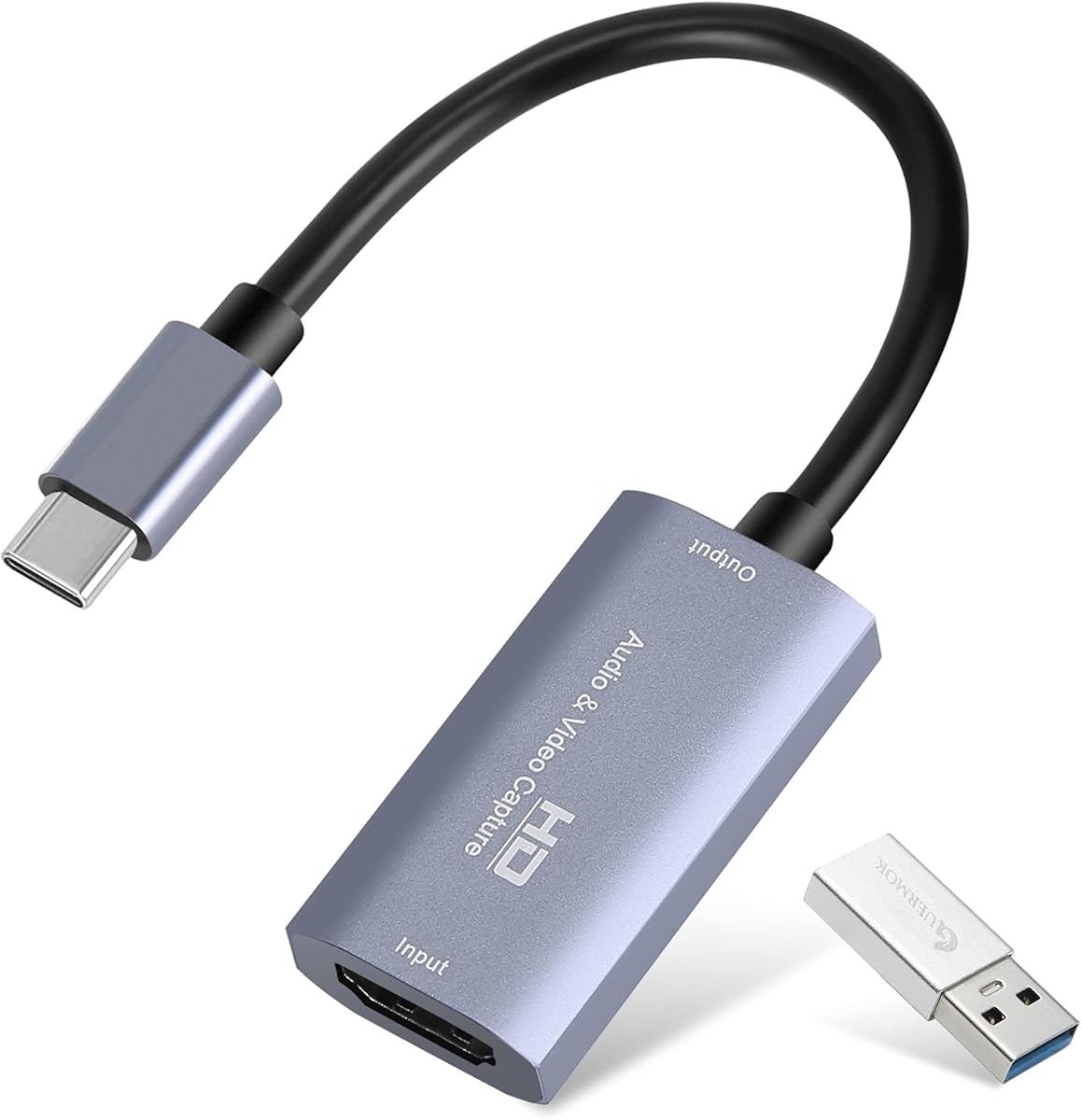


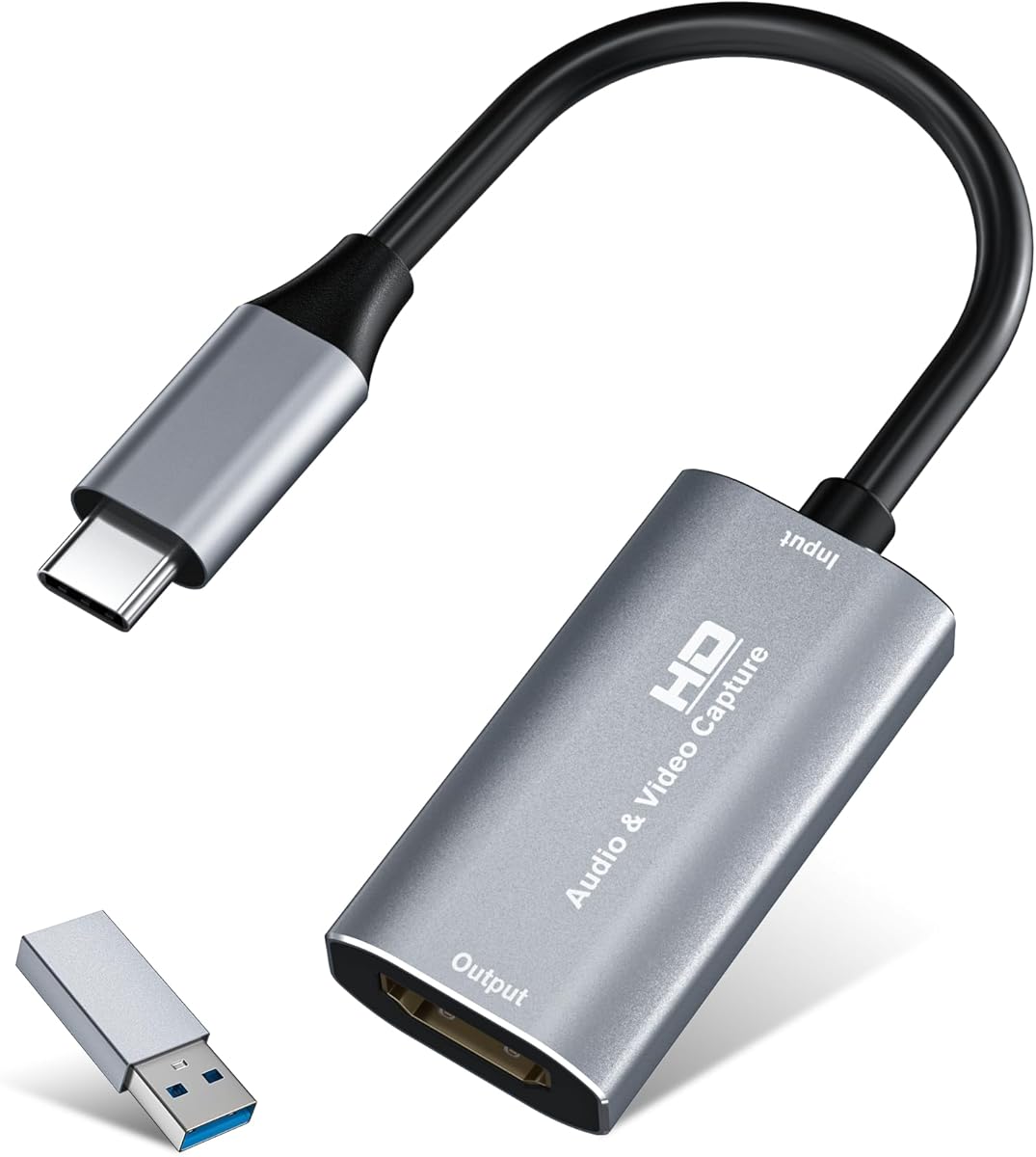


The Guermok Video Capture Card carries a 4.4 rating and offers one of the broadest compatibility lists in this guide. Its stated capabilities include 4K30 HDMI input, 2K30 or 1080p60 capture, and a USB 3.0 Type-C connection. It is positioned as a portable option for streaming, recording, meetings, teaching, and game capture.
We may earn a commission when you buy through this link, at no additional cost to you.
The package includes the capture card, a USB 3.0-to-USB-C adapter, and a user manual. Because the adapter has a USB 3.0 A-side and USB 2.0 B-side, the correct orientation matters when bandwidth-intensive capture is required. The product uses an aluminum-alloy housing to improve heat dissipation and requires neither additional drivers nor an external power supply.
The main compromise is that this is a capture-only, one-way device, not an HDMI output adapter. It cannot add an HDMI output to a computer, and signal loss may occur if the connection drops. Different formats such as MJPEG and YUY2 also support different resolutions, so the desired recording configuration must be selected carefully in the capture application.
This model makes sense for mobile creators who need a small capture card for consoles, cameras, laptops, or tablets. It is a particularly accessible option when USB 3.0 plug-and-play operation and broad operating-system support matter more than local loop-out monitoring.
Its compact Type-C design and included adapter make the card easy to carry between a desktop streaming setup and a mobile recording location. Connecting it to a genuine USB 3.0 port gives the system the bandwidth needed for the advertised higher resolutions.
The HDMI-to-USB path is designed to bring source video into a computer rather than send a computer's display to a television. Users who need pass-through viewing on a separate display should look for a model with explicit HDMI loop-out.
We may earn a commission when you buy through this link, at no additional cost to you.
The acer Video Capture Card has a 4.3 rating and combines a compact 2-in-1 USB-A and Type-C interface with support for 1080p60 capture. Its listed source support includes cameras, laptops, tablets, PS4, PS5, Nintendo Switch, and Oculus Quest 2 or 3, giving it broad appeal for gaming and general video work.
We may earn a commission when you buy through this link, at no additional cost to you.
The supplied information describes a USB 3.0 interface with bandwidth up to 5Gbps and an aluminum casing intended to dissipate heat during prolonged high-bandwidth operation. It supports Windows, macOS, Linux, and Android, plus iPadOS 17 or later. The listed software environments include OBS Studio, QuickTime Player, TikTok, Twitch, and YouTube.
Despite its versatility, the card supports only one-way HDMI-to-USB transmission. It is therefore not intended to add an HDMI output to a computer. Performance also depends on using a USB 3.0 port; older USB connections may not sustain the card's preferred capture formats or resolutions.
This is a strong fit for users who want one small device to connect different source equipment and computers without carrying several adapters. It is less suitable when HDMI pass-through, professional diagnostic controls, or a long-term continuous-operation design is essential.
Having both USB-A and Type-C connectors reduces friction when moving between desktop towers, modern laptops, and compatible mobile devices. The dual-interface approach is especially helpful for creators who do not want to depend on a particular adapter shape.
The stated 1080p60 mode suits gameplay, online meetings, and conventional livestreams where smooth motion and manageable bandwidth are more important than capturing at native 4K.
We may earn a commission when you buy through this link, at no additional cost to you.
The Magewell USB Capture HDMI Gen 2 has the highest rating in this selection at 4.7 and is the clearest premium-oriented recommendation. It captures HDMI video and audio up to 2048×1080 at 60fps in 4:4:4, with processing designed for professional workflows and reliable operation.
We may earn a commission when you buy through this link, at no additional cost to you.
Its FPGA-based video processing handles cropping, scaling, de-interlacing, color conversion, and flipping or mirroring directly on the device. That approach is intended to reduce CPU load. The hardware also supports 24/7 operation, includes thermal protection and status LEDs, and works with Windows, macOS, Linux, and Chrome OS.
A USB Capture Utility provides control over EDID, resolution, frame rate, firmware, logs, and diagnostics. These are meaningful advantages for broadcast, live production, installation, and troubleshooting work. The trade-off is that this is a substantially more specialized and expensive product, while its maximum recording resolution remains 1080p60.
Choose the Magewell when uptime, diagnostic control, and dependable video processing justify a premium purchase. For a casual streamer recording a console at 1080p, the simpler alternatives in this guide may provide a more practical path.
FPGA-based scaling, cropping, color conversion, and de-interlacing can make the workflow more predictable. It also shifts routine processing away from the host computer, which is valuable in demanding production environments.
The control utility gives users access to EDID, firmware, logs, resolution, and frame-rate settings. Those tools are valuable when integrating a capture card into a fixed studio or troubleshooting a recurring signal problem.
We may earn a commission when you buy through this link, at no additional cost to you.
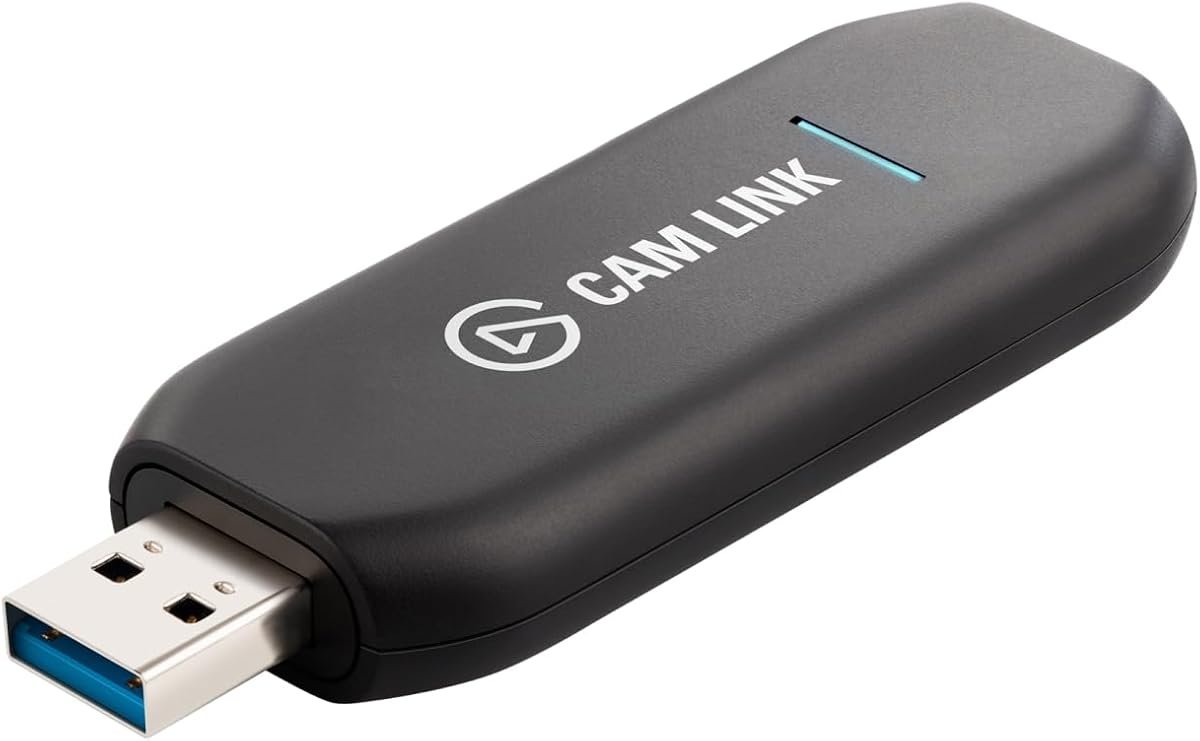
The Elgato Cam Link 4K holds a 4.6 rating and is designed primarily to turn a compatible camera into a computer webcam. It supports recording and streaming in 1080p60 and, with a compatible camera and the latest Cam Link 4K model, up to 4K60. It can also accept a camcorder, action camera, or iPhone.
We may earn a commission when you buy through this link, at no additional cost to you.
The hardware interface uses USB 3.0 and a USB-A connector, giving the device a straightforward connection to compatible computers. Its stated low latency is designed to keep video and audio synchronized. The supplied information also describes real-time preview on an iPad through USB-C, although the exact setup should be checked for current compatibility.
This product is less oriented toward users who need a console capture card with HDMI loop-out or a choice of USB-A and Type-C computer connectors. Camera support also depends on the camera's video output, clean HDMI behavior, and whether it can supply the desired resolution and frame rate.
The Cam Link 4K is an excellent choice for streamers and remote presenters who already own a quality camera and want to use it as a webcam. It is less versatile for a mixed setup of game consoles, set-top boxes, and computers.
A compatible DSLR or mirrorless camera may offer cleaner image quality, interchangeable lenses, and greater control than a typical built-in webcam. The Cam Link acts as the bridge that makes that hardware visible to conferencing and streaming software.
The advertised 4K60 capability requires compatible camera hardware, not just the capture card. Owners should verify the camera's clean HDMI output, supported frame rates, and whether the latest model is required before expecting the headline resolution.
We may earn a commission when you buy through this link, at no additional cost to you.
The UGREEN 2K@30Hz 1080P 60FPS Video Capture Card earns a 4.5 rating and offers the most balanced combination of capture formats, interfaces, and compatibility in this guide. It accepts 4K30 HDMI input while capturing at 2K30 or 1080p60, giving creators useful options for different recording environments.
We may earn a commission when you buy through this link, at no additional cost to you.
Its USB 3.0 path is described as operating at up to 5Gbps, with both USB-A and USB-C interfaces included. The aluminum-alloy housing is intended to dissipate heat and shield against electromagnetic interference. The built-in cable uses tinned-copper conductors, adding a focus on stable signal transmission.
The product supports Windows, macOS, Linux, and compatible phones or tablets. Listed sources include Switch, Switch 2, PS4, PS4 Pro, PS5, Xbox Series X, and Meta Quest 3 or 2. Consoles must have HDCP turned off, and iPad use requires iPadOS 17 or later.
This card is the most versatile recommendation for a typical creator who moves between consoles, cameras, laptops, and tablets. It is not a true 4K capture card—the 4K figure applies to input—and it may not be the right choice for a permanent broadcast installation.
The difference between source and capture resolution is important: 4K30 input preserves an incoming high-resolution signal, while the card outputs up to 2K30 or 1080p60. This makes it adaptable to both detailed post-production sources and smoother high-frame-rate gameplay.
USB-A and USB-C connectors make the same device practical across desktop and portable computers. A genuine USB 3.0 connection remains important for the smoothest results and for maintaining the higher stated bandwidth.
We may earn a commission when you buy through this link, at no additional cost to you.
The Rybozen Capture Card has a 4.3 rating and focuses on straightforward HDMI game capture with a useful combination of loop-out and microphone support. It captures up to 1080p and works with sources including PS4, PS3, Xbox One, Xbox 360, Wii U, DVDs, DSLRs, cameras, security cameras, and set-top boxes.
We may earn a commission when you buy through this link, at no additional cost to you.
Its HDMI loop-out allows a display to remain connected while the card sends the captured signal to a computer. A 3.5mm TRS microphone input lets a streamer add commentary directly through a compatible headset. The card identifies itself as a webcam automatically, needs no driver or external power, and supports Windows and macOS.
The input can accept higher HDMI formats, including 4K30/60 and 1080p120/144 according to the supplied listing, but output is limited to 2K30. The microphone jack is restricted to 3.5mm TRS standard microphone headsets, so owners using a standalone microphone may still need appropriate audio-routing equipment.
This is a practical choice for console streamers who want both pass-through viewing and a dedicated commentary connection. Buyers prioritizing maximum resolution, a Type-C interface, or direct control over professional diagnostic settings should consider a higher-end alternative.
HDMI loop-out is valuable when the creator wants the game visible on a television while OBS records it. The design preserves a simple HDMI chain while sending the capture feed to the computer over USB.
The built-in 3.5mm input is convenient for compatible gaming headsets. It reduces the need to route commentary through desktop mixers, although users should confirm that their headset terminates with the expected TRS standard.
We may earn a commission when you buy through this link, at no additional cost to you.
The Audio Express AXHDCAP has a 4.4 rating and offers an approachable way to begin HDMI capture. It accepts HDMI input as high as 3840×2160 at 30Hz and captures through USB at up to 1920×1080 at 30Hz, with support for rich stereo sound in the supplied product information.
We may earn a commission when you buy through this link, at no additional cost to you.
The device works without additional drivers or external power. It is compatible with Windows, macOS, and Linux and is listed for use with OBS, Twitch, YouTube, Zoom, PotPlayer, VLC, and other common capture and streaming applications. Its stated uses include video recording, conferences, teaching, medical imaging, and game streaming.
The decisive limitation is the USB 2.0 interface. The product is explicitly not compatible with USB 3.0 recording speeds or formats beyond 1080p30. Users should not mistake 4K HDMI input for 4K USB capture, and OBS or comparable software is still required for proper recording setup.
The AXHDCAP is a sensible budget choice for classroom presentations, basic webcam-style capture, and straightforward 1080p streaming. It is not appropriate for high-frame-rate gaming capture, demanding post-production, or installations that need USB 3.0 bandwidth.
The card limits output to 1080p30, which is adequate for many meetings, lessons, and casual broadcasts. Simplicity and broad software acceptance make it easier for first-time users than a more specialized production device.
Stereo audio support makes the device useful when the source supplies both picture and sound over HDMI. Users should still configure the correct audio device in their capture software and test the path before a live session.
We may earn a commission when you buy through this link, at no additional cost to you.
The Silver USB3.0 HDMI to USB C capture card has a 4.4 rating and is built around portable recording. It supports 4K30 HDMI input, 2K30 or 1080p60 recording, and a true USB 3.0 Type-C connection. The aluminum-alloy shell and lightweight form are intended for mobile and travel use.
We may earn a commission when you buy through this link, at no additional cost to you.
No driver or external power is required, and the package includes a USB 3.0-to-USB-C adapter and a user manual. Listed compatibility covers Windows 7, 8, 10, and 11, macOS, Linux, and Android, along with OBS, Zoom, VLC, and Twitch Studio.
The card works with PS4, PS5, Xbox, Switch, DSLRs, and TV boxes, but the listing does not advertise HDMI loop-out. Tablet use requires OTG to be enabled. The supplied troubleshooting advice recommends testing the HDMI source with a monitor first to confirm that video and audio are available.
This model is well suited to mobile creators and streamers who need 1080p60 or 2K30 in a compact package. Those who need local pass-through monitoring or professional configuration utilities should choose a card designed around those features.
The small housing, included adapter, and lack of external power requirement reduce the equipment needed for a temporary recording setup. It can move between a home computer, a laptop, or a compatible mobile workflow more easily than a full production card.
Checking the source on a monitor before connecting the capture card isolates source problems from computer capture problems. This quick test is especially helpful when a console, camera, or television must be moved between locations.
We may earn a commission when you buy through this link, at no additional cost to you.
The acer USB 3.0 HDMI Capture Card has a 4.5 rating and emphasizes low-latency streaming with 1080p60 output. It accepts 4K HDMI input, supports YUY2 as well as compressed capture formats, and includes HDMI loop-out for users who want to monitor the source on a local display.
We may earn a commission when you buy through this link, at no additional cost to you.
A 3.5mm microphone connection allows a headset or microphone to be connected directly for commentary, classes, or vlogging. The listing emphasizes synchronized voice and video, while the aluminum-style portable construction and lack of drivers or external power simplify deployment.
Compatibility includes OBS, XSplit, VLC, YouTube, Facebook, and Twitter, along with Switch, Switch 2, PS5, PS4, Xbox, DSLRs, PCs, macOS, and Android. The maximum 1080p60 output is sufficient for many streams, but it is not equivalent to capturing a full 4K source at native resolution.
This acer model is a strong fit for streamers who specifically want loop-out, direct microphone input, and YUY2 quality in a compact device. It is less suitable for users whose priority is 2K capture or professional diagnostic controls.
YUY2 avoids the heavier compression associated with formats such as MJPEG and can provide richer color results. It also increases data demands, so a capable USB 3.0 port and a computer able to manage the selected format remain important.
The HDMI loop-out makes the card convenient for a two-screen arrangement. A local display can show the program or game while the computer receives the USB capture feed for recording and broadcasting.
We may earn a commission when you buy through this link, at no additional cost to you.
The UGREEN 4K@30Hz Loop Out HDMI Capture Card has a 4.4 rating and combines 4K30 loop-out with capture at 2K30 or 1080p60. It supports MJPEG and YUY2, giving users a choice between efficient compression and higher-quality uncompressed-style capture depending on their computer and workflow.
We may earn a commission when you buy through this link, at no additional cost to you.
USB 3.0 Type-C and Type-A interfaces provide flexible computer connectivity. The aluminum casing promotes durability and heat dissipation, and the device needs no driver installation or external power on modern systems. Windows 7 users are specifically instructed to install USB 3.0 drivers.
The product supports Windows, macOS, Linux, and Android, with listed source compatibility for Nintendo Switch, Switch 2, PS4, PS5, Xbox Series X, and Meta Quest 3 or 2. It works with OBS, XSplit, PotPlayer, and other software. iPhone is excluded because it does not support the required UVC protocol, and Fire TV Stick is not compatible.
This UGREEN model is appealing for creators who need both local monitoring and selectable video formats. Remember that 4K applies to input and loop-out, not the recorded output; actual capture tops out at 2K30 or 1080p60.
The 4K30 loop-out can provide a convenient local preview when the source and display support the format. It creates a practical workflow for multi-display creators who want immediate visual feedback while recording.
MJPEG can reduce the amount of data transferred for compatible workflows, while YUY2 prioritizes uncompressed color detail. The better choice depends on the available USB bandwidth, processing power, storage plan, and requirements of the capture application.
We may earn a commission when you buy through this link, at no additional cost to you.
The right capture device depends on the source, required recording format, computer ports, audio workflow, monitoring needs, and expected operating duration. Comparing these factors before buying prevents disappointing resolution limits or compatibility surprises.
A capture card may accept a high-resolution HDMI source while recording at a lower USB output resolution. This distinction appears throughout the product data: several devices support 4K30 input but capture no higher than 1080p60 or 2K30, while the Magewell explicitly records up to 1080p60 in 4:4:4. Check both numbers, and also confirm that the source itself can produce the desired frame rate and color format.
Choose the output your computer, software, storage, and internet connection can handle. Do not assume a 4K input specification means the capture file will be 4K.
USB 3.0 provides the bandwidth needed for smoother high-resolution and high-frame-rate capture, while USB 2.0 models generally limit practical output to 1080p30 or other reduced formats. Devices offering both USB-A and Type-C are more flexible across modern and older computers. Confirm that the connection is a genuine high-speed port rather than a hub or adapter bottleneck.
Use USB 3.0 whenever the product supports it, especially for YUY2, 1080p60, or 2K30 capture. Match the connector and adapter orientation carefully to avoid accidental USB 2.0 operation.
Low latency matters for interactive gaming, live teaching, and live events where a visible delay can disrupt the experience. Product descriptions commonly cite ultra-low latency, but every capture process includes decoding and software processing. Frame rate, source stability, and correct format selection also influence whether motion appears smooth.
For real-time interaction, favor a model that explicitly states low latency and supports the frame rate you need. Test the complete source-to-software path before a critical session, because device descriptions cannot account for every computer configuration.
A capture card without HDMI loop-out sends video to the computer but may not let a separate display show the source simultaneously. Loop-out is valuable for gaming on a television, operating a multi-monitor studio, or teaching with a local confidence monitor. The Rybozen, one acer model, and the UGREEN 4K Loop Out explicitly include this feature.
Choose loop-out when local monitoring is part of the workflow. If you only need the computer to recognize the source as a camera, a simpler one-way capture device may be sufficient.
HDMI sources may carry stereo audio, but a creator also needs a way to add live commentary. Some cards expose a 3.5mm microphone input, while others rely on the computer's own microphone or software mixing. The Rybozen and one acer model support 3.5mm headsets; users should verify TRS compatibility and whether their preferred microphone needs additional hardware.
Decide whether you need source audio, live narration, or both. Test the selected device in OBS or another application, check monitoring behavior, and avoid a sudden audio mismatch during a broadcast.
Compatibility extends beyond the physical HDMI and USB connectors. Consoles may need HDCP disabled, cameras may require clean HDMI output, and mobile devices may need a particular operating-system version, OTG support, or UVC compatibility. The supplied lists include Windows, macOS, Linux, Android, selected iPadOS versions, Switch, PS4, PS5, Xbox, cameras, and streaming applications.
Check the exact source, computer operating system, application, and resolution together. Products explicitly exclude iPhone or Fire TV Stick in this guide, and several require updated iPadOS releases.
A compact aluminum body is useful for creators who record at different locations. Many of the smaller cards need no external power, making them convenient to pack with a laptop. By contrast, the Magewell is designed around sustained operation, thermal protection, diagnostics, and a longer-term production role rather than minimal size.
Choose a portable model for travel and temporary setups. For a fixed studio that runs for long periods, prioritize thermal management, system controls, and warranty support over the smallest possible footprint.
Most consumer-oriented devices are recognized by software such as OBS, XSplit, VLC, PotPlayer, or QuickTime and work without additional drivers. The Magewell adds a control utility for EDID, resolution, frame rate, firmware, logs, and diagnostics. Such tools are most useful in permanent installations, troubleshooting-heavy workflows, and professional production environments.
Basic streamers can usually rely on standard capture software. Install the required application first, confirm the source appears, and then adjust format and resolution settings before recording.
Begin by connecting the HDMI source to the capture card and the card's USB-A or USB-C interface to a powered computer. Use the specified high-speed port, install OBS Studio or another compatible capture application, and select the capture device as the video source. On mobile systems, enable OTG or confirm that the required operating-system version and UVC support are available.
Configure the desired resolution and frame rate inside the capture software rather than assuming the source's native format will be selected automatically. Choose MJPEG or YUY2 according to the device's support and available bandwidth. After adding a microphone or configuring HDMI audio, restart OBS when required by the card's instructions and test the audio and video paths before going live.
For long sessions, provide ventilation around the aluminum housing, avoid sharply bent or poorly seated cables, and secure the connections without placing strain on the HDMI port. If a source is not detected, test it directly on a monitor, reconnect the capture card, and review the software settings. Do not attempt to use a capture-only device as an HDMI output adapter.
No. The products in this guide capture an HDMI source and send it into a computer through USB. They are not designed to take a computer's image and transmit it to a television or monitor. Anyone seeking that function needs a separate video encoder or an appropriate USB-to-HDMI output adapter.
Not necessarily. Many of the listed cards accept a 4K30 signal but record at 2K30, 1080p60, or 1080p30. Review the source resolution, capture output resolution, frame rate, and color format separately before assuming that a 4K input will produce a 4K recording.
USB 2.0 can support basic capture, but it limits bandwidth and is most appropriate for reduced formats such as 1080p30. The Audio Express AXHDCAP is explicitly a USB 2.0 product. For 1080p60, 2K30, YUY2, or smoother results, use a USB 3.0 device and a genuine USB 3.0 port.
HDMI loop-out passes the incoming signal to another HDMI display while the capture card simultaneously sends video to the computer. It is useful for gaming on a television, monitoring a camera on a local screen, and operating a multi-display setup. A capture card without loop-out may require a separate splitter to view the source locally.
HDCP protection is a common reason. The listed compatibility notes for several products specify that HDCP must be turned off on compatible PS4, PS5, Switch, and Xbox devices. Also confirm that the console is outputting the expected resolution, the source works on a direct monitor connection, and the capture software is using the correct device and format.
It depends on the device and operating system. The UGREEN models mention iPad support with iPadOS 17 or later, and the Elgato listing describes iPad monitoring through USB-C. The UGREEN 4K Loop Out explicitly says iPhone cannot act as a data-acquisition device because it lacks UVC support. Check each product's stated exclusions and test the exact mobile combination.
Most of the consumer-oriented models in this guide are described as driver-free and plug-and-play. Magewell also works across major desktop and Chrome OS environments and provides a utility for deeper configuration. Older systems may still need appropriate USB 3.0 drivers, and the capture application itself must be installed and configured.
Yes, when the HDMI source supplies compatible audio and the capture application is configured to use the card's audio channel. Several products advertise stereo audio, and some include 3.5mm microphone inputs for commentary. Test both paths before a live session and restart the capture software after audio changes if the product instructions call for it.
The UGREEN 2K@30Hz capture card is the strongest all-round choice for most creators because it combines 4K30 input, 2K30 or 1080p60 capture, USB-A and USB-C, broad source support, and a durable housing. The Audio Express AXHDCAP serves budget-focused users who need simple 1080p30 capture with stereo audio, while the Magewell USB Capture HDMI Gen 2 is the premium option for controlled production work and sustained operation.
Before buying, prioritize the capture output rather than the input headline, confirm the computer has the correct USB generation, and check whether the source needs HDCP disabled. Loop-out, microphone input, video format, and diagnostic controls should be selected according to the workflow rather than treated as optional extras.
Product availability, ratings, and pricing can change, so review the current listing before ordering. Checking the device's latest specifications and software guidance can also clarify compatibility details that may have been updated since the supplied product information was published.