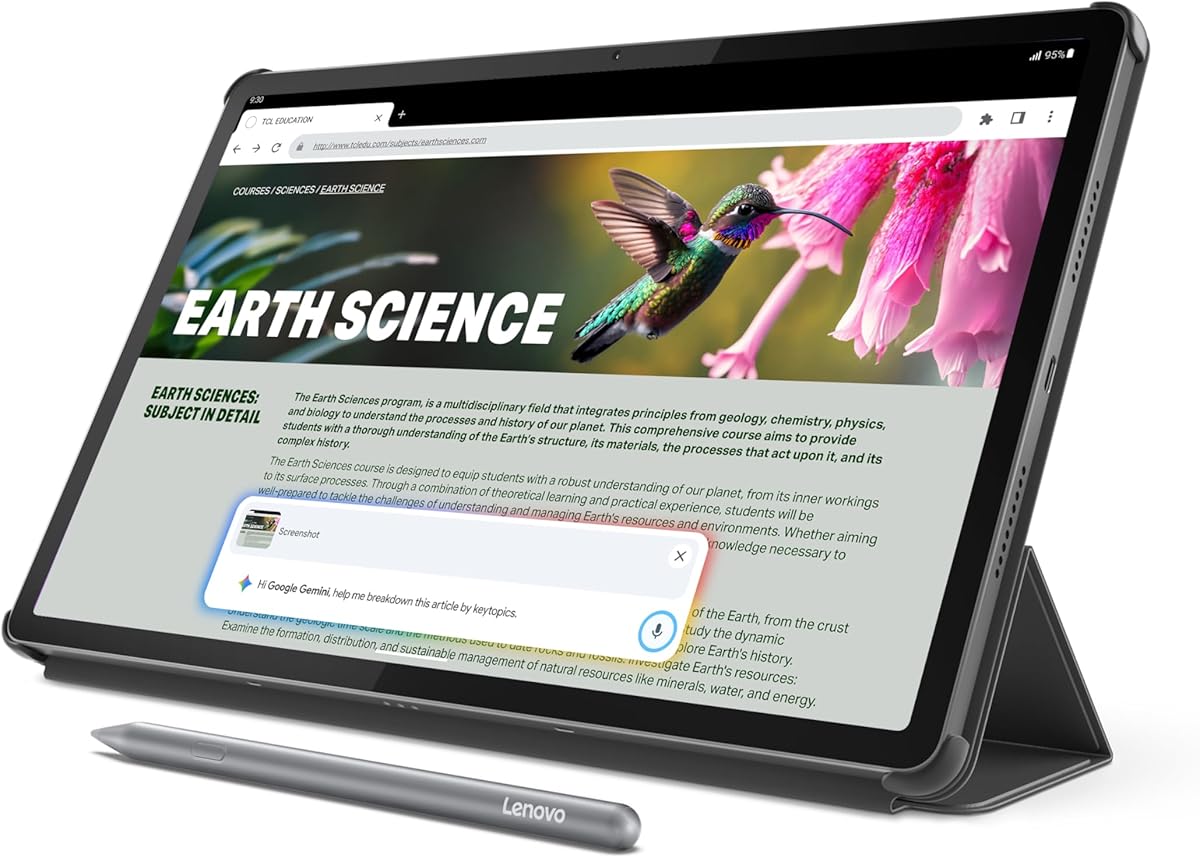
Lenovo Idea Tab Pro
4.6Editor score
12.7-inch 3K LCD
Pen and folio included
Dimensity 8300 processor
11-hour video playback
The best tablet for an architect or designer must balance a precise, detailed display with comfortable pen input, dependable note capture, and enough power for drawings, models, and reference documents. Screen size, portability, battery life, and software compatibility can matter as much as raw performance, especially when work moves between a desk, a site visit, and a client presentation.
This guide compares ten tablets spanning productivity-focused models, paper-like writing devices, standalone drawing tablets, and screenless graphics pads. We evaluated the supplied specifications, display dimensions, stylus capabilities, portability, storage, creative features, and intended workflows, while distinguishing between computers, mobile devices, and fully self-contained creative tools.
Each pick reveals what type of architect or designer it is best suited to, from rapid concept sketches and construction markup to PDF review, presentation work, and detailed digital illustration. Product configurations, software capabilities, and prices can change, so readers should verify the current listing and compatibility before making a final purchase.
4.6Editor score

4.3Editor score

4.7Editor score
As an Amazon Associate we earn from qualifying purchases.
The following comparison shows how the ten products differ in display, input, portability, and creative workflow, helping architects and designers identify the most suitable type of tablet for their work.




The Lenovo Idea Tab Pro Gen 2 is an unusually complete productivity tablet for architects and designers, combining a large 13-inch 3.5K IPS touch display with a 144Hz refresh rate and a supplied pen and folio case. Its 4.3 rating reflects a capable general-purpose device built around study, document review, visual organization, and pen-enabled productivity rather than a conventional desktop-replacement display.
We may earn a commission when you buy through this link, at no additional cost to you.
The headline appeal is the combination of resolution, brightness, and smooth interaction. An 800-nit panel should make plans and reference material easier to examine in bright environments, while TÜV Rheinland Low Blue Light and Flicker Free certification addresses prolonged viewing. Smart Capture can pull visuals into Lenovo Notepad, while Sketch to Image and other tools help transform rough marks and captured details into more useful working material.
Its AI-assisted workflow goes beyond simple transcription. Lenovo AI Live Transcript can capture meetings and classes continuously, saving notes automatically for later summaries and key takeaways. Lenovo AI Notes can summarize, rewrite, or continue long passages, making the tablet useful for converting site discussions, lecture content, and document review into structured records. The Snapdragon 8s Gen 4 platform and integrated NPU support these functions alongside demanding applications and multitasking.
This is the strongest all-around recommendation for a designer who wants a large display, portable pen input, and sophisticated note processing in one device. It is better suited to general architecture and design work than to specialized illustration, where a dedicated pen-display response or higher-end application performance may matter more. Buyers should also consider the 128GB storage capacity when managing large project files, though the included pen, folio, vivid screen, and flexible document tools make it especially convenient.
The 13-inch 3.5K display gives floor plans, elevations, sketches, and reference images enough room to be reviewed without constant zooming. Its 144Hz refresh rate also makes pen interaction and ordinary navigation feel responsive, while 800-nit brightness supports use in studios, classrooms, and less controlled work environments.
Continuous transcription, image capture, handwriting cleanup, and AI-assisted summarization can shorten the path from a raw meeting or visual reference to organized project information. These functions are particularly useful for architects balancing discussions, visual feedback, and written requirements across multiple project phases.
We may earn a commission when you buy through this link, at no additional cost to you.
The reMarkable Paper Pro is designed for architects and designers who prefer the feel of writing on paper to the distractions of a conventional screen. It earns a 4.2 rating and stands apart with an 11.8-inch color Canvas display, a realistic low-glare surface, and the Marker Plus stylus, which includes a built-in eraser.
We may earn a commission when you buy through this link, at no additional cost to you.
Its primary strength is the writing experience. The Marker Plus is tuned specifically for the color display, providing precise control and natural resistance rather than the gliding sensation common on smooth glass. Architects can annotate drawings, add handwritten notes to PDFs, sketch early ideas, and organize material without switching between multiple note formats. Folders and tags help maintain a searchable archive of project information.
The reading experience is equally thoughtful. A low-glare display reflects ambient light instead of emitting a harsh glare, which can make long periods of plan review and documentation more comfortable. An adjustable reading light extends usability into darker offices or evening travel periods. Although the device is often associated with monochrome notes, this model supports color writing, sketching, and reading.
The trade-off is specialization. The reMarkable Paper Pro is not designed to replace a high-performance laptop, run intensive 3D applications, or serve as a conventional color-accurate graphics display. It is most valuable for consultants, architects, and designers who spend much of their day reading documents, recording decisions, and marking up plans. For that user, the natural writing feel and focused interface outweigh the limitations of a general-purpose tablet.
The included Marker Plus and paper-like surface make the device appealing for rapid field notes and precise margin annotation. Its built-in eraser is convenient during revisions, while color support expands the range available for diagrams, sketches, and highlighted project details.
Folders, tags, PDF markup, and handwriting conversion create a practical central archive for plans and meeting records. The distraction-free environment can help users concentrate on the content rather than notifications or conventional multitasking.
We may earn a commission when you buy through this link, at no additional cost to you.
The Lenovo Idea Tab Pro is a strong value-oriented choice for architecture and design students, with a 4.6 rating and a generous 12.7-inch 3K LCD. It includes a Tab Pen Plus and folio case, making it ready for sketching, reading, annotations, research, and presentation preparation without requiring separate accessory purchases.
We may earn a commission when you buy through this link, at no additional cost to you.
The MediaTek Dimensity 8300 processor supports smooth multitasking, and Wi-Fi 6E helps with fast wireless transfers and online research. Its display is tuned for detailed reading with Low Blue Light certification and selectable mono and chromatic visual modes. Quad JBL speakers with Dolby Atmos add useful capability when reviewing presentations or consuming educational material away from a desk.
Google Gemini and Circle to Search add practical study and research tools. Users can circle visible content with a finger or included pen and initiate a search without manually creating screenshots. These functions are useful when researching materials, identifying unfamiliar design references, or moving quickly between a drawing and supporting information. The tablet also supports 11 hours of advertised unplugged video streaming and 45W charging.
For students and early-career professionals, this device balances display quality, stylus support, and software features effectively. Its 128GB storage and 8GB memory are less generous than premium alternatives, so large project libraries may require careful management. Even so, the included accessories, sharp panel, strong connectivity, and capable processor make it one of the most balanced choices for learning, reviewing references, and developing early concepts.
Circle to Search and Gemini can shorten the research process when a designer encounters an unfamiliar object, material, symbol, or visual detail in a reference image. These features complement the pen and make the tablet useful for both active study and quick investigation.
The included pen and folio create a straightforward portable kit for lectures, studio work, and client conversations. Long advertised video playback and rapid charging reduce the likelihood that battery management will disrupt a full day of review and note-taking.
We may earn a commission when you buy through this link, at no additional cost to you.
The UGEE M708 V2 is an affordable pen display for architects and designers who already work primarily on a computer. Its 4.4 rating reflects a capable combination of a 10 by 6.25-inch active area, a battery-free stylus, 16,384 pressure levels, and eight customizable shortcut keys.
We may earn a commission when you buy through this link, at no additional cost to you.
Because the device has no built-in screen, the user draws directly on the active surface while viewing the result on a connected display. It supports Windows, macOS, Chrome OS, Linux, and compatible Android devices, and it can work with major applications such as Adobe Photoshop, Illustrator, Lightroom, Corel Painter, Autodesk Maya, ZBrush, SketchBook, FlipaClip, and other drawing software.
Its pressure control is particularly relevant for line weight, shading, and the kind of varied stroke behavior architects and illustrators use when refining a concept. The stylus supports up to 60 degrees of tilt, while the shortcut keys can be assigned to common functions such as erasing, zooming, scrolling, and undo. Its slim, lightweight construction also makes it easier to carry than many larger pen displays.
This is not a portable standalone tablet and cannot replace a display-equipped device for travel or client-site sketching without a host computer. Its primary value is as an affordable, portable drawing surface for someone who already owns a capable workstation. For students learning visualization software or working designers who need more pen area than a compact tablet provides, it can be a practical lower-cost alternative.
The 16,384 pressure levels and tilt support give the passive stylus a broad range of line and shading behavior. This makes the M708 V2 useful for concept refinement, technical sketching, illustration, and detailed adjustments within compatible desktop software.
Eight customizable express keys streamline frequent actions without crowding the drawing area. Compatibility with major operating systems and creative applications also makes the tablet easier to introduce into an existing architecture or design workstation.
We may earn a commission when you buy through this link, at no additional cost to you.
The Apple iPad Pro 11-inch with the M5 chip is the premium choice for professionals who need serious performance, a high-quality display, and flexible workflows in a portable form factor. Its 4.7 rating is among the highest in this comparison, reflecting the strength of the M5 chip, iPadOS, ProMotion display, and advanced connectivity.
We may earn a commission when you buy through this link, at no additional cost to you.
The Ultra Retina XDR panel supports extreme brightness, precise contrast, P3 wide color, ProMotion, and True Tone, making it well suited to reviewing visual presentations, detailed drawings, photographs, and color-sensitive design work. A redesigned windowing system allows users to organize multiple apps and workflows more effectively, while on-device AI features can assist communication, writing, and everyday productivity.
Apple Pencil Pro and Apple Pencil USB-C provide precise control for drawing, annotation, and note-taking, while the Magic Keyboard adds a physical keyboard and haptic-feedback trackpad. Advanced capabilities include a landscape 12MP Center Stage camera, a 12MP Wide rear camera, adaptive True Tone flash, four studio-quality microphones, a four-speaker audio system, Face ID, and a LiDAR scanner.
Wi-Fi 7 with the Apple N1 supports quick transfers of photos, documents, and large video files, which matters when moving project information between devices or collaborating remotely. The 256GB configuration offers a more comfortable starting point for creative files than smaller-capacity tablets. The main consideration is that Apple Pencil and Magic Keyboard are separate accessories, so buyers should budget for the complete workflow rather than treating the tablet as an all-in-one sketch package.
Ultra Retina XDR technology, wide color support, True Tone, and adaptive flash make this a strong reference display for visual review. Its exceptional brightness and contrast also help fine details remain visible in demanding lighting and during presentation work.
iPadOS windowing and a broad professional application ecosystem allow the device to function as a portable review station, sketching surface, or presentation tool. The Apple M5 chip, Wi-Fi 7, and generous storage configuration support demanding creative workflows.
We may earn a commission when you buy through this link, at no additional cost to you.
The RubensTab T11 Pro is a standalone drawing tablet for architects and designers who want to sketch without carrying a computer. It has a 4.4 rating and pairs a 10.1-inch Full HD IPS display with a pressure-sensitive pen, built-in battery, Wi-Fi, and a selection of preinstalled creative applications.
We may earn a commission when you buy through this link, at no additional cost to you.
Its 1920 by 1200 screen provides a practical canvas for illustrations, concept sketches, meeting notes, and brainstorming. Because the device operates independently, it can be used at a site, during a workshop, or wherever ideas need to be captured without searching for a power source or external display. Multi-touch support allows zooming, panning, and scrolling alongside pen input.
The battery-free pen supports adjustable pressure and requires no charging of its own. Included drawing applications make the tablet accessible to beginners while still providing a platform for more experienced illustration work. An adjustable stand case supports desktop use and travel, and the 5800mAh battery is advertised for up to five hours of continuous use, with USB-C charging and compatibility with a mobile power bank.
It is also certified to GMS, FCC, and CE standards and includes a 12-month warranty. The trade-off is display quality: a Full HD panel cannot match the finer resolution, color capability, or sustained application performance of premium mobile tablets. For portable ideation, teaching, and casual professional sketching, however, the independence, included stylus, and manageable screen size make the T11 Pro a convincing option.
The self-contained design removes the need for a host device, allowing the tablet to function as an immediate creative station. This is especially useful for field sketching, client workshops, and presentations where carrying a laptop would be inconvenient.
The pressure-sensitive pen needs no battery, while the included adjustable stand provides a practical viewing angle at a desk. A modest 10.1-inch size balances useful drawing space with portability.
We may earn a commission when you buy through this link, at no additional cost to you.
The PicassoTab X14 is built for users who want a generous digital canvas without connecting a tablet to a computer. Its 14-inch laminated display, 4.2 rating, and standalone operating system make it a distinctive option for large sketches, visual workshops, tutorials, and extended drawing sessions.
We may earn a commission when you buy through this link, at no additional cost to you.
The fully laminated screen reduces parallax and glare, helping the active pen feel closer to a paper-like drawing surface. Its 4,096-level pressure sensitivity supports varied strokes for sketching, illustration, and detailed line work. Five preloaded applications cover drawing, painting, animation, tutorials, and guides, reducing the setup required before a user can begin a creative session.
Performance comes from an octa-core CPU, 6GB of RAM, and 128GB of internal storage that can be expanded to 1TB. The supplied package includes a tablet case, drawing glove, universal power adapter, and a preinstalled screen protector, along with lifetime upgrades for selected creative applications. This makes it relatively complete for a new standalone drawing setup.
The X14 is best understood as a large portable creative workstation rather than a conventional architecture tablet. Its size offers room for detailed drawings, floor-plan studies, and visual compositions, but it is less convenient to carry than an 11-inch model. It also lacks the specialized performance needed for demanding 3D and engineering applications, so users with intensive modeling requirements should verify software support before choosing it.
A 14-inch active area allows designers to spread out floor plans, diagrams, and composition studies without frequent zooming. The laminated construction also improves the relationship between the pen tip and the displayed line.
Preloaded creative software and included accessories make the tablet convenient for beginners and travelers. Expandable storage also provides room for growing collections of sketches, tutorials, and project assets.
We may earn a commission when you buy through this link, at no additional cost to you.
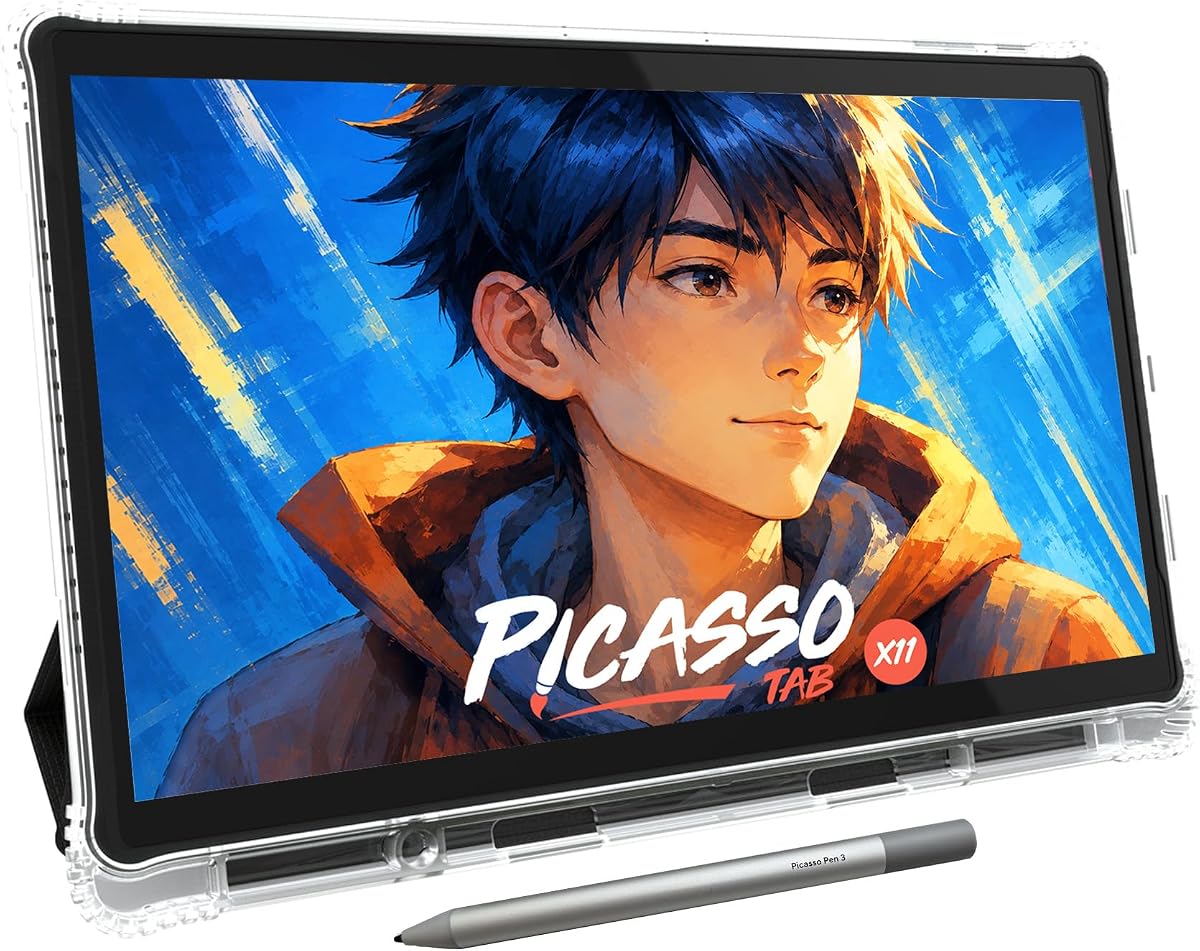
The PicassoTab X11 combines the portability of an 11-inch tablet with a fully standalone creative environment. Its 4.2 rating reflects a capable 2K laminated display, a pressure-sensitive stylus, and preinstalled tools for drawing, painting, animation, and learning without a separate computer.
We may earn a commission when you buy through this link, at no additional cost to you.
The laminated surface is designed to reduce parallax and glare, producing a more natural relationship between stylus placement and the line on screen. A 4,096-level stylus supports controlled strokes for sketches, shading, and illustration. Five preloaded apps cover a useful range of creative tasks, while the Artixo upgrade provides guided lessons and beginner-focused exercises.
An octa-core processor, 6GB RAM, and 128GB of expandable storage provide enough capacity for drawing applications, schoolwork, streaming, and everyday multitasking. Storage can be increased as needed, and Wi-Fi connectivity supports access to online resources and cloud services. The included case, glove, power adapter, and screen protector make the package convenient for travel and frequent use.
This is a balanced middle ground between the smaller RubensTab T11 Pro and the very large X14. It offers more canvas than an ordinary compact tablet while remaining easier to carry than a 14-inch model. Its limitations include general-purpose Android performance and the absence of a desktop-class application environment. For students, educators, illustrators, and architects who need an independent sketch-and-note device, it remains a versatile choice.
The 11-inch 2K display provides enough room for meaningful drawing without approaching the bulk of a 14-inch model. Its laminated construction improves precision and reduces reflections during long creative sessions.
Guided lessons, drawing guides, and five preloaded creative applications create a supportive starting point. Experienced users can still use the pressure-sensitive canvas for professional sketches, illustrations, and brainstorming.
We may earn a commission when you buy through this link, at no additional cost to you.
The Samsung Galaxy Tab S10 FE+ is a large, durable Android tablet aimed at users who want a substantial screen and useful pen features for daily work. Its 4.7 rating is among the strongest in the comparison, supported by a 13.1-inch display, S Pen functionality, water resistance, and a capable processor.
We may earn a commission when you buy through this link, at no additional cost to you.
For architects, the large screen helps with reviewing plans and drawing references, while the S Pen provides a natural way to annotate documents and sketch ideas. Handwriting Assist can straighten, align, and adjust the spacing of handwritten notes, which is particularly helpful when notes are captured quickly during meetings or site discussions.
The Circle to Search feature allows visual information to be circled and searched directly. Math Solver can convert written equations into editable text, adding a useful technical tool for early-stage design study and classroom work. The device also supports AI access through a keyboard hot key when paired with a compatible Samsung tablet keyboard.
Durability is a notable advantage for field-oriented users. Samsung describes the Galaxy Tab S10 FE Series as water resistant from droplets and splashes through full immersion. Fast charging helps maintain productivity, while microSD expansion offers additional file storage. This is a compelling Android choice for designers who need a large display, handwriting refinement, and rugged portability without moving into the premium performance class.
The S Pen supports natural handwritten input, while Handwriting Assist cleans up spacing and alignment. These tools are useful for turning rough meeting notes or rapid site annotations into documents that are easier to revisit and share.
Water resistance, fast charging, and expandable storage make the tablet suitable for travel and active project environments. The 13.1-inch screen offers a productive balance between visual workspace and portability.
We may earn a commission when you buy through this link, at no additional cost to you.
The Wacom Intuos Pro is a compact desktop drawing tablet for architects and designers who already rely on a Mac or Windows workstation. Its 4.6 rating and included Pro Pen 2 make it a familiar choice for illustration, graphic design, image editing, and precise digital drafting.
We may earn a commission when you buy through this link, at no additional cost to you.
The Pro Pen 2 provides 8,192 levels of pressure sensitivity, tilt recognition, two customizable switches, and virtually lag-free tracking. These features support natural line weight, shading, and technical strokes. Six ExpressKeys, the Touch Ring, touch gestures, and pen-side switches provide several ways to configure common tools and reduce reliance on menus during intensive work.
Its compact 10.6 by 6.7-inch dimensions preserve desk space while still providing a useful active area for sketches and detailed adjustments. USB and Bluetooth connectivity allow users to move between a wired workstation and a compatible wireless setup. The battery-free Pro Pen 2, pen stand, replacement nibs, USB cable, and quick-start guide are included, making the package functionally complete.
Like other screenless pen tablets, the Intuos Pro depends on a host display and therefore does not function as a portable standalone tablet. Its strength is the quality and consistency of the drawing interface within established desktop workflows. It is especially well suited to designers who value mature software compatibility, precise pen control, and a compact desktop footprint over having a built-in screen.
Pressure sensitivity, tilt recognition, customizable switches, and responsive tracking give the Pro Pen 2 the control expected from a professional drawing interface. These characteristics support both technical linework and expressive illustration.
ExpressKeys, the Touch Ring, gestures, and pen buttons allow tools to be placed where the user expects them. Wireless operation adds flexibility when the tablet is shared between a desk and meeting space.
We may earn a commission when you buy through this link, at no additional cost to you.
Choosing the right tablet begins with the type of work you perform, then requires balancing display quality, pen behavior, portability, software, and storage around your most common project tasks.
Standalone tablets, productivity tablets, paper-style writing devices, and screenless pen displays serve fundamentally different needs. A standalone model is useful for sketching away from a workstation, while a productivity tablet is better for documents, presentations, communication, and broad app support. A pen display requires a computer but can provide a dedicated and precise drawing area. Users who travel frequently may prefer a compact standalone tablet, whereas designers working at a fixed desk may get more value from a larger screen and mature application ecosystem.
Screen resolution determines how much fine linework and text can be seen at once, while display size affects sketching comfort and physical portability. A 13-inch or 14-inch canvas offers roomier space for plans and compositions, whereas an 11-inch display is often easier to carry. High-resolution panels such as 2K, 3K, and 3.5K can reveal subtle details, but resolution alone does not guarantee color accuracy. Low-glare, laminated, and high-brightness technologies may be more valuable for outdoor reviews or long drawing sessions.
Pressure levels, tilt recognition, latency, palm rejection, and the physical feel of the surface all affect the drawing experience. Pressure sensitivity enables variable line weights and shading, while tilt can support broader strokes and more natural rendering. A laminated, paper-like surface can reduce the visual gap between the pen tip and the displayed line. Standalone devices must also include a suitable pen, while desktop pen tablets should be checked for compatibility with the intended operating system and drawing application.
The best hardware is only useful when it can run the software required by your practice. Architects may depend on CAD, BIM, rendering, PDF management, and image-editing applications, while graphic designers often work in vector illustration, raster imaging, animation, and layout software. Verify operating-system support, pen pressure, zoom, pan, multi-touch, and shortcut behavior. A standalone Android drawing tablet may be ideal for sketches, but it will not replace specialized desktop software.
Document review and light sketching need less processing power than intensive rendering, animation, or large BIM environments. Modern processors and sufficient memory improve multitasking when drawings, PDFs, browser references, and communication tools are open together. Battery life matters even more on mobile assignments, so advertised video runtime is useful but not identical to real-world drawing time. Consider how long you work away from a outlet, whether a keyboard is needed, and whether the tablet can charge from the accessories already carried.
Design files, high-resolution images, video references, PDFs, and project archives can consume considerable storage. A configuration with 128GB may be adequate for focused document work, but users handling large media libraries should consider higher internal capacity or expandable storage where supported. Also check whether the operating system reserves part of the listed capacity, and whether files can be moved to external storage or cloud services without disrupting the apps used on site.
Screen size, weight, case design, and battery life influence whether a tablet remains practical for daily use. Larger canvases are better for detailed work but harder to carry, while smaller standalone devices fit more easily into a bag. A folio can protect a productivity tablet, and water resistance adds confidence for studios and field environments. Accessories such as stands, keyboards, power adapters, and replacement pen tips should also be considered as part of the working setup.
Features such as PDF markup, handwriting cleanup, continuous transcription, AI summaries, circle-to-search, color conversion, and low-glare reading can reduce friction in project administration. The most useful extras depend on your role. Architects reviewing drawings may prioritize annotation and document organization, while illustrators may favor pressure behavior and drawing apps. Avoid paying for advanced tools that do not support the actual tasks in your day.
Begin by configuring the display, pen sensitivity, palm rejection, shortcuts, and privacy settings before opening a live project. Create clearly named folders for client information, reference images, working drawings, and exports, and establish a routine for backing up critical files to a second location. On tablets with handwriting conversion or AI-assisted organization, check the resulting text before sharing it because formatting and recognition may still require correction.
Treat the screen and pen surface with care even when the device ships with a protector or folio. Keep the active area free of grit, avoid pressing excessively with a hard object, and use a soft microfiber cloth to remove fingerprints. Store the pen securely, replace nibs when they become rough, and use the included charging equipment for devices that specify a compatible power adapter. Water-resistant products still benefit from being dried and inspected after exposure to moisture.
For portable work, carry the tablet in its case and keep the pen in a dedicated compartment. Adjust screen brightness and text size for the location to reduce eye strain, and use the device's reading modes or low-glare surface during long reviews. Before critical client meetings, test Wi-Fi, file access, export settings, and battery status so that device maintenance does not become a presentation-day problem.
A standalone drawing tablet is usually better for quick sketching without a computer because it can start immediately and often provides a more paper-like drawing surface. An iPad is generally stronger for document management, communication, presentations, and professional applications. The best choice depends on whether your primary work is illustration, note-taking, drawing, or a combination of those tasks.
A built-in screen improves convenience because the user can draw without looking at a separate monitor. It also makes the device much easier to use during meetings, site visits, and fieldwork. Screenless graphics tablets can be excellent at a fixed desk, but they do not provide the same level of portability or independence.
The reMarkable Paper Pro is particularly focused on PDF annotation and a paper-like writing experience, while productivity tablets such as the Lenovo Idea Tab Pro, Galaxy Tab S10 FE+, and iPad Pro offer broader application support. The best option depends on whether natural handwriting, color rendering, app flexibility, or on-the-go performance matters more.
At least 128GB is a practical starting point for applications, notes, and a moderate project library. Designers who regularly handle high-resolution renders, video, large BIM files, or extensive image archives should consider more capacity or expandable storage. It is also wise to maintain an organized backup workflow rather than relying on internal storage alone.
A standalone tablet can support concept sketches, annotations, presentations, and some lightweight design work, but it does not generally replace a workstation running intensive CAD, BIM, rendering, or engineering tools. Many designers use a standalone tablet as a companion device for mobile capture and review while retaining a computer for intensive production.
Pen pressure sensitivity is especially useful when line weight and shading are important to the drawing style. It can help distinguish structural lines, softer annotations, shadows, and exploratory marks. For technical annotation alone, a responsive pen and good screen alignment may matter more, but pressure support adds value for architects who develop expressive diagrams or illustrations.
A paper-like or low-glare display is ideal for prolonged handwriting, document reading, and environments with strong reflections. A conventional high-resolution screen is better when color accuracy, multimedia, application flexibility, and detailed visual inspection are priorities. The reMarkable emphasizes paper-like use, while the iPad Pro and Lenovo models emphasize more conventional high-resolution displays.
An 11-inch model is generally easier to carry and can still provide a useful drawing area. A 13-inch model offers more space for floor plans, side-by-side references, annotations, and presentation material. Consider how often you will work on the move, the size of your usual drawings, and whether you prefer a lighter kit or a larger visual workspace.
The Lenovo Idea Tab Pro Gen 2 stands out as the most well-rounded option because it combines a large, bright 3.5K display with a pen, folio, and capable AI-assisted note tools. The Lenovo Idea Tab Pro offers a similar general-purpose experience with a 3K panel and strong value, while the Apple iPad Pro 11-inch is the premium selection for demanding performance, advanced visual quality, and a professional application ecosystem.
For different working styles, the reMarkable Paper Pro emphasizes natural writing and document review, the Samsung Galaxy Tab S10 FE+ combines a large screen with S Pen tools and durability, and the standalone PicassoTab models provide independent drawing spaces. The UGEE M708 V2 and Wacom Intuos Pro are better choices when the design work stays at a computer and a dedicated pen display is more valuable than portability.
Whichever direction you choose, prioritize the device that matches your actual workload rather than focusing on one specification alone. Check current product configurations, software requirements, stylus inclusion, and the latest listing details before ordering, since prices, bundles, and device options can change over time.